Join a Meeting as a Registered User
As a registered user, you can join a meeting by:
- clicking the meeting link in the invite received in Outlook or in any other email service provider
Note: To receive an email for meeting invites, a registered user must select the Always send me an email for meeting invites check box in the Meetings tab of the Settings panel. For details on how to select this check box, see Manage Mitel One Settings.
- clicking the Join now action card received in the messaging session
- clicking on the meeting from the Meetings menu of your Mitel One application, and then clicking the JOIN button from the meeting details page that opens
- dialing in to the meeting through PSTN using the dial-in number mentioned in the invite. For more information, see Join a Meeting using PSTN.
Note:
- A message (as shown in the following image) is displayed if you try to join a meeting that is deleted.
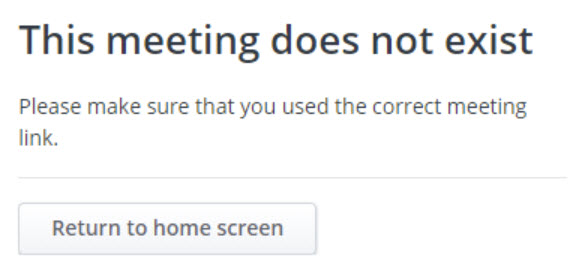
- If you are joining a meeting from your mobile device using a meeting link (received through chat or email), you will be redirected to the MiTeam Meetings mobile application if you have the application installed in your mobile device. If you do not have the application installed, a link to download this application from your app store appears on the browser.
To join a meeting directly from the meeting invite or the Join now action card
- Click the meeting invite link or the Join now action card. A pop-up window opens in the Mitel One application and the Audio and video preview panel is displayed.
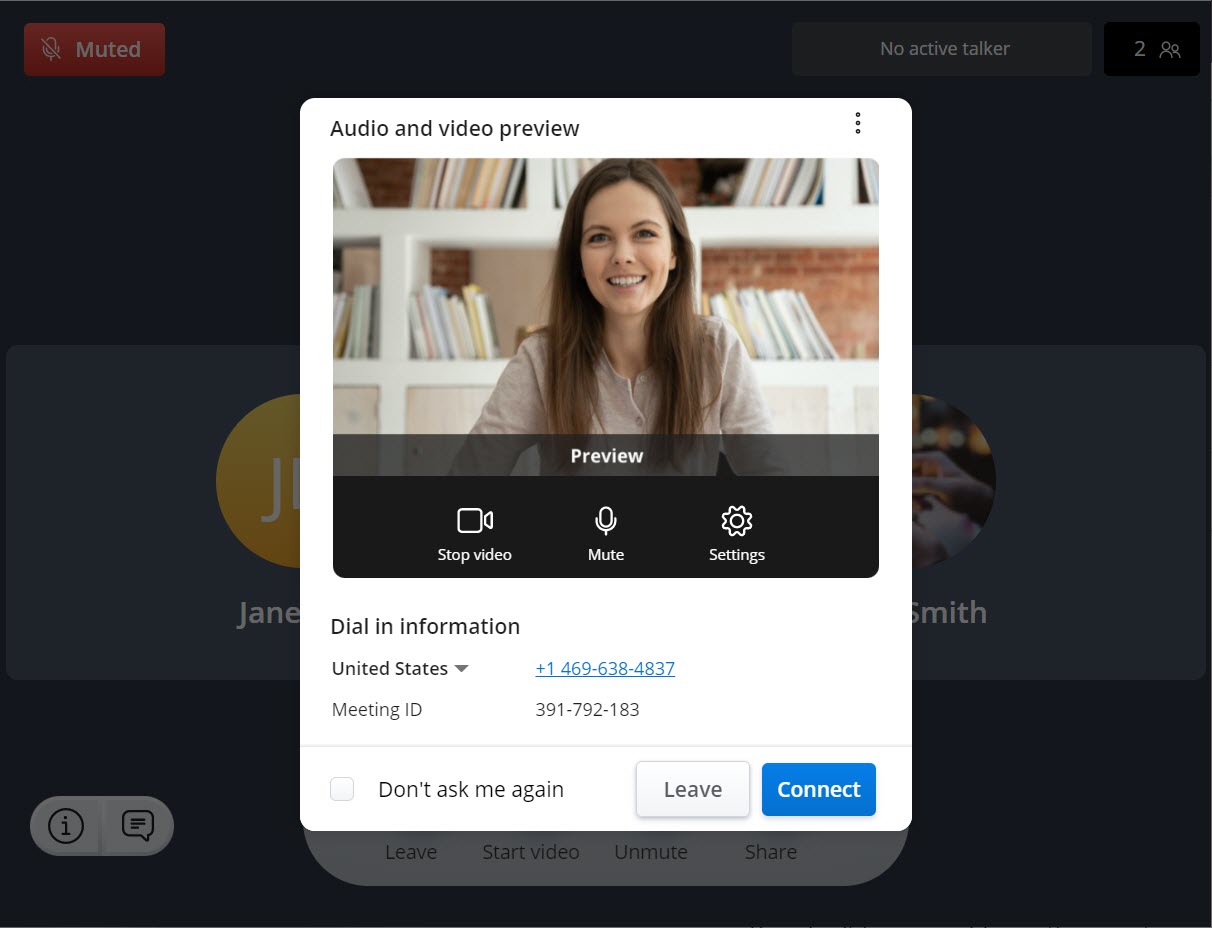 Note:
Note:- For the Audio and video preview panel to appear, you must ensure that the Show audio and video preview before joining a meeting check box is selected in the Meetings tab of the Settings panel. This setting is enabled by default.
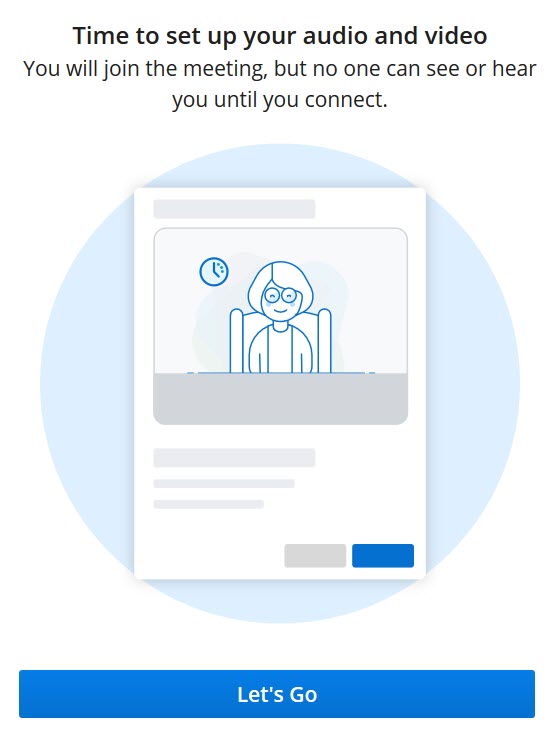
- When you join a meeting for the first time using the Mitel One application, the panel shown in the following figure is displayed. Click Let’s Go to access the Audio and video preview panel.
- Choose how you want to connect to the audio, whether you want to mute or unmute your microphone and turn on or turn off your video before you join the meeting. Click Connect to join the meeting. Clicking Leave will abort the operation and redirect you to the Meetings menu of the application.
Note:
- Select the Don’t ask me again check box to save the selected settings.
- Click (
 ) at the top right of the panel to access the options to report an issue with the application, and to view the online help document.
 - For help resolving issues you face while enabling microphone, speaker, or camera, see the FAQ How do I enable the camera and the microphone for Mitel One Meetings?
To join a meeting listed in the Meetings list
- Click the meeting you want to join. The details of the meeting are displayed on the right side of the application.
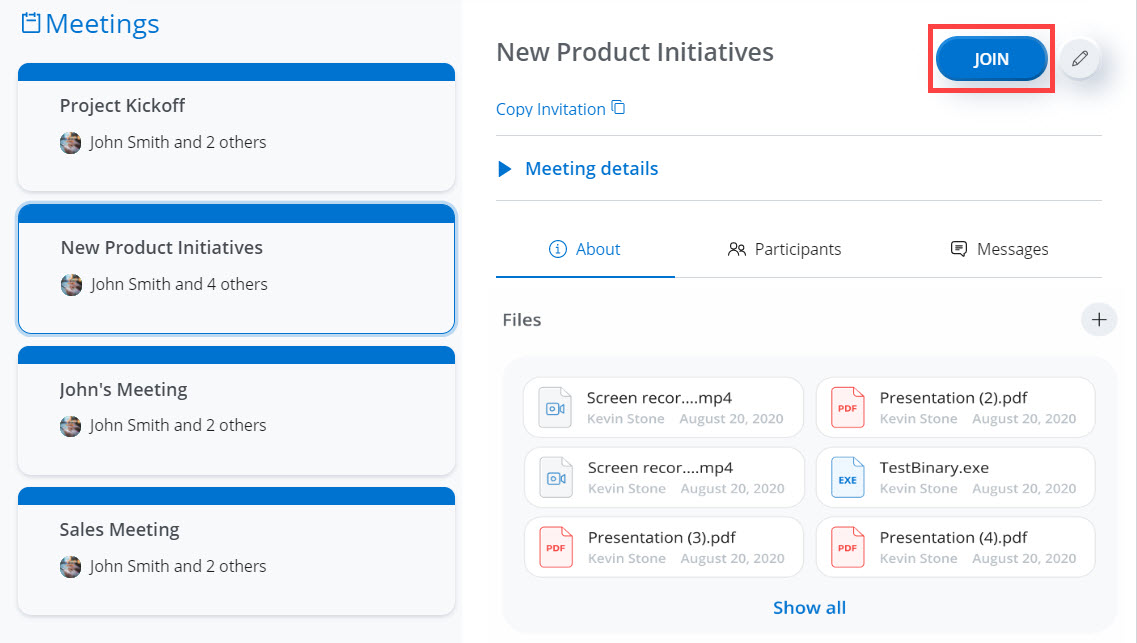
- Click the JOIN button to join as a participant. The Audio and video preview panel opens in a new pop-up window.
Note: For the Audio and video preview panel to appear, you must ensure that the Show audio and video preview before joining a meeting check box is selected in the Meetings tab of the Settings panel. This setting is enabled by default.
- Choose how you want to connect to the audio, mute or unmute your microphone, and turn on or turn off your video before you join a meeting, and then click Connect to join the meeting. Clicking Leave will abort the operation and redirect you back to the Meetings menu.
Note:
- Select the Don’t ask me again check box to save the selected settings.
- Click () at the top right of the panel to access the options to report an issue with the application, and to view the online help document.
- For help resolving issues you face while enabling microphone, speaker, or camera, see the FAQ How do I enable the camera and the microphone for Mitel One Meetings?
↑