To configure Contact Center Screen Pop options
- In YourSite Explorer, click YourSite > Enterprise.
- Click the Screen pop tab.
- If you want to launch an application or Web page when calls are answered, select the Launch an application or Web page when agents answer receive calls check box.
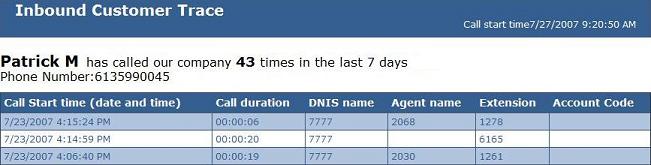
- If you want to display call statistics for incoming ACD calls, select Display the caller-specific Inbound trace report Web page. The Inbound Trace report tells you the number of times the caller has called in the last seven days and contains the following fields: Call Start Time, Call Duration, DNIS name, Agent name, Extension, and Account Code. (See the following figure.)
Note:
The Contact Center Screen Pop will launch this application field is automatically populated with the URL of the Inbound Trace Report.
- To launch a specific Web page or application when calls are answered, select the Display a specific application or Web page check box and, under Contact Center Screen Pop will launch this application or Web page, type the path for the executable file or the URL of the webpage and indicate any variables that the screen pop will contain.
Note:
For important information on how to configure this field, click the ? button.
- If Mitel Professional Services has provided you with an integrated custom screen pop select Display this Professional Services custom executable file or Web page. Click Manage to review the Professional Services custom screen pop options.
- To enable screen pop on Non ACD calls, select the Screen pop on non ACD calls check box.
- Click Save.
Figure 1. Inbound Customer Trace Report