Configuring the agent and supervisor configuration JavaScript files
- chat.agent.config.js
- chat.supervisor.config.js
Chat.agent.config.js controls agent settings in Ignite. chat.supervisor.config.js controls how chat displays in Contact Center Client when a supervisor is previewing a chat session.
- Global settings—control agent handling behavior of chat and SMS in Ignite. These settings are applied universally or are required to enable features at a queue level. The following table outlines the global fields.
- Queue settings—are controlled in DefaultConfig and ChatQueues. These two sections share the same fields. DefaultConfig fields apply the default settings for queues while ChatQueues fields are applied to individual specific queues. Table 7 outlines DefaultConfig and ChatQueues settings.
- Logging and connection settings—provide troubleshooting options as well as enable connection limits for devices. Table 8 outlines the logging and connection settings.
When adding field values based on the following tables, ensure that they use correct JavaScript formatting and punctuation.
Field name |
Field value |
Field Description |
|---|---|---|
EnableAgentGravatar |
True or False |
This field controls whether or not Chat will use Gravatar for Agents. If set to True, Chat sessions will use any Gravatar user image associated to the email addresses used in the chat session or the image configured with DefaultAgentGravatarUrl. If set to False, no agent Gravatar user images will be used in the chat session. Note:
This field must have the same value in chat.public.config.js, chat.agent.config.js, and chat.supervisor.config.js. |
EnableSupervisorGravatar |
True or False |
This field controls whether or not Chat will use Gravatar for Agents. If set to True, Chat sessions will use any Gravatar user image associated to the email addresses used in the chat session or the image configured with DefaultAgentGravatarUrl. If set to False, no agent Gravatar user images will be used in the chat session. Note:
This field must have the same value in chat.public.config.js, chat.agent.config.js, and chat.supervisor.config.js. |
EnablePublicGravatar |
True or False |
This field controls whether or not Chat will use Public Gravatar for agents. If set to True, Chat sessions will use any Public Gravatar user image associated to the email addresses used in the chat session or the image configured with DefaultAgentGravatarUrl. If set to False, no Public Gravatar user images will be used in the chat session. Note:
This field must have the same value in chat.public.config.js, chat.agent.config.js, and chat.supervisor.config.js. |
UseCtrlEnterForGlobalSend |
True or False |
This field controls whether or not CTRL+Enter enters a carriage return or sends a message in Ignite. If set to True, in a Chat or SMS session in Ignite, pressing CTRL+Enter sends a message and pressing Enter adds a carriage return. If set to False, CTRL+Enter will add a carriage return and Enter will send a message. |
EnableAgentPromptForEndConversation |
True or False |
This field controls whether or not agents will be prompted to confirm the closing of a chat or SMS session. If set to True, when the End Your Chat button is pressed, agents will be prompted to confirm that they want to close the current chat or SMS session. If set to False, when the End Your Chat button is pressed, the chat or SMS session closes. |
EnableSupervisorPromoptForEndConversation |
True or False |
This field controls whether or not agents will be prompted to confirm the closing of a chat or SMS session. If set to True, when the End Your Chat button is pressed, agents will be prompted to confirm that they want to close the current chat or SMS session. If set to False, when the End Your Chat button is pressed, the chat or SMS session closes. |
Field name |
Field value |
Field Description |
|---|---|---|
Enabled |
True or False |
This field enables or disables this configuration record. If you set to False, the queue’s chat form will use the values from the default file in <drive>:\Program Files (x86)\Mitel\MiContact Center\WebSites\CCMWa\Scripts\ Chat.ui.agent.config.DEFAULT.js or Chat.ui.supervisor.config.DEFAULT.js. |
QueueId (ChatQueues only) |
The queue’s GUID, such as ‘26F1A5C3- DD2C-45FFBE75- 2BC7B85012 D0’ |
The GUID for the chat queue to which you want the associated settings to apply. You can use YourSite Explorer to obtain a queue’s GUID. See "Obtaining Queue GUIDs". |
DefaultAgdxzentGravatarURL |
URL;of image |
This field is used to set the Gravatar image to be used for all agents in all chat sessions. The image must be hosted on a public website. Images being used for the Gravatar image must meet the following requirements:
|
DefaultSupervisorGravatarURL |
URL;of image |
This field is used to set the Gravatar image to be used for all agents in all chat sessions. The image must be hosted on a public website. Images being used for the Gravatar image must meet the following requirements:
|
UseDefaultAgentGravatarForAllAgents |
True or False |
This field is used to set whether or not all users will use the default Gravatar image. If set to True, all agents will use the image set in DefaultAgentGravatarURL (or DefaultSupervisorGravatarURL). If set to False, users will only use the Default Agent Gravatar (or Default Supervisor Gravatar) if they have no Gravatar associated to their email address. |
UseDefaultSupervisorGravatarForAllSupervisors |
True or False |
This field is used to set whether or not all users will use the default Gravatar image. If set to True, all agents will use the image set in DefaultAgentGravatarURL (or DefaultSupervisorGravatarURL). If set to False, users will only use the Default Agent Gravatar (or Default Supervisor Gravatar) if they have no Gravatar associated to their email address. |
UseDefaultPublicGravatarForAllPublicUsers |
True or False |
This field is used to set whether or not all contacts will use the default Gravatar image. If set to True, all public users will use the image set in DefaultPublicGravatarURL. If set to False, users will only use the Default Public Gravatar if they have no Gravatar associated to their email address. |
GravatarSize |
The size, in pixels, of the Gravatar image |
This field is used to set the size of the Gravatar, in pixels. |
PeekModeAllowed |
True or False |
This field controls whether or not agents can view chats that they have not accepted or have not been offered. |
IconTheme |
Light or Dark |
IconTheme determines if the icons appear as light or dark, to better suit the selected background color. The IconTheme value can be Light or Dark. |
Field name |
Field value |
Field Description |
|---|---|---|
ChatClientSidelogging |
True or False |
This field controls whether or not a log for chat is available in the client’s browser. If set to False, there is no client-side log created. If set to True, a client-side is created. Note:
This field must have the same value in chat.public.config.js, chat.agent.config.js, and chat.supervisor.config.js. |
MobileDeviceConnectionRetryLimit |
The number of connection attempts |
This field controls how many times a mobile device can attempt to connect to chat. Note:
This field must have the same value in chat.public.config.js, chat.agent.config.js, and chat.supervisor.config.js. |
ConnectionRetryLimit |
The number of connection attempts |
This field controls how many times a desktop device can attempt to connect to chat Note:
This field must have the same value in chat.public.config.js, chat.agent.config.js, and chat.supervisor.config.js. |
ConnectionRetryIterationCount |
The count limit |
This field sets the number of times a device can attempt to connect before prompting the user that it is unable to connect and that a refresh will occur. Note:
This field must have the same value in chat.public.config.js, chat.agent.config.js, and chat.supervisor.config.js. |
After customizing your agent chat and SMS sessions, your changes will be applied to Ignite.
- Set the agent chat and SMS settings using chat.agent.config.js
- Add ChatQueues fields to chat.agent.config.js
- Set the supervisor settings using chat.supervisor.config.js
- Add ChatQueues fields to chat.supervisor.config.js
chat.supervisor.config.js must have the same settings configured as chat.agent.config.js. For agent-specific fields such as DefaultAgentGravatarURL, add the value to the supervisor-specific equivalent, such as DefaultSupervisorGravatarURL.
- On the Enterprise Server, navigate to <drive>:\Program Files (x86)\Mitel\MiContact Center\WebSites\Ccmwa\Scripts.
- Open chat.agent.config.js in a text editor.
- Customize your agent chat settings.
For a description of the settings and their fields, see Table 6, Table 7, and Table 8.
- Save and close the editor.
- In YourSite Explorer, obtain the queue IDs of the chat queues for which you want to customize settings.
For more information, see "Obtaining Queue GUIDs".
- Open chat.agent.config.js in a text editor.
- Locate ChatQueues:[ ] and copy and paste the following fields within ChatQueues’s brackets.
See the following figure for the proper formatting.
{
Enabled: true,
QueueId: ‘’,
DefaultAgentGravatarURL: encodeURIComponent(window.ccmwa.shared.getCCMWaBaseUrl() + '/content/images/gravatar/defaultagent.png'),
UseDefaultAgentGravatarForAllAgents: false,
GravatarSize: 32,
PeekModeAllowed: true,
IconTheme: 'Dark'
},
Figure 1. chat.agent.config.js formatting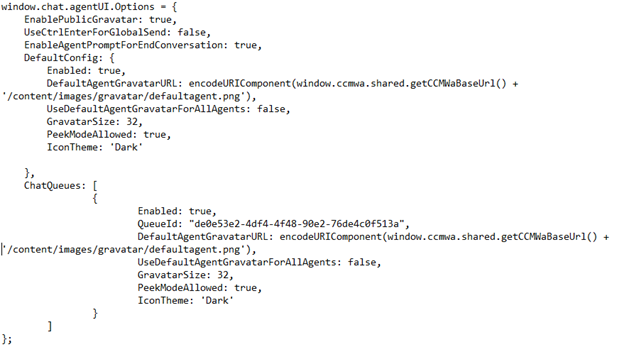
- Customize your ChatQueues field settings.
For a description of the settings and their fields, see Table 7.
- For each additional queue you want to configure agent Ignite settings for, repeat steps 2-3.
- Save and close the text editor.
- On the Enterprise Server, navigate to <drive>:\Program Files (x86)\Mitel\MiContact Center\WebSites\Ccmwa\Scripts.
- Open chat.supervisor.config.js in a text editor.
- Customize your supervisor chat settings.
For a description of the settings and their fields, see Table 6, Table 7, and Table 8.
- Save and close the editor.
- In YourSite Explorer, obtain the queue IDs of the chat queues for which you want to customize settings.
For more information, see "Obtaining Queue GUIDs".
- Open chat.supervisor.config.js in a text editor.
- Locate ChatQueues:[ ] and copy and paste the following fields within ChatQueues’s brackets.
See the following figure for the proper formatting.
{
Enabled: true,
QueueId: ‘’,
DefaultSupervisorGravatarURL:'',
DefaultPublicGravatarURL: '',
UseDefaultSupervisorGravatarForAllSupervisors: false,
UseDefaultPublicGravatarForAllPublicUsers: false,
GravatarSize: 32,
PeekModeAllowed: true,
IconTheme: 'Dark'
},
Figure 2. chat.supervisor.config.js formatting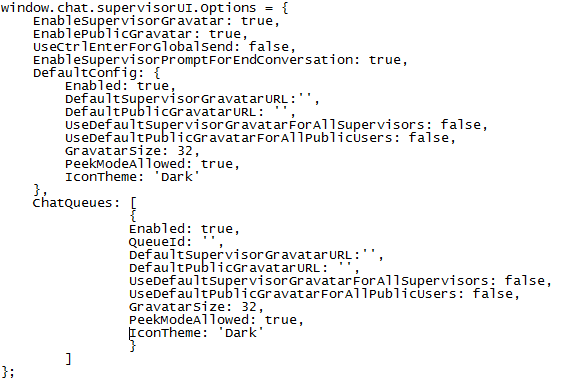
- Customize your ChatQueues field settings.
For a description of the settings and their fields, see Table 7.
- For each additional queue you want to configure agent Ignite settings for, repeat steps 3-4.
- Save and close the text editor.