Use this procedure to audit your system's database and generate a pre-migration audit report that outlines hardware and system programming that are incompatible with MiVoice Business Release 9.0 or later, and provides available actions you can take to make your system's database compatible with MiVoice Business Release 9.0 or later.
IMPORTANT: You must run the pre-migration audit for all MiVoice Business systems before migration to ensure your database is compatible with MiVoice Business Release 9.0 or later. An attempt to restore an incompatible database will result in a default database.
Before you begin the pre-migration audit:
Note that there is no downtime during the pre-migration audit.
Ensure that the MiVoice Business system release is Mitel Communications Director (MCD) 6.0 SP3 or later.
Ensure that there is a LAN or WAN connection between the PC and the MiVoice Business system to be audited.
Ensure that you have the IP address and system access login credentials of the MiVoice Business system to be audited.
Ensure that the information in the License and Option Selection form is accurate.
CAUTION: If the information in the License and Option Selection form is not accurate, the MiVoice Business Migration Tool might report inaccurate system licenses in the pre-migration audit report, which can result in devices not being restored after the migration.
Select the Pre-Migration Audit option.
Click Next.
The Define Pre-migration Audit Options
window opens.
In the Target Platform drop-down list, select the target platform, that is, the platform to which you want to migrate.
NOTE: By default, the tool selects the current platform if it is supported; if not, it pre-selects EX. If the current platform is CX or CXi, the default target platform is SMB Controller.
Click Next.
The In Progress window opens.
Click Start to start the audit.
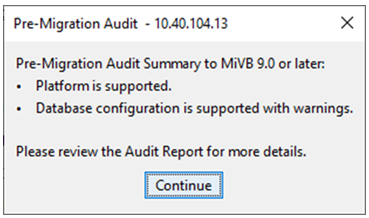
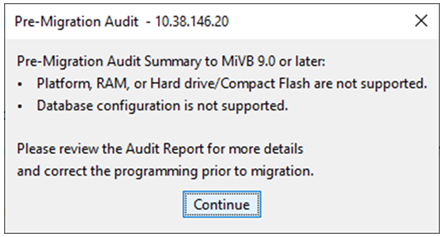
When the audit is complete, the Pre-Migration Audit Summary dialog box is displayed.
You can click Stop to stop the audit or click View Log to view the log of audit events while the audit is in progress.
The dialog box displays a summary of the support for the platform and the database configuration. If the configuration data is incompatible, you must take the required action to make your system's database compatible for migration.
Click Continue.
A confirmation message is displayed that the audit is complete.
Click OK.
The progress window is displayed.
Click Audit Report
to view the audit report.
The Migration Audit Viewer
window displays the Pre-Migration Audit report.
NOTE: By default, the tool saves the audit report in the %ProgramData%\Mitel\MiVoice Business Migration Tool\logs\<date> directory, in .txt format with the default file name AuditReport_<ip_address>_<hour><minute><second>.txt.
If you want to save the pre-migration audit report at a different location, click Save As and browse for the location where you want to save the pre-migration audit report.
If you want to view or sort the pre-migration audit report data using the Microsoft® Excel® program:
Start a new Microsoft Excel program.
On the File
menu, click Open, and
then navigate to select the pre-migration audit report. Ensure
that the file type filter is All Files (*.*).
The TextImport Wizard - Step 1 of 3 window is displayed.
Under Original data type, select Delimited, and then click Next.
Under Delimiters, clear the Tab check box, and then select the Other check box.
In the field beside the Other check box, type
| (Shift +
backslash), and then click Finish.
The pre-migration audit report opens in the Microsoft Excel format.
To sort data by column entries in the pre-migration
audit report, highlight the column entries you want to sort and
click Sort in the Data tab.
The Sort window is displayed.
Select appropriate values in the Column, Sort On, and Order drop-down lists to sort the selected column entries by a particular value (for example, cell values) in the order that you require (for example. A to Z), and then click OK.
Click Close to close the Migration Audit Viewer window.
Click Done to close the MiVoice Business Migration Tool window.