Configure a Hot Desk Phone with ACD Agent and MCX Softphone
- Ensure the MCX integration is enabled. To do that, navigate to Integrations and Apps and enable the MCX integration.
- Ensure the MCX account integration version is 11.0.1.0 or higher.
- Navigate to User Management > User Templates in the Mitel Administration.
- Click Create Template. The Create User Template page appears.
- Enter a name in the Template name field.
- Enter a Description to define the template’s purpose.Note: This step is optional.
- Under Products, select the following:
- Select MiContact Center Business.
- Select MiVoice Business.
- Under Phones section, click Add Phone. The Select a Phone window
appears.
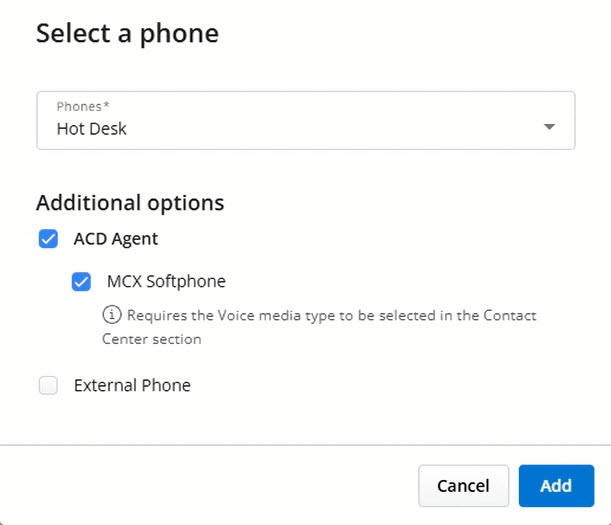
- In the Phones drop-down list, select Hot Desk.
- Under Additional options, enable ACD Agent and MCX
Softphone.
This designates the user as an Automatic Call Distribution agent, allowing them to receive routed calls.
- Enable the ACD Agent toggle. This allows the user to receive ACD-routed calls.
- Enable the MCX Softphone toggle.
You have to enable the Voice option under MiContact Center Business section. To do that click on the MiContact Center Business check box under Products and then click on the Voice check box under Contact Center > Media Type.
If you have enabled the MCX Softphone, the Teleworker Service option is available in the Hot Desk configuration window. It remains disabled unless ACD Agent is enabled.
- Optionally check External Phone if calls should be routed to an external number.
- Click Add to save your configuration. The template is now configured with ACD
Agent and MCX Softphone capabilities.Note: Only one ACD device can be created per user.
You can also assign a Hot Desk phone with ACD Agent and MCX Softphone functionality directly to a user.
To do this, navigate to User Management > Users, select the desired user, and click
 next to MiVoice Business. In the Phones section, click
Add Phone, select Hot Desk from the Phones drop-down list, and
then enable the ACD Agent and MCX Softphone options.
next to MiVoice Business. In the Phones section, click
Add Phone, select Hot Desk from the Phones drop-down list, and
then enable the ACD Agent and MCX Softphone options.