Answering a MiCollab Call
-
If MiCollab Client is running in the background: A notification appears in the lower-right corner of your computer screen. Click the notification to bring the MiCollab Client to foreground.

- If MiCollab Client is running in the foreground, click the Accept button.
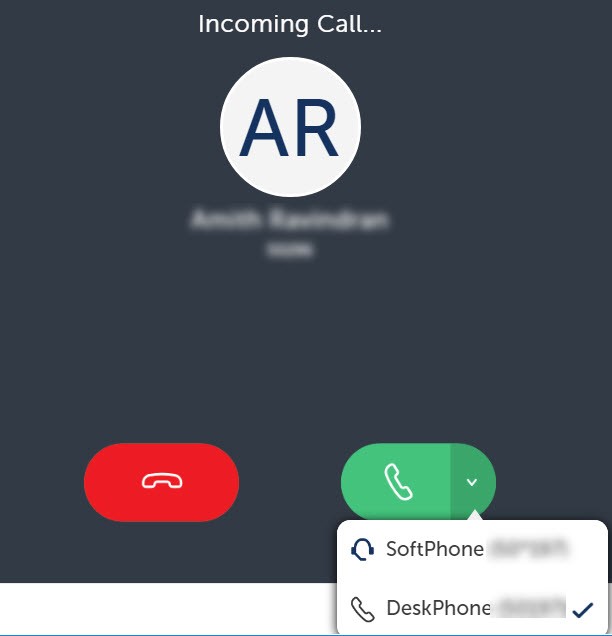
If the preferred device is set as Softphone and the Softphone is disabled/not registered, the Accept button and a tooltip (device unavailable) is displayed to the user. Clicking the Accept button will display a pop-up with a list of available devices for selection.
-
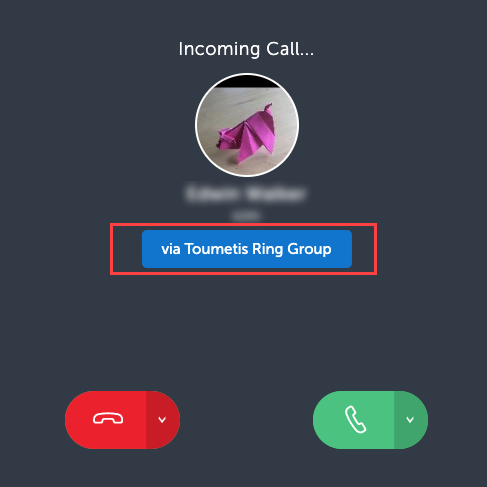
MiVoice Business (via) Ring Group/ Hunt Group
- MiVoice 5000 and MXOne (via)
- Ring Group/Hunt Group
- Call forwarding
- Call transfer to the group
- Unpublished numbers: An incoming call from an unpublished number will display only the contact's name and not the number. The called party will not be able to copy the obfuscated number. Outgoing calls can be made to an unpublished number only by entering the number. The Client will not display the unpublished number in the Search results, Call History, Contacts, and Voicemail menu. To unpublish a number, click Settings > General > My Numbers. Select the number and uncheck the Publish setting.
-
Private numbers: This feature is only applicable to users on MiVoice Business communication platform. An incoming call from a Private number (that is unpublished as well) will display only the contact's name and not the number. The caller ID will be displayed as "*****" instead of the actual number. The called party will not be able to copy the obfuscated number. Outgoing calls can be made to a private DN only by entering the number. The Client will not display a Private number in the incoming calls, Search results, Call History, Contacts menu, contact card, voicemail menu, and notifications. In the incoming call window, the Decline with message option will not be shown for the user with a private DN. Contact your administrator to enable the Privacy DN feature.