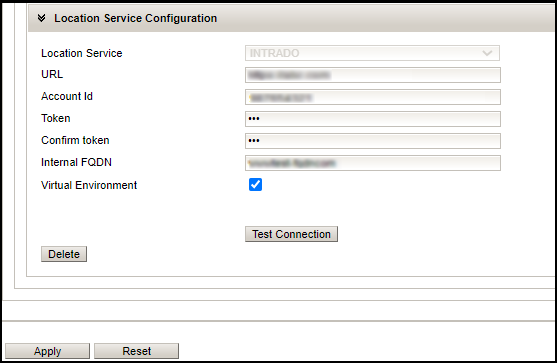
Location Service Configuration
The Location Service Configuration performs the Emergency Location configuration in the administrator portal. You can configure the Location Service Configuration settings under MiCollab Client Service > Configure MiCollab Client Service> Enterprise Tab > Location Service Configuration.
Under the Location Service Configuration tab, in the Location Service field, the administrator can select the option from the drop-down menu either as Redsky or Intrado.
Representation of Location Service Configuration for Redsky
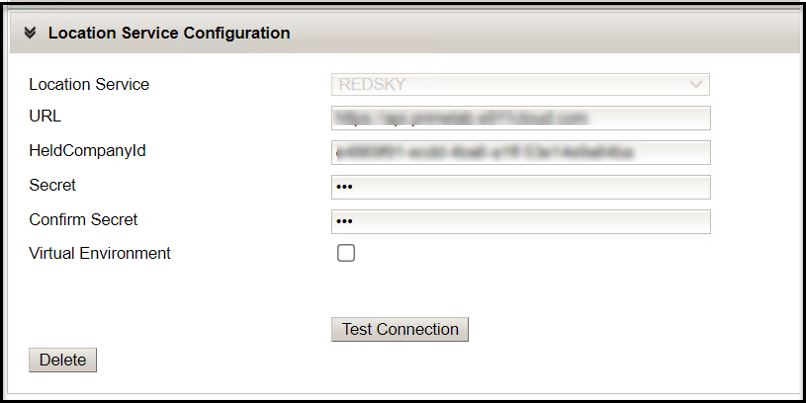
For RedSky, the values/parameters of the fields (that is, URL, HeldCompanyId, and Secret) can be obtained from the RedSky Portal. Refer to the RedSky Solution document for more information.
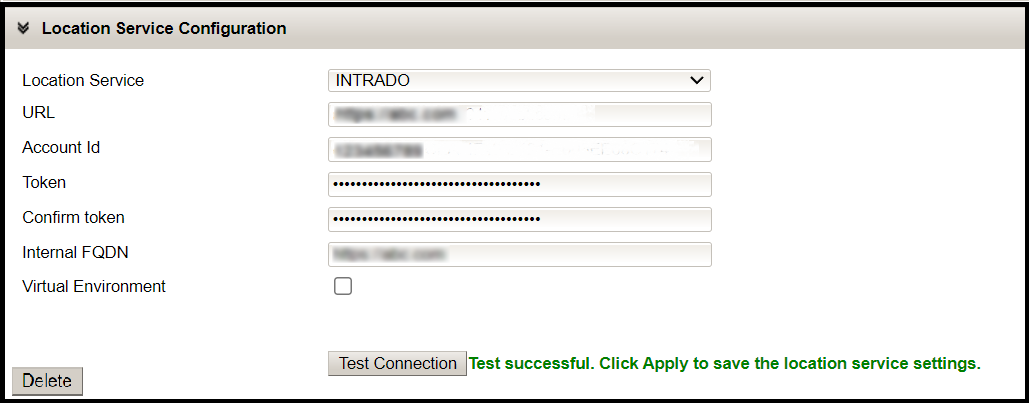
Representation of Location Service Configuration for Intrado
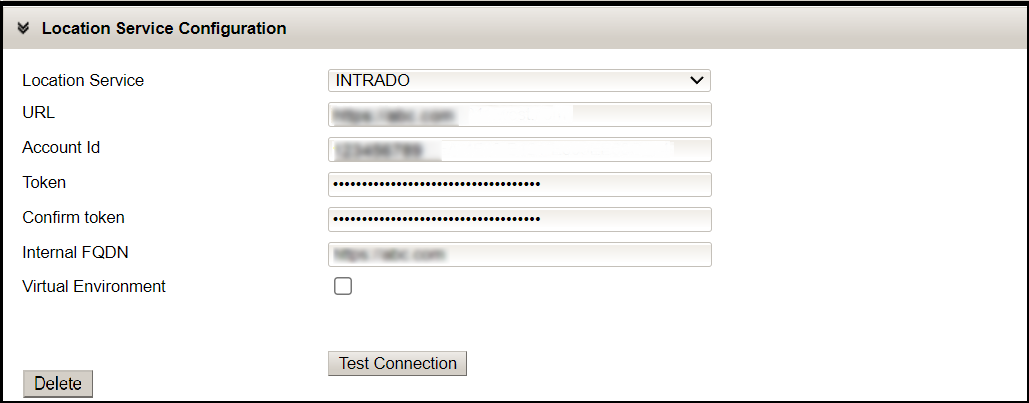
For Intrado, the values/parameters of the fields (that is, URL, Account Id, and Token) can be obtained from the Intrado Portal. Refer to the Intrado Solution document for more information.
The valid value/parameter of the field Internal FQDN should be entered by the Administrator on the server.
If Clients are running virtually in VMWare Horizon, Citrix or RDS, then select the Virtual Environment option.
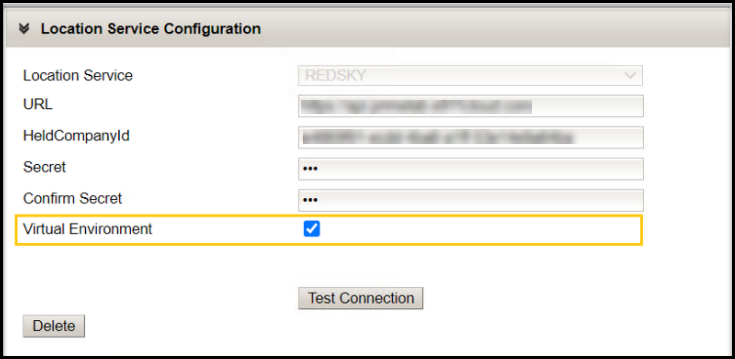
Once the field parameters are entered, click on the Test Connection button. This option helps the administrator to test if the entered details are valid or not.
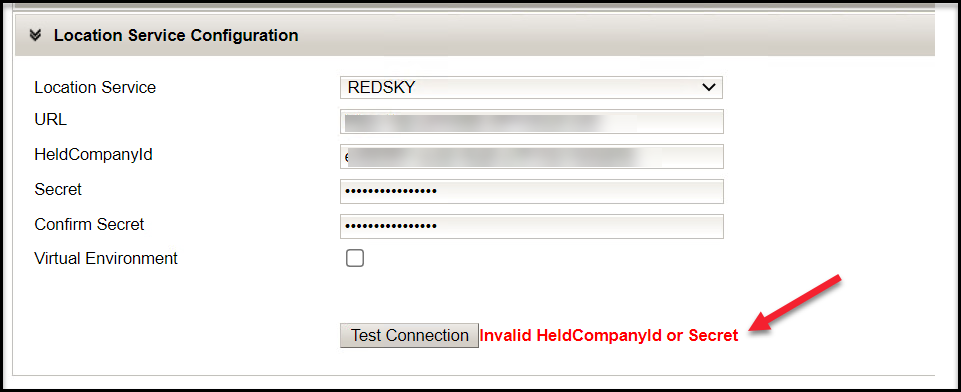
If the HeldCompanyId or Secret value is incorrect, it will display the following error message Invalid HeldCompanyId or Secret.
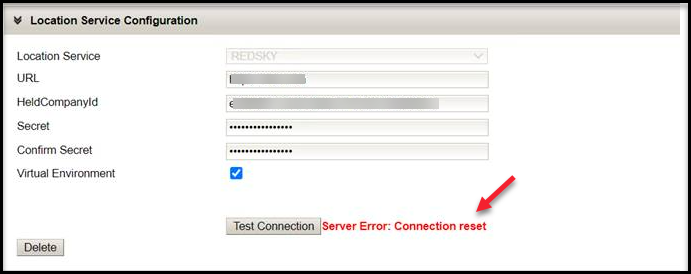
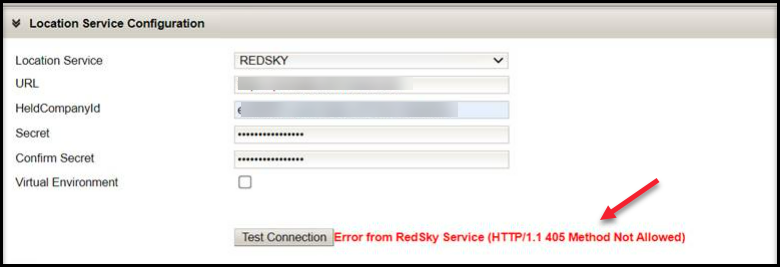
In case if the URL is incorrect, it will display either Server Error: Connection reset or error message along with the error code.
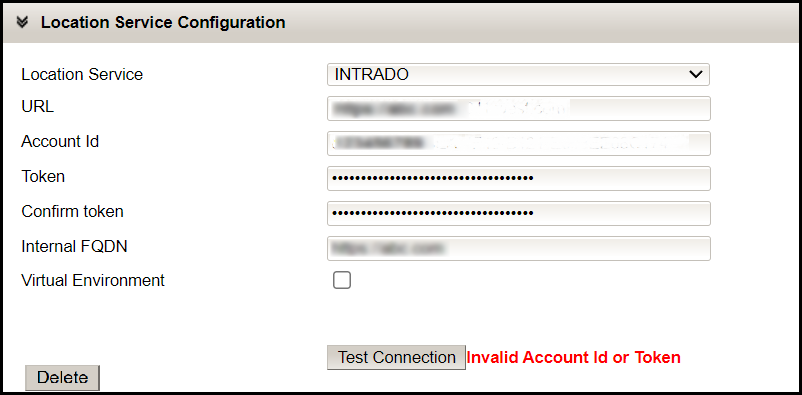
If the Account Id or Token is incorrect, it will display as Invalid Account Id or Token.
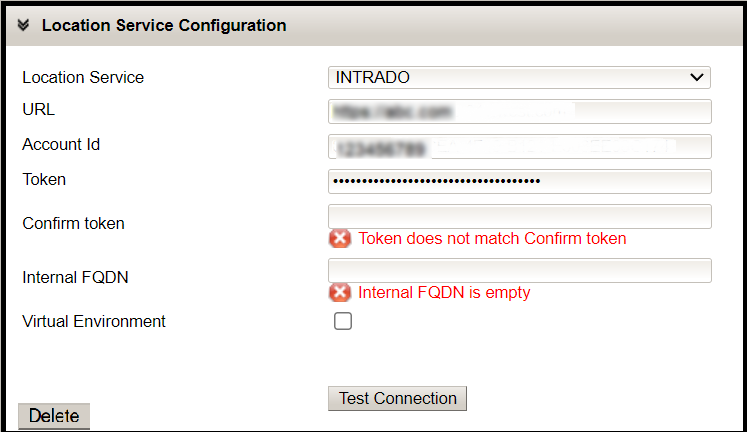
If the Token does not match or the Internal FQDN field is left empty, it will display the error as Token does not match Confirm token and Internal FQDN is empty.
In the case of a successful connection, a success message is displayed.
Clicking the Apply or the Reset button will save or clear all the settings provided in the Enterprise tab.