Configure Access to External (Off-board) Directory
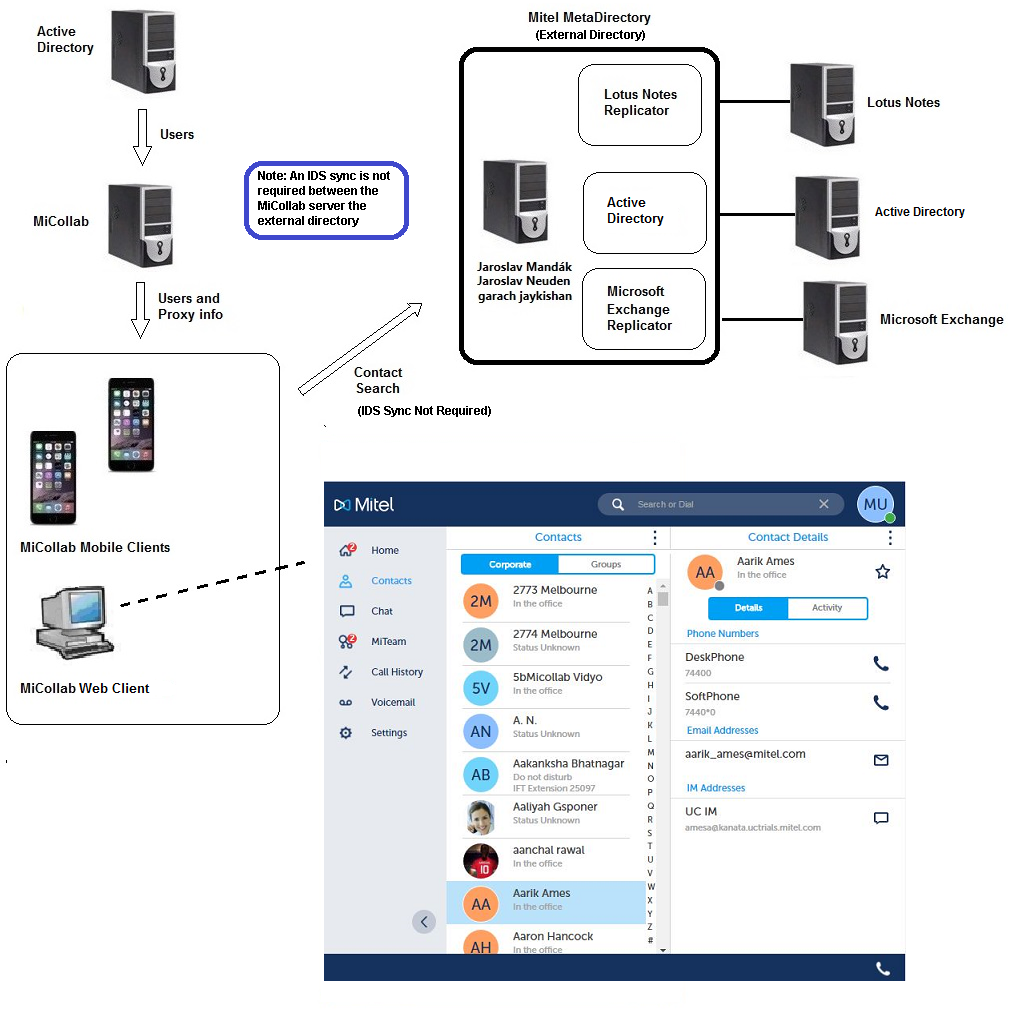
You can configure the MiCollab Client Service with access to a large, external off-board LDAP directory, such as Mitel MetaDirectory. MiCollab Client users can then search for corporate contacts from a very large number of entries.
The directory entries from multiple databases, such as Lotus Notes or Microsoft Exchange can be aggregated within the metadirectory. Typically, you would not synchronize contacts from the external directory to the MiCollab Client service.
The following diagram shows an overview of the solution:
Conditions
To support connection to an external directory:
-
MiCollab Client must be configured in integrated mode.
-
An external LDAP solution, such as Mitel MetaDirectory, that aggregates the contents of separate databases into a large central directory, is required.
-
You must configure an Integrated Directory Services connection between the MiCollab and the external LDAP solution. Only one connection to an external directory is supported.
-
Regardless of the connection method which is enabled (for the IDS connection to the directory server),the external directory search will always use an unsecured channel (non-SSL).
-
An IDS synchronization operation is not required to support the external search feature. An IDS synchronization operation imports the accounts from the external directory to the MiCollab server. However, for external searching the accounts are not required on the MiCollab server.
Configuration
To configure access to an external directory:
-
Under Configuration, click Integrated Directory Service.
-
Click Add connection. The Add Integrated Directory Service connection page opens.
-
Complete the fields to create a connection to the external directory. See Manage IDS Connections for field descriptions.
-
Set the Directory server type (for a connection to Mitel MetaDirectory, select Generic LDAP).
-
Select the External search box to select this connection as the one that MiCollab Clients will use for external directory searches.
-
Enter the name of the external search base.
-
Enter an external search query string that will narrow the search criteria and reduce the number of results.
The following are examples of the connection settings to Mitel MetaDirectory or Mitel InAttend solutions:
Field Mitel MetaDirectory Setting Mitel InAttend Setting Notes Directory server type Generic LDAP Generic LDAP Primary directory server <FQDN or IP address of Mitel MetaDirectory> <FQDN or IP address of Blustar server> Enable synchronization <unchecked> <unchecked> Synchronization schedule Domain <domain name> <domain name> Name of the node in the Mitel MetaDirectory or Mitel InAttend Distinguished name <username> <username> User for accessing the Mitel MetaDirectory or Mitel InAttend in distinguished name format, i.e., cn=MiCollab Password <password> <password> Password of the user LDAP Port 712 389 Default value Connection method Unsecured Unsecured Default query string ObjectClass = person ObjectClass = person Search context External search <checked> <checked> External search base The search base to use for the external directory search, for example: "ou=users,dc=mitel,dc=com" External search query string The query string to use for the external directory search, for example: "objectClass=person". Partition attribute None None Partition method Organizational unit Organizational unit Enable reverse lookup <unchecked> <unchecked> Unchecked for Active Directory.
Checked for Generic LDAP server type.
Remove leading digits count Default value is 0. Re-Initialize on next cycle <unchecked> <unchecked> Defer all operations <checked> <checked> -
-
To use custom attribute mappings for this connection to the external directory, clear the Use default attribute mappings box and modify the modify the IDS attribute mapping. you must map LDAP attributes to the following IDS attributes: Distinguished Name, Email, First Name, and Last Name. All other fields can have blank LDAP attributes.Note: Ensure that the contacts on the external directory contain entries in the fields that map to the following IDS attributes: Distinguished Name, First Name, Last Name, and Email.
The following is an example of custom attribute settings to a Mitel MetaDirectory and InAttend:
MiCollab Field Mitel MetaDirectory mapping InAttend mapping Notes City l l Company Name company company Country c c DID Number Use a custom field in Mitel MetaDirectory or Mitel InAttend Department department department Distinguished Name distinguishedName distinguishedName Email mail mail Fax facsimileTelephoneNumber facsimileTelephoneNumber First Name givenName givenName Home Element pbxNode Info info Info2 Use a custom field in Mitel MetaDirectory or Mitel InAttend Language Use a custom field in Mitel MetaDirectory or Mitel InAttend Last Name sn sn Location physicalDeliveryOfficeName physicalDeliveryOfficeName Login sAMAccountName accountName Mobile Phone Number mobile mobileTelephoneNumber Mobile Phone Number 2 telephoneCar Photograph Not supported. Leave blank. Position Use a custom field in Mitel MetaDirectory Postal/ZIP code postalCode postalCode Primary Phone Directory Number telephoneNumber telephoneNumber Role Secondary Phone Directory Number otherTelephone softPhone Street streetAddress streetAddress Title title title User ID entryID objectGUID -
Click Save.Note:
When InAttend is configured with a fresh MiCollab server, the MiCollab root certificate should be installed in the Trust Store of InAttend Client, to ensure the correct presence of instant messages.
Test Directory Access from Clients
From a MiCollab Client, check to ensure that contacts stored in the metadirectory are listed in searches.