Changing MiCollab Client password
Non-SSO users can change their MiCollab Client password as per the following instructions:
- From the MiCollab Client Header menu, click on your avatar to open the User Profile menu and then click Settings.
- Click General > Change Password.
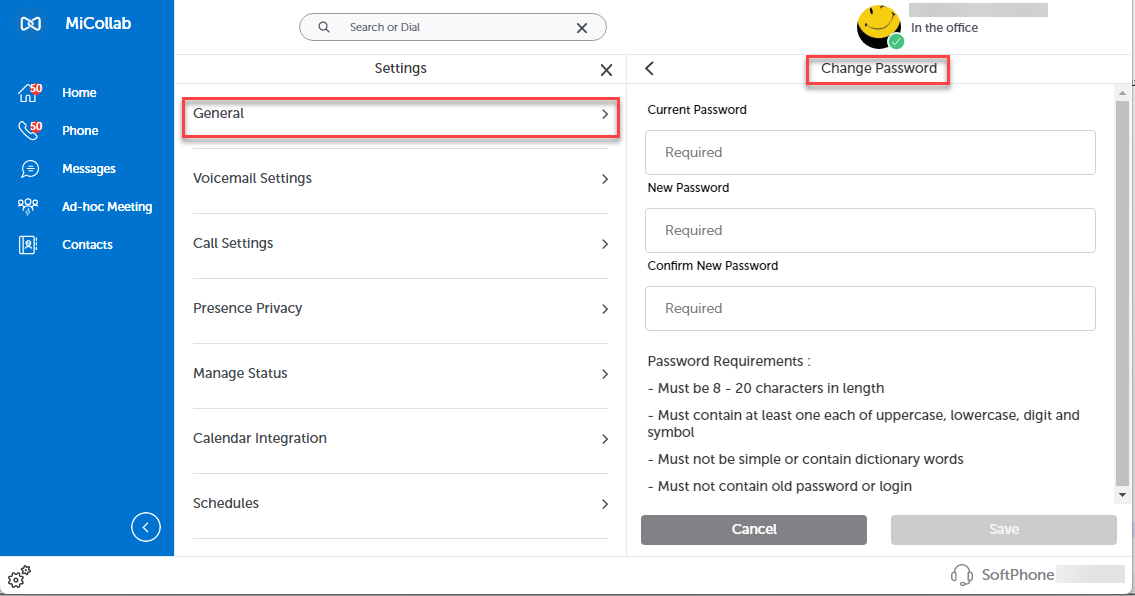
- Enter the current password and the new password in the Change Password screen. Ensure that the new password is compatible with the Password Requirements mentioned in the same screen.
- Click Save.
↑