Microsoft Teams Integration / Bi-directional Presence
Introduction
The integration of Microsoft Teams presence has now been broadened to facilitate the syncing of a user's Microsoft Teams presence with their MiCollab Client using CloudLink. This is referred to as Bi-directional presence synchronization. Bi-directional presence synchronization can be enabled for both new users as well as for existing users.
Prerequisites
The Bi-directional presence or the Microsoft Teams Integration feature requires:
The MiCollab version should be 9.8 or above.
The Microsoft Teams Configuration Settings is enabled by the administrator of the MiCollab Client Service Admin portal. For more information, refer to the MiCollab Client Administrator Console
The Sync Presence from Microsoft Teams to CloudLink is synchronized or enabled in the Mitel Administration (formerly known as CloudLink Account Console). For more information, see the Mitel Administration User Guide
Bi-directional Presence in MiCollab Client
When Bi-directional presence synchronization is enabled for a user either through assignment of the user to Microsoft Teams profile or by checking the Microsoft Teams status in their user profile, the MiCollab client will display only the Microsoft Teams statuses. The dynamic statuses created by MiCollab administrator via the MiCollab user profiles, or statuses created by the user in the MiCollab client will not be displayed or utilized in the MiCollab client as long as Microsoft Teams presence integration remains enabled.
When the Microsoft Teams presence integration feature is activated, you will receive a notification in the MiCollab client informing about the status which will be controlled via Microsoft Teams. When the administrator enables/disables the status/presence integration in assigned custom user profile, you will be notified by a restart message.
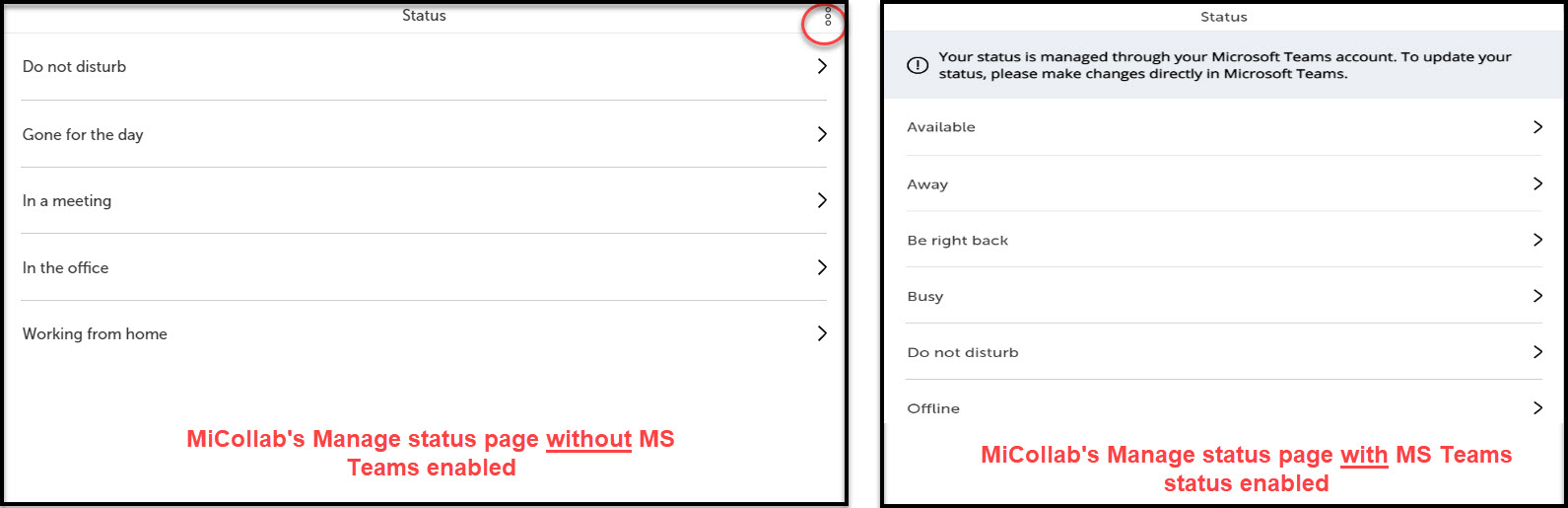
When your Microsoft Teams presence is integrated, the dynamic status dropdown in the MiCollab client will be deactivated. The MiCollab's dynamic status will change based on the status change (manual or automatic presence change) in the Microsoft Teams client. See the screenshots below for details:
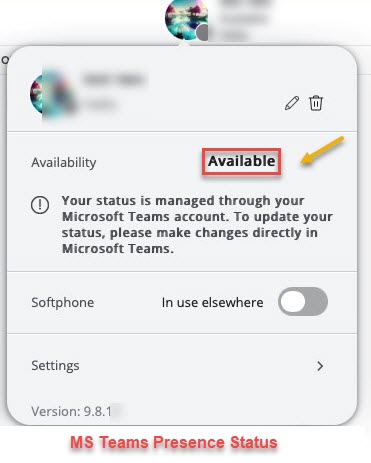
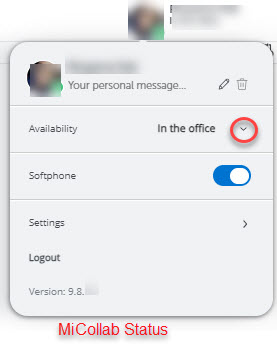
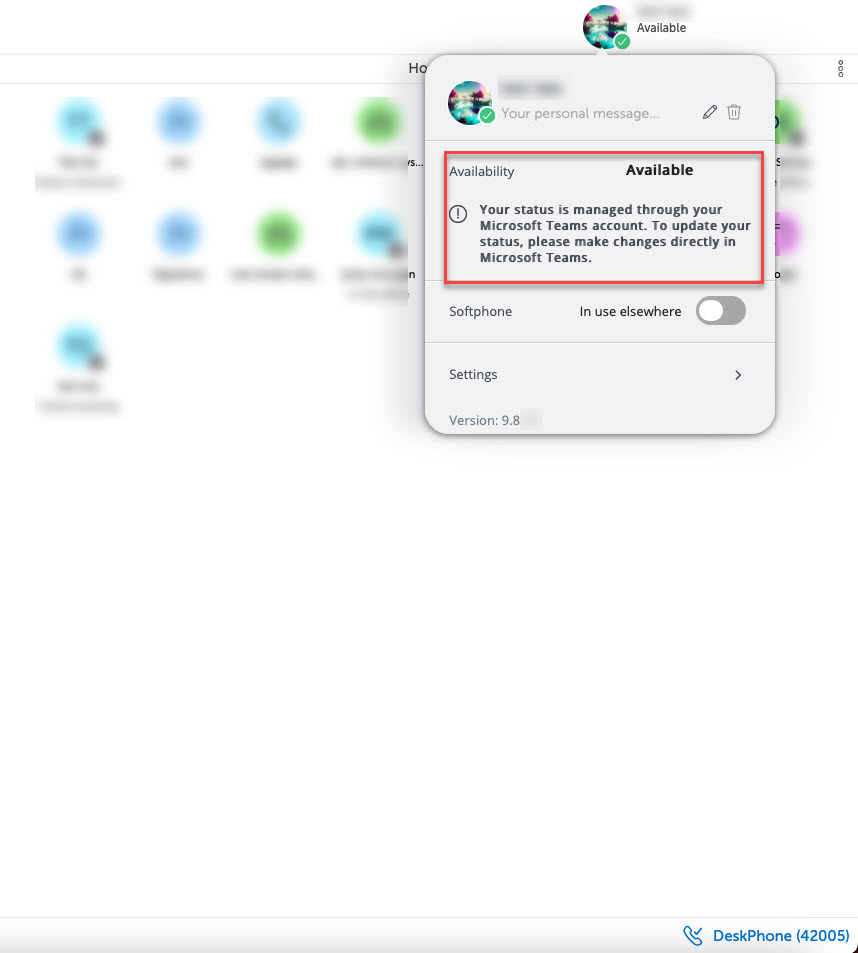
When the presence status is managed by Microsoft Teams, an informative message will be displayed on the MiCollab client, stating that the presence status is now managed by Microsoft Teams account. This message will appear on the Availability window, Manage Status, Calendar Integration, Chat Options, and Schedules pages of the MiCollab client.
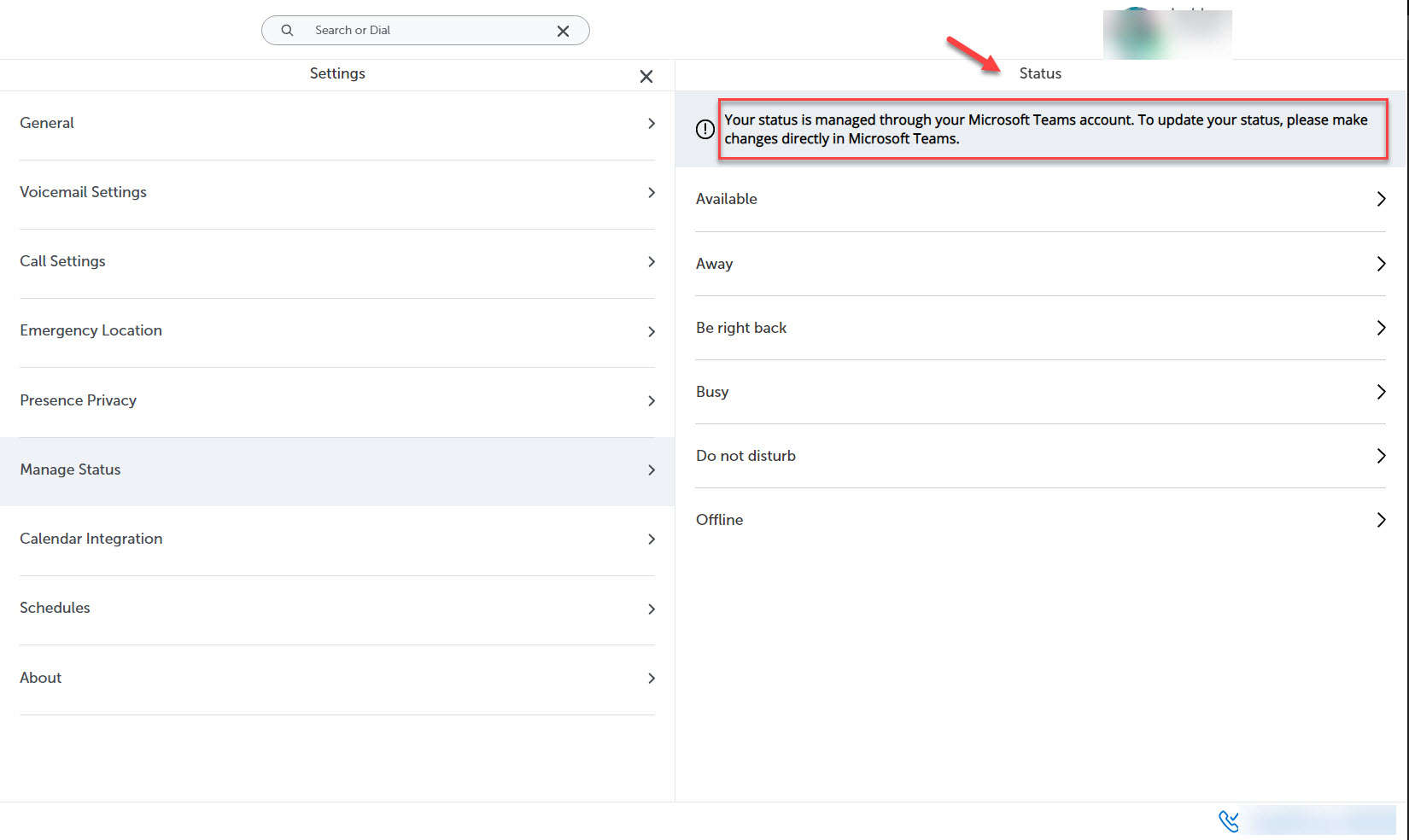
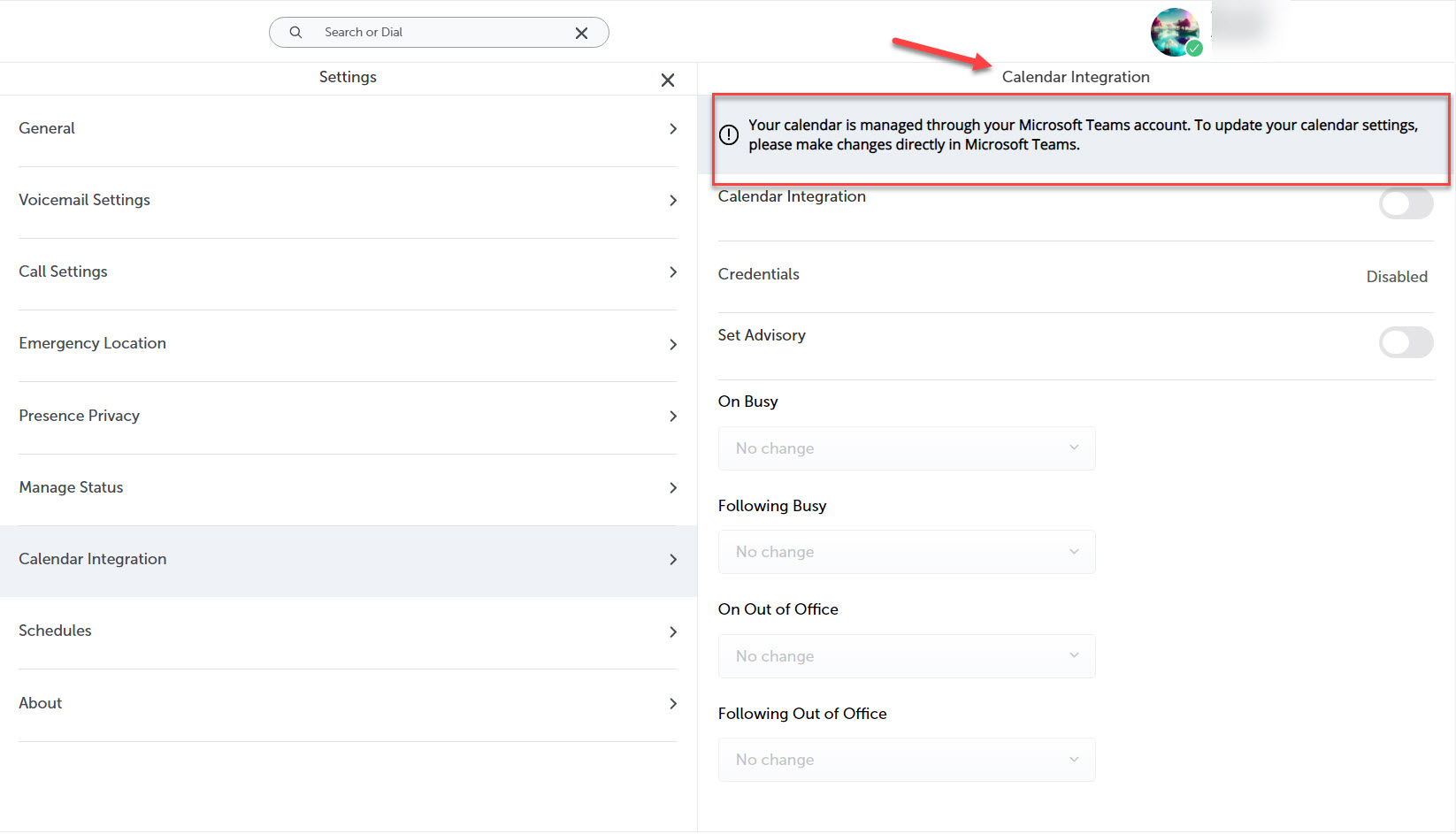
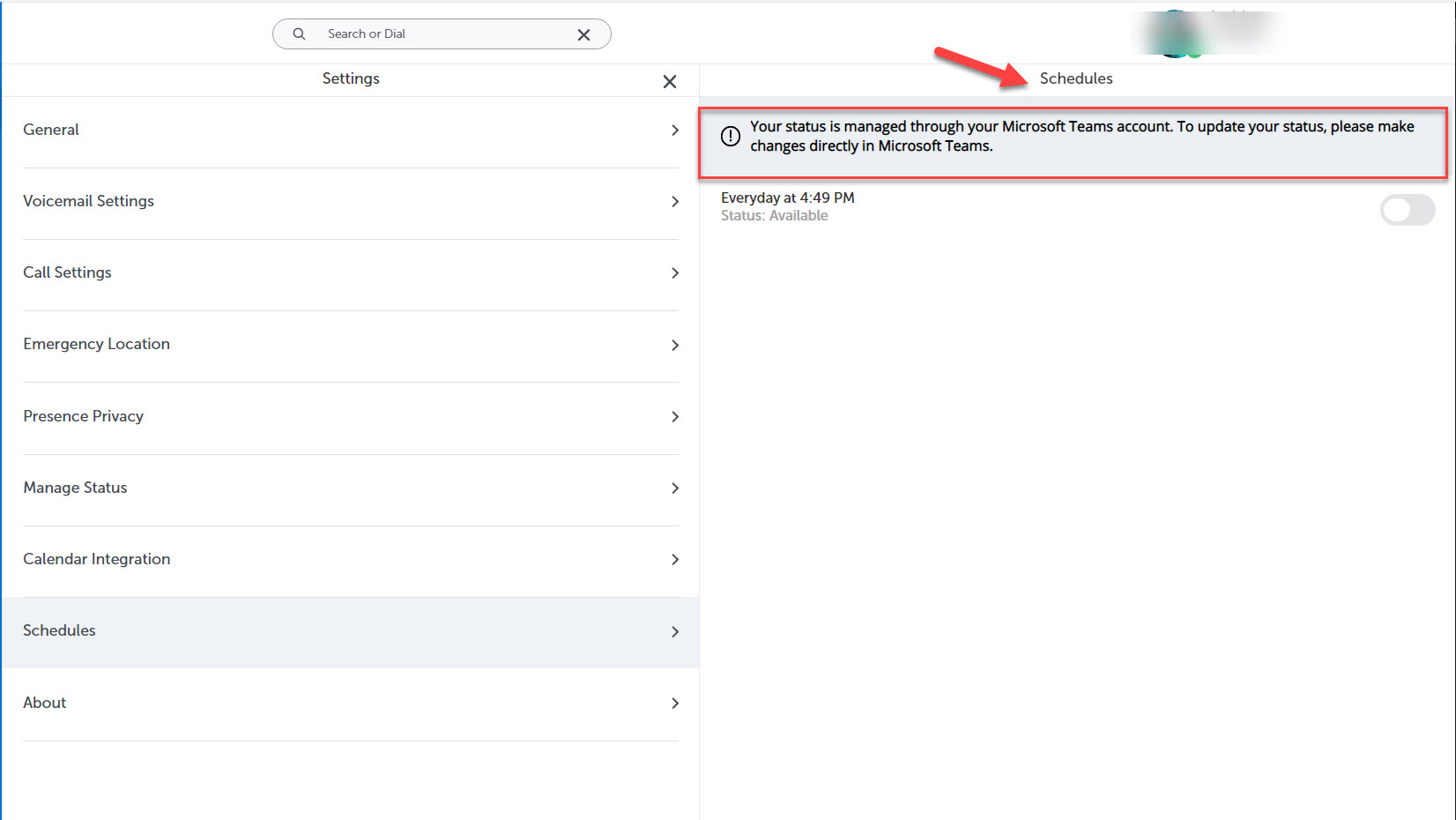
The users who are assigned to a user profile with Microsoft Teams Integration enabled, their availability status will be one of the following Microsoft Teams presence statuses:
-
Available
-
Busy
-
Do Not Disturb
-
Away
-
Be Right Back
-
Offline
With the synchronization of Microsoft Teams presence with MiCollab's dynamic status, you can simply hover- over another user's avatar presence icon and view the real-time Microsoft Teams activity of that user. This action will display the activity of any user which has Microsoft Teams integration enabled.
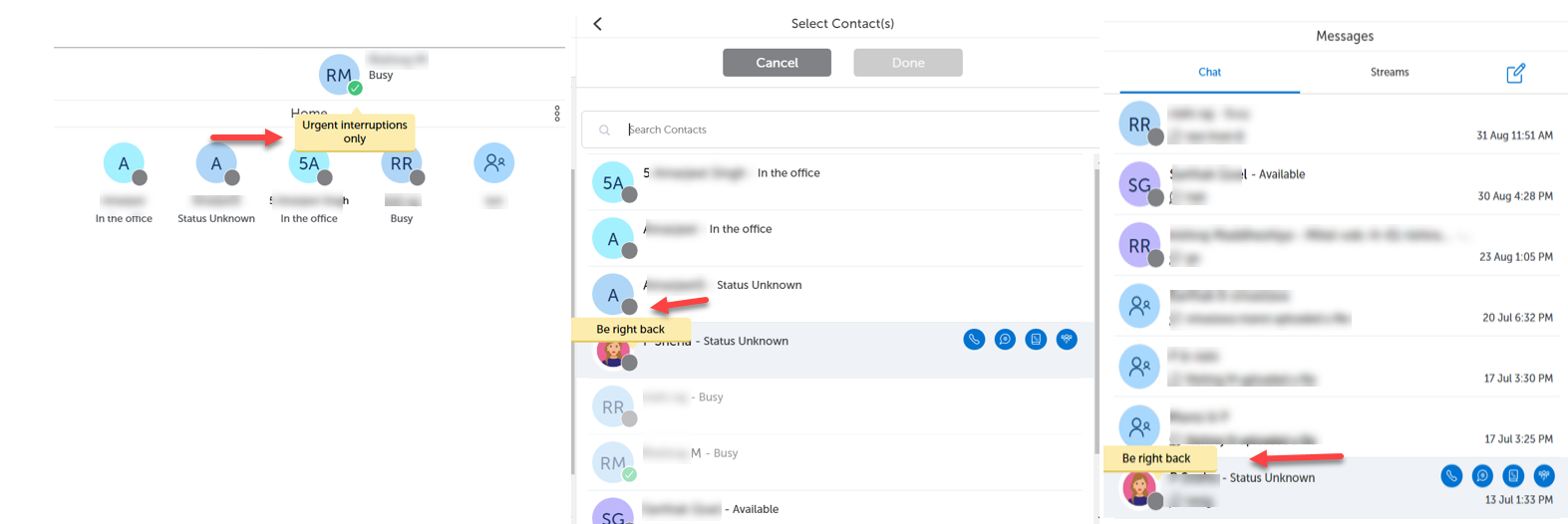
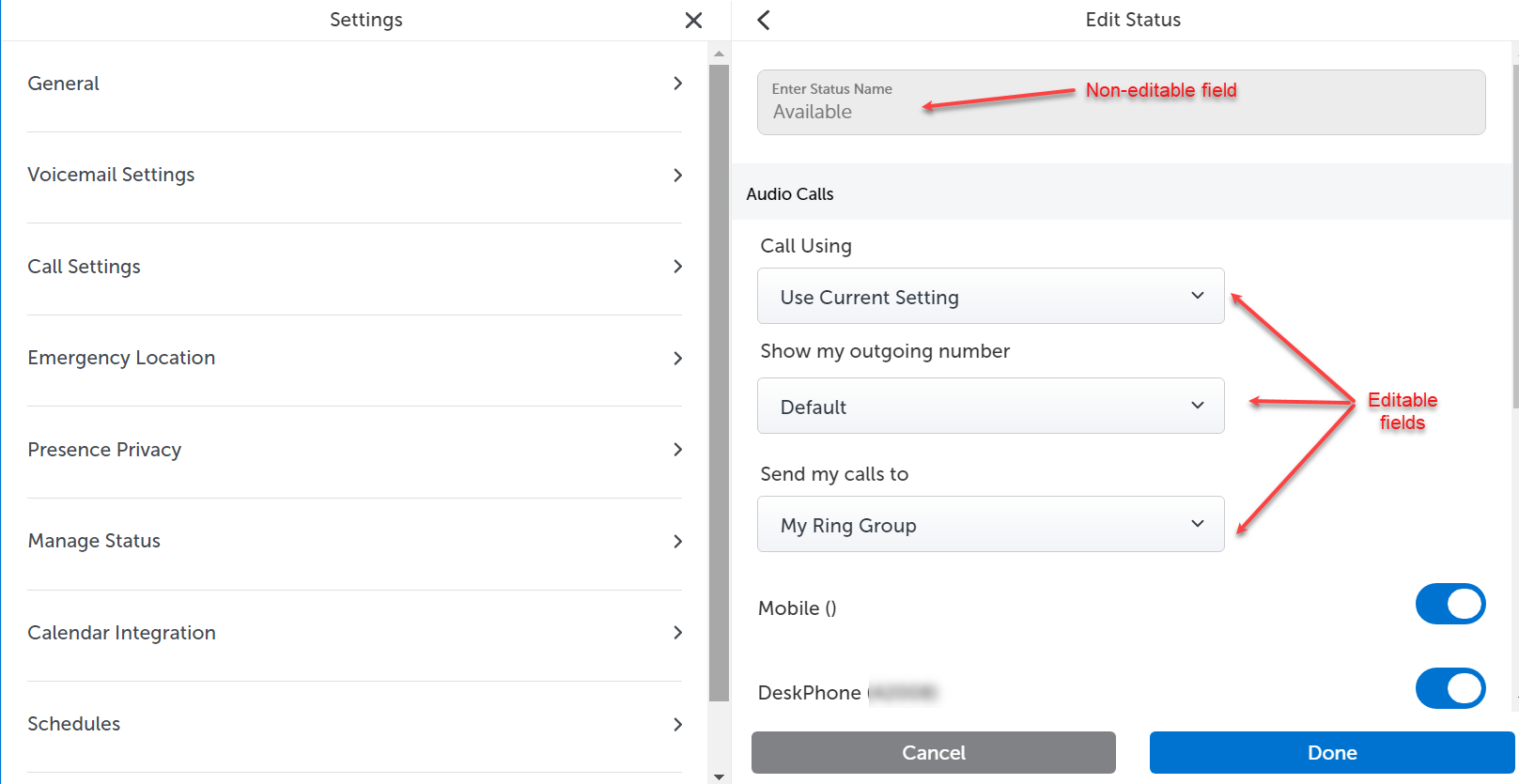
You can edit most of the settings of Microsoft Teams dynamic statuses under Settings > Manage Status with the exception of the status name and it cannot be edited as it is managed by Microsoft Teams. You cannot add additional dynamic status for the same reason.
When using Microsoft Teams, your presence status reflects your availability and is automatically calculated based on your activity (Available, Away), Microsoft Teams application state (In a call, Presenting), and also the state of the PBX phone(Busy, Do not disturb, etc).
For example:
The presence state changes to Away when you lock your computer or when your computer enters idle or sleep mode. On a mobile device, your presence status changes to Away whenever the Microsoft Teams application is running in the background.
The presence state changes to Offline if you have been Away for a while or if the Microsoft Teams application is not running on any devices.
When the presence status is Do not disturb, incoming calls are diverted to the your voicemail.
You can manually select a presence status in the Microsoft Teams application as follows:
If you are in a call or a meeting, then select any status and it lasts for the duration of the call or the meeting.
You can also select any status that is less available than the automatically calculated status. The order of statuses, from most available to least available, are as follows:
Available
Busy
In a meeting
In a call
Do not disturb
Be right back
Away
Offline
When you manually select a presence status, it will take precedence over any automatically calculated status.
Presence status change in Microsoft Teams may take a minute or more to reflect in MiCollab.
Your presence may be out of sync if you are using the MiCollab PC, Web, or Mac client in a background tab. It is recommended to use the PC Client in Telephony-only mode with Microsoft Teams.
If you disable the Do Not Disturb feature on your PBX phone but have manually chosen the Do Not Disturb option in your Microsoft Teams application, your availability status will still appear as Do Not Disturb. Consequently, any incoming calls will be sent to voicemail. However, your presence status indicator will indicate that you are Available.
ACD Hotdesk Softphone is not synchronized with Microsoft Teams to indicate the busy status when the user makes/receives a call. Hence, your presence status remains Available in Microsoft Teams.