Managing contacts
MiCollab Client provides the functionality to integrate personal contacts from other applications. This functionality is applicable only to MiCollab PC, Mobile, and Mac Clients.
Note: When you click e-mail icon, the default e-mail application in your system opens.
Note: You cannot add an external contact from the MiCollab Web clients.
To search for a contact, type a name or number in the search bar in the header area.
To add contacts to your Personal Contacts list:
- From the MiCollab Client Header menu, click on your avatar to open the User Profile menu and then Settings.
- Click on General > Personal Contacts.
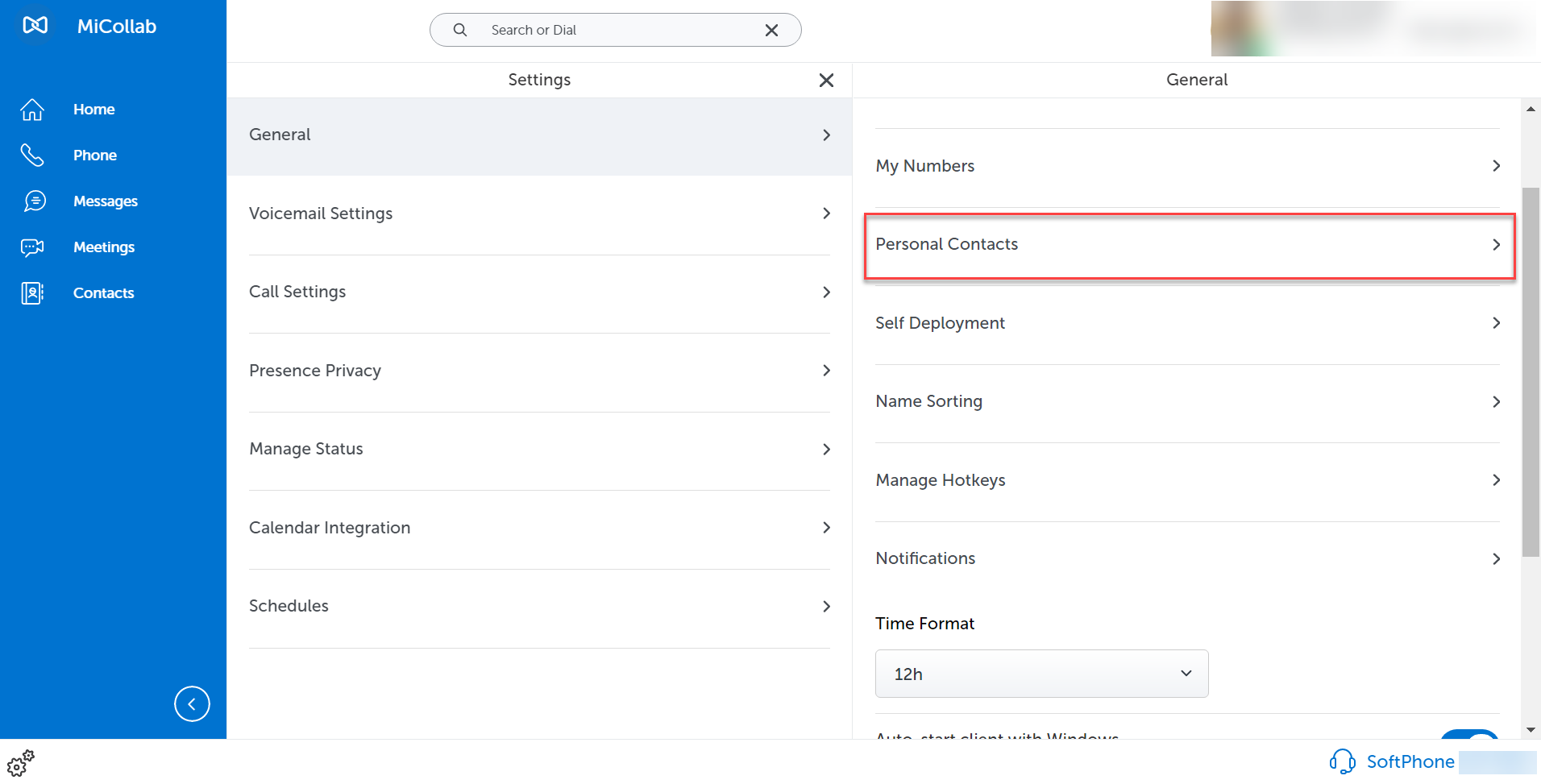
- Select the applications from which to add contacts.
- Outlook (2013 and 2016)
- Built-in Windows People (Windows 8.1 and Windows 10 only)
Adding contacts as shortcuts on the home screen
The Contacts menu on the navigation page displays the Groups, Personal, Corporate, and External contact tabs.
Note: The External contacts tab visibility on the MiCollab client depends on the server configuration.
To add a contact to display as a shortcut on the home screen:
To add a contact as a shortcut on the home screen, perform any one of the following:
Note: This is applicable to all the contacts tab, that is Groups, Corporate, Personal, and External contacts tab.
- Open a contact name from the contacts tab (Groups, Corporate, External, or Personal) or search for the contact name from the Search or Dial field.
- Right-click the contact and select Add to home.
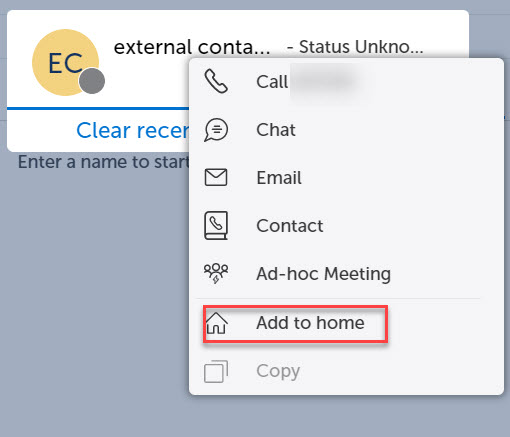
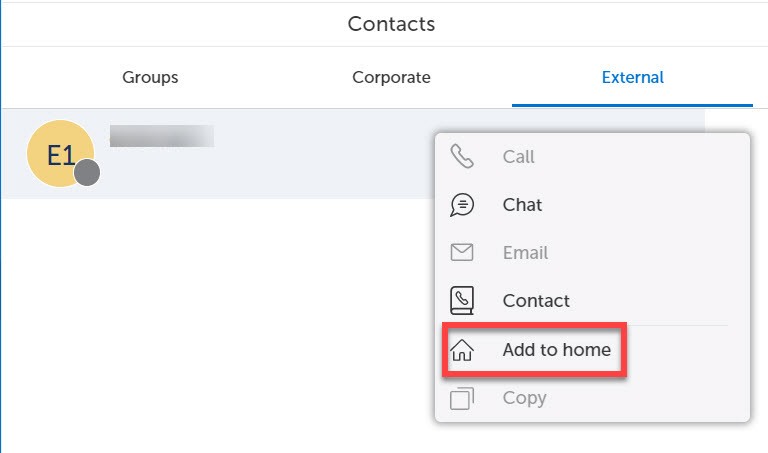
OR
Note: The below steps are applicable only to Corporate and External contacts.
- Open a contact card.
- From the top right corner of the contact card, click the more menu and select Add to shortcuts
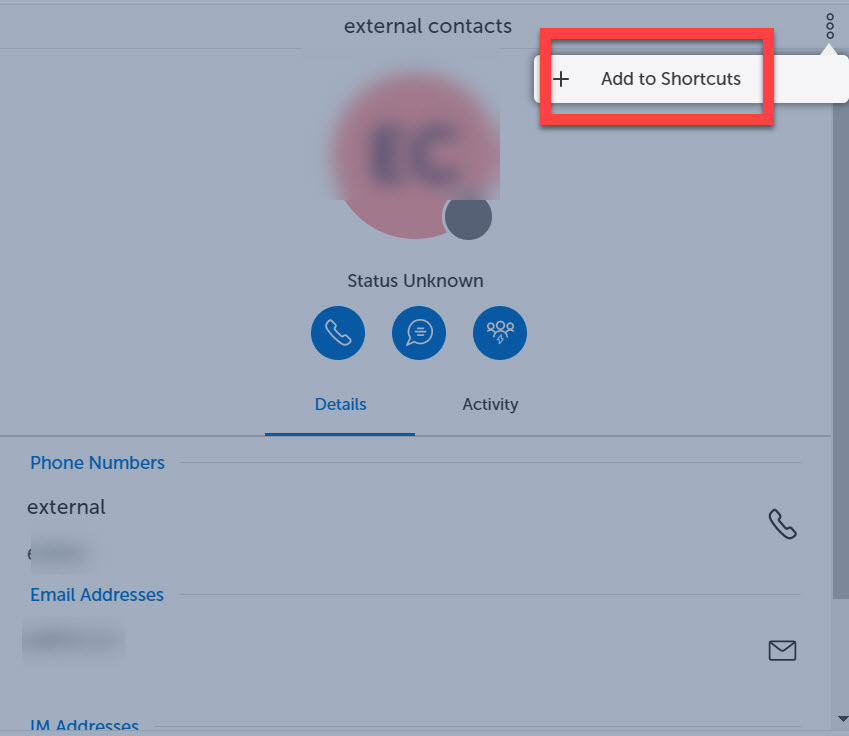
OR
Right-click the contact card and select Add to shortcuts.

OR
Note: This is not applicable to the External contacts.
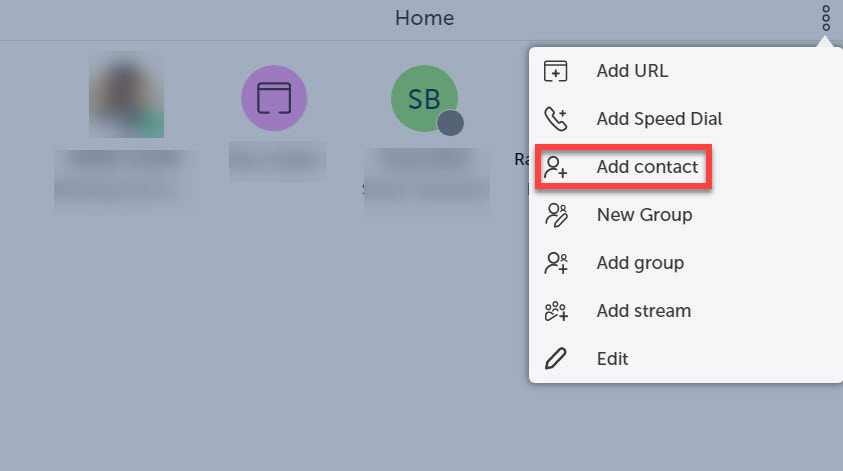
- From the home screen, click Add contact from the more menu.
- Search and select the contact.
- Click Done.
Removing contacts from the home screen
To remove a contact from the home screen:
Note: This is applicable to only the Groups, Corporate, and External contacts that can be added to the Home screen.
- From the home screen, click Edit.
- Select the X icon on top of the desired contact.
- Click Done.
OR
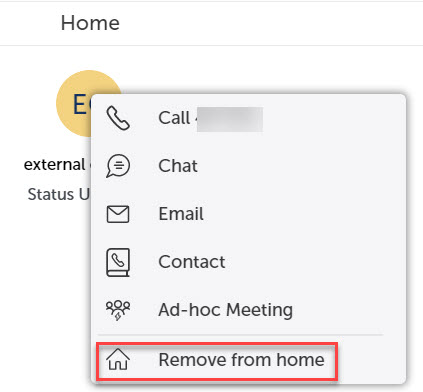
- From the home screens, select the Contact.
- Right-click the contact and select the Remove from home option.
Adding contacts into a group
To add a contact into a group:
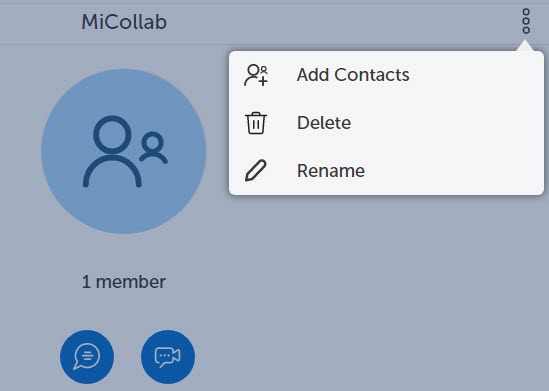
- From the Contacts menu, select a group.
- Click the more icon and select Add Contacts.
- Search and select the contact.
- Click Done.
Removing contacts from a group
To remove a contact from a group:
- From Contacts menu, select group.
- Click the more icon, select Delete.
- Click the X icon on the desired contact.
- Click Done.
- Click OK from the Delete Confirmation dialog box.
↑