Create Intelocate Integration
To create an Intelocate Integration in Workflow Studio, perform the following steps:
- Log into Workflow Studio.
- Under Library, click Integrations.
- In the Integrations Hub, click See details on the Intelocate Integration tile.
- Click Connect to start the integration setup.
- In the Integration Step 1 screen, review the getting started information and click Next.
- In the Integration Step 2 screen, click Add new to create a new connection.
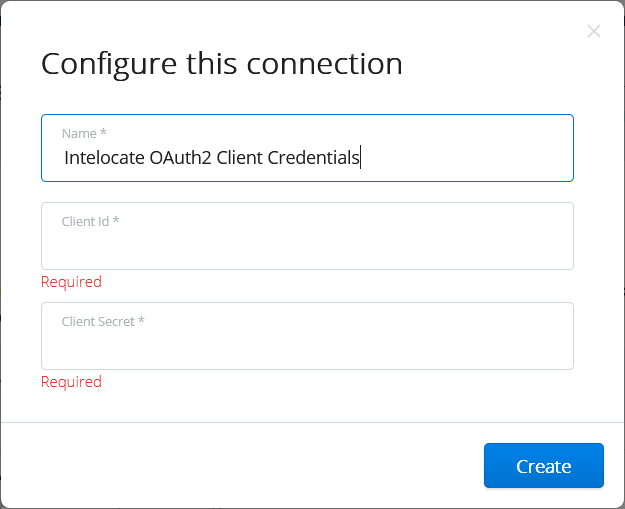
- Click Complete Setup to provide a connection Name, Client ID, and Client Secret.The Configure this connection screen is displayed.Figure 1. Intelocate Integration - Configure this connection
- Click Create.
The Connection Complete screen is displayed to confirm the success of the third-party integration.
- Click Continue.
The newly created connection is displayed in the list.
↑