Editor
The Editor view is the default view of the Workflow Canvas, which allows the administrator to create or modify the workflow based on the requirements. The Progress Bars are provided in the Editor view to view the size and number of nodes in the flow/action.
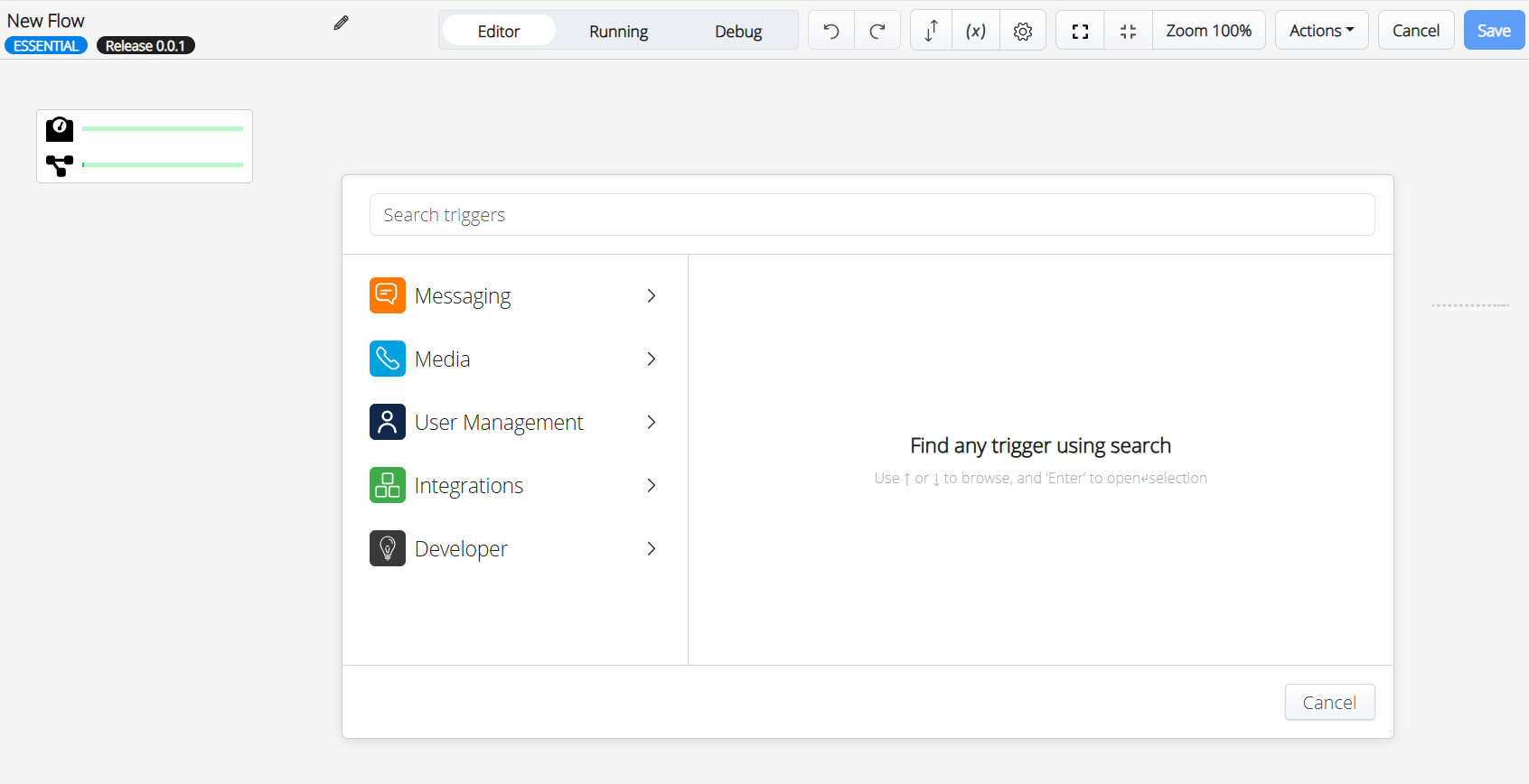
Refer to the Basic Operations section to learn about the various basic operations performed in the Editor view.
Progress Bars
The Progress Bars indicate the size of the workflow and the number of nodes in the workflow. They are used to view the current status of the workflow and notify the user when the workflow reaches the maximum allowed size or complexity. The maximum allowed size and the number of nodes are 4.5 MB and 100 nodes, respectively. The workflow cannot be saved if it exceeds the maximum allowed size. If the workflow exceeds the maximum number of allowed nodes, it can be saved, but there may be performance issues when editing it.
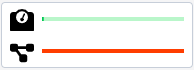
| Color | Status |
|---|---|
Green |
Values are within the allowed limit, and there are no issues. |
Yellow |
The size or the number of nodes exceeds 50% of the allowed limit. |
Red |
The size meets or exceeds the allowed amount, or the number of nodes exceeds the recommended limit. |