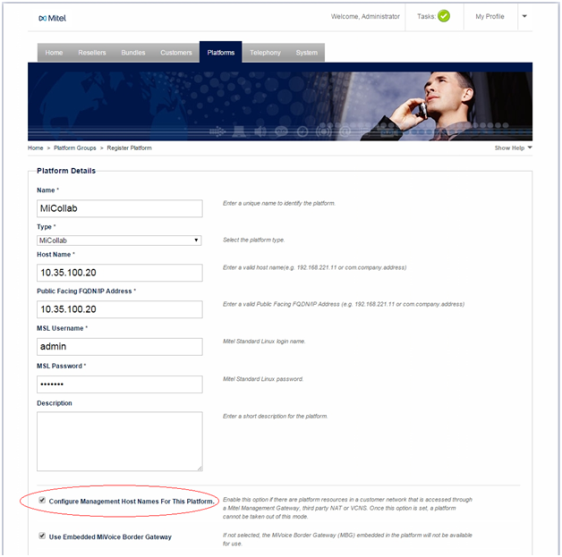
Use Oria to assign one or more platform groups to a customer. To make a platform group available to a customer, register it and set it up as a site in a resilient or non-resilient environment. After setting up a site, you can set up MiCollab Client Multi-Tenant servers.
Enter a public facing domain name for each platform group you register so that users can access Mitel platforms and the Oria portal. Public facing fully qualified domain names (FQDN) are used to construct URLs. An FQDN is required for the following products:
• MiVoice Business Express
• MiCollab
• Mitel Border Gateway
Registering a platform group with the portal allows you to assign it to a customer. Register a platform group with one MiVoice Business or with multiple resilient pairs. For each MyVoice Business pair, you must configure cluster elements in ESM.
Important: When registering a platform group in Oria, the IP or FQDN entered for the hostname appears as the public facing domain name. You can choose to leave the default name or change it. The setting is available in the Advanced Settings page. Only a service provider can change the settings.
1 Select Platforms > Platform Groups and then click Register Platform.
Note: Click Save to save the changes in the current tab before moving on to the next tab.
2 Select the platform type from the Type list.
Notes: It is important to enter the MSL Username and Password in the appropriated fields when registering a MiCollab or MiCollab with Voice platform group. Otherwise, the registration will fail.
When migrating from MiCollab 5.0 SP2 to MiCollab 6.0 SP1, you need to re-enter the MSL Username and Password credentials when performing edit operations (such as when editing a platform group).
3 Click Submit to register the platform group.
4 Add the MiVoice Business instance(s).
5 Add Sites as necessary to associate with the platform group.
Note: When creating (or subsequently modifying) Sites and configuring the associated MBG(s), the User Phone Details will show up to four user phones that can be programmed on the MBG. Both the MiCloud Business Multi Instance and MiCloud Business Virtual Entry UCC Bundle has four phones associated with it. See Planning Bundles for the phone types supported for each license type. To ensure that the user’s SIP phone number is programmed on the MBG, verify that the Third Phone check box is selected. To ensure that the user’s SIP phone number is programmed on the MBG, verify that the Third Phone check box is selected.
6 Add MiCollab Client Tenants as necessary. To enable MiCollab MiTeam, click MiTeam Service.
Oria allows a Service Provider to set up MiCollab Clients for multiple Customers on the same MiCollab Client server. The Tenants configured in Oria on the same MiCollab Client server appear as a unique Enterprises per Tenant.
Terminology: Note that on the MiCollab Client Server, we use the term Enterprises. On Oria we use the term Tenants. When you create users, they are grouped into their corresponding Tenant/Enterprise.
When the platform group is registered with a MiCollab Client Tenant, Oria creates an appropriate Enterprise on the MiCollab Client server.
Note: After you configure MiCollab through Oria, changes should not be made on the MiCollab Client server; this will cause configuration issues and possible loss of MiCollab Client services.
There are some limitations and restrictions for MiCollab Clients (e.g. Calendar integrations). Refer to the MiCollab Client Administrator Guide and the MiCollab Client Administrator Web Help for more information (go to http://edocs.mitel.com).
A new user created in MiVoice Business does not appear in MiCollab until a synchronization between MiCollab Multi-Tenant and MiVB takes place, which by default is every 24 hours. To synchronize platforms at anytime, use the Synchronize Platforms button in the Customer Administrator portal:
• Click Company and then select Advanced>Synchronize Platforms.
MiCollab MiTeam is a mobile-first on-demand collaboration tool. It provides a persistent workspace for team collaboration with messaging, content sharing, white boarding, and real-time voice and video meetings, allowing teams to communicate in real time no matter where they are.
MiCollab MiTeam is available with Entry UCC based Service Bundles in the SMB architecture and is available with Premium UCC Service Bundles in the MLB architecture. See Planning Bundles for Customers.
1 Register the platform group.
2 Click the MiCollab Client Tenant tab.
3 Select MiTeam Services.
4 Click Save.
You can set the location of the MiCollab MiTeam data center in the Service Provider Portal to support Data Sovereignty requirements. Oria 5.3 with MiCloud Business 3.3 supports three locations for hosting MiTeam user data; US (default), Europe, and China.
If you have users that reside in both the Europe and the US, set the data center location to EU. The laws in the US allow data storage in Europe.
Note: If you upgraded to Oria 5.3 but are using MiCloud Business 3.2 or earlier, the MiTeam data center location is set to US by default and is read-only (grayed out). The data location setting was not available in MiCloud Business 3.2 and earlier or MiCollab versions earlier than 7.3.
1 Go to Platforms > Platform Groups, select the platform group, and then click the Edit icon.
2 Click the MiCollab Client Tenant tab.
3 From the MiTeam Data Center Location list, select the new location.
4 Click Save.
Platform Manager provides a way for Service Providers to create MiVoice Business platform groups based on blueprints created with Platform Manager.
Important: If you make a change to the Platform Manager server, for example change the credentials, make sure that you also change them in Oria.
To use Platform Manager blueprints in Oria, follow these steps:
1 Enable the Platform Manager feature.
2 Register Platform Manager.
3 Register a Platform Manager blueprint.
4 Create platform groups using a Platform Manager blueprint.
Note: Blueprints apply to MiVoice Business type platform groups only.
1 From the System tab, click Operations Profile.
2 Do one of the following:
a To create a new profile and enable Platform Manager, click Create Operations Profile, select Platform Managed and other features and responsibilities to include in the profile.
b Select the profile, click the Edit icon, and select Platform Managed.
3 Click Submit.
1 From the System tab, click Platform Manager Registration.
2 Do all for the following:
a In the Host Name field, enter the Platform Manager IP address or FQDN.
b In the Username and Password fields, enter the MSL Admin username and password.
c In the Password Token field, enter the token for establishing a trusted relationship between Oria and the Platform Manager.
3 Click Submit.
You can modify all the settings after you register a Platform Manager server. If the IP address now points to a different Platform Manager server, make sure that you restore a backup from the original Platform Manager server.
Important: Pointing to a completely different Platform Manager server can result in unpredictable results.
You can delete a registered Platform Manager server if no platform groups are configured on it. Deleting the Platform Manager server also deletes all the configured Platform Manager blueprints.
Register a Platform Manager blueprint configured in Platform Manager so that you can automatically generate base platform instances during Customer provisioning.
1 From the Platforms tab, click Platform Manager Blueprints Assignment.
2 Click Register Platform Manager Blueprint.
3 Enter a unique and meaningful name for the blueprint.
4 Select the Platform Manager blueprint to register.
5 Enter a description for the blueprint, including the specific platform features that are included. Some special characters [/, <, >, :, etc] are not supported.
6 Click Submit.
You can change the Name, Description and Deprecated fields anytime after creating a blueprint. However, after you use a Platform Manager blueprint to create a platform group, you cannot change it. If you delete the platform(s) that use the blueprint, you can edit the blueprint again.
Similar to the Edit operation, you cannot delete a blueprint that was used to create a platform group. If you delete the platform(s) that use the blueprint, you can delete the blueprint.
You can deprecate a Platform Manager blueprint so that it can no longer be used to create platform groups. A blueprint that is marked as "Deprecated", does not affect any existing platform groups created with the blueprint.
Create as many platform groups as you need using a blueprint.
Important: After you create a platform group using a blueprint, you cannot add any more MiVoice Business instances to that group.
1 Click the Platforms tab, select Platform Groups, then click Register Platform.
Notes: When registering a Platform, click Save when working in each of the tabs associated with the task at hand, before moving on to the next tab.
When registering a platform in Oria, the IP or FQDN entered for the hostname appears as the public facing domain name. You can choose to leave the default name or change it. The setting is available in the Advanced Settings page. Only a service provider can change Advanced settings.
2 Select MiVoice Business from the Type drop-down list. Blueprints apply to MiVoice Business type platform groups only.
3 Select Managed Platform.
4 From the Blueprints list, select the blueprint to use to create the platform group.
5 Click Submit to register the platform group.
NAT-based networks are required for MiCollab Platform-based solutions in MLBs.
Note: Although the MiCollab Platform based solution includes MiVoice Business nodes there is no NAT support for the MiVoice Business only Platform solution.
For Oria to access nodes (for example, MiVoice Business) from the SP Network, two IP addresses are required:
• Customer Host Name - the IP address configured on the node itself (for example MiVoice Business).
• Management Host Name - the IP address needed to access nodes (for example MiVoice Business) from the Service Provider network.
1 Click the Platforms tab, select Platform Groups, then click Register Platform.
2 Select Configure Management Host Names For This Platform. This information tells Oria that the MiCollab is deployed in a NAT network.
Note: You cannot disable the Requires Management Host Name Configuration after you register the MiCollab platform.
3 Enter the required information.
Important: Make sure you enter the Management Host Name IP address in the Host Name field. The Management Host Name IP address is used to access MiCollab from the Service Provide network and is not the actual IP Address (or FQDN) of the MiCollab on the Customer Network. The Public Facing FQDN/IP Address field is independent and has no effect on this configuration.
4 Click Submit
After MiCollab is registered, the MiVoice Business tab lists any MiVoice Business nodes that you add to MiCollab. By default MiVoice Business displays its own IP Address as configured in the Customer Network (the Customer Host Name field). Use the following procedure to configure the Management Host Name so that Oria can access the MiVoice Business from the Service Provider network.
1 Click the MiVoice Business tab.
2 Click the Edit button for the first MiVoice Business listed.
3 In the Management Host Name field, enter the IP Address that is used to access MiVoice Business from the Service Provide network.
4 Click Save.
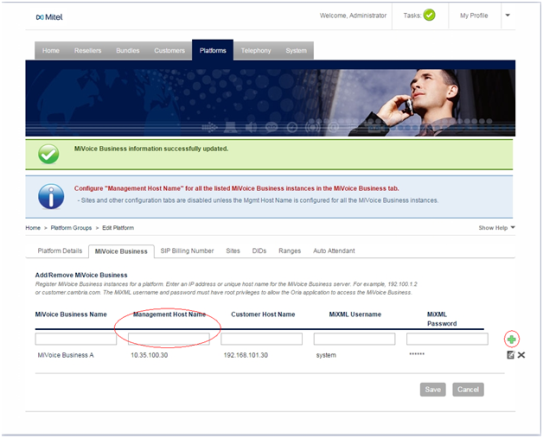
5 If required, configure other MiVoice Business instances.
All tabs except for Platform Details and MiVoice Business are disabled until you enter the Management Host Name in Step 2.
1 Use the tabs to configure Sites, SIP Billing Number, and other platform group settings.
2 Click Save.
3 See the Migrate to MiCloud 3.1 Flow Through Provisioning section in Upgrade the Oria Software if you upgraded from MiCloud Business 2.0 to MiCloud Business 3.1.
If you previously registered MiCollab without NAT support, you can enable it using the following steps.
1 Click Platforms and then click the Edit icon for the MiCollab platform.
2 From the Platform Details tab, enable the “Requires Management Host Name Configuration”.
Configure MiVoice Business node with Management Host Name
1 Select the “MiVoice Business” tab. The MiVoice Business nodes are listed with defaulted “Management Host Name” values. The “Management Host Name” is defaulted to the “Local Host Name” (which is the IP Address/FQDN of the MiVoice Business in the Customer network).
2 Click on the Edit button on the first MiVoice Business instance. This will bring up a dialog to enter the “Management Host Name”. Remove the defaulted “Management Host Name” IP Address, and enter the IP Address that is used to access the MiVoice Business from the Service Provide network and click Save.
3 Repeat this process as needed for all the listed MiVoice Business instances.
Notes: A MiCollab registered with “Requires Management Host Name Configuration” cannot be reconfigured to disable NAT support. This MiCollab needs to be deleted and re-added.
See the Migrate to MiCloud 3.1 Flow Through Provisioning section in Upgrade the Oria Software if you upgraded from MiCloud Business 2.0 to MiCloud Business 3.1.
Each instance of MiVoice Business in Oria can have a maximum of 999 Agent Skill Groups. However, in the Oria portal, call flows use Agent Skill Groups with ACD Paths and by default the Multi-Instance Communications Director (MICD) configuration limits the number of Agent Skill Groups to 64. You can increase this limit by changing the Extended Agent Skill Group setting in the License and Option Selection form.
