The Queue Folder view displays the Unified Queues, Reporting Queues, and Individual Queues for which an employee’s agent group answers interactions.
Unified Queues – A collection of queues of different media types receiving interactions for a single service group. For example, a Unified Queue Group called ‘Technical Support’ can contain a voice, a chat, an email, and an SMS queue receiving tech support interactions. You can view these queues in a single folder, ‘Unified Queues’, in Ignite. You can control which queues are visible under Unified Queues in Settings. For more information, see "Queue selection settings (DESKTOP)".
Reporting Queues – A collection of queues, typically of a single media type, created for reporting purposes. For example, a collection of queues called ‘Email Technical Support’ can contain all email queues receiving tech support interactions. You can view these queues in a single folder, ‘Reporting Queues’, in Ignite. You can control which queues are visible under Reporting Queues in Settings. For more information, see "Queue selection settings (DESKTOP)".
Individual Queues – Queues of a single media type, either voice, email, chat, or SMS, which are not part of a Unified Queue. Individual Queues that are grouped into Reporting Queues also display here. You can control which queues are visible under Reporting Queues in Settings. For more information, see "Queue selection settings (DESKTOP)".
Viewing Unified Queue Groups, Reporting Queues, and Individual Queues (DESKTOP)
You must be licensed for Multimedia Contact Center to view queues. Supervisors must also be configured as agents answering for the queue in order to see its contents.
Selecting a specific queue folder updates Ignite to display the interactions in queue. See "Viewing contacts in Ignite’s folders (DESKTOP)" for more information. You can organize your queues and queue groups in alphabetical or reverse-alphabetical order for ease of viewing.
Agents can choose which queues display in Ignite. For more information, see "Queue selection settings (DESKTOP)". Supervisors can restrict the devices that agents can view in Ignite. For more information, see "Configuring security roles".
- The number of agents available in each queue’s answering agent groups. For Reporting Queues and Unified Queue Group folders, the total number of agents available for the queues is displayed.
- The number of interactions in queue, or 'InteractionsWaiting', for the queue and the queue groups
- The time that the longest waiting interaction has been in queue
- The queue or queue group’s Service Level. This Service Level is color-coded to give an indication of how the queue is faring. 75% or greater is green, 50% to 74% is orange, and less than 50% is red.
The following figure illustrates where each statistic displays.

- View Reporting Queues and Unified Queue Groups
- View queues within Reporting Queues and Unified Queue Groups
- View Individual Queues
- Sort queues and queue groups
- In the My Folders view, expand the Folders pane.
- In the Folders pane, expand either Reporting Queues or Unified Queues.
- In the My Folders view, expand the Folders pane.
- In the Folders pane, expand either Reporting Queues or Unified Queues.
- Expand the queues for which you want to see members.
- In the My Folders view, expand the Folders pane.
- In the Folders pane, expand Individual Queues.
- In the My Folders view, expand the Folders pane.
- In the Folders pane, expand Reporting Queues, Unified Queues, and Individual Queues.
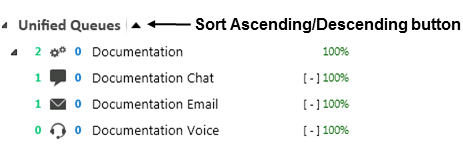
- Click the Sort Ascending/Descending button.
See the following figure.
Note:An upward-facing triangle indicates alphabetical sorting (Ascending). A downward-facing triangle indicates reverse-alphabetical sorting (Descending).