Mitel Workflow Studio Integration for MiVoice 5000
After integrating Mitel Workflow Studio with a CloudLink customer account a Mitel Partner or an Account Admin can integrate Mitel Workflow Studio for MiVoice 5000. To do this, you must create a Trunk, and set the characteristics.
To create a trunk in MiVoice Office 5000 portal, navigate to Telephony services > Network and links > Network > Trunk Groups > Names (4.2.1.1).
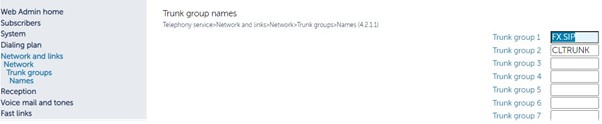
-
Navigate to Telephony services > Network and links > Network > Trunk groups > Characteristics (4.2.1.2).
-
Select the Subtype as CLOUDLINK and click Characteristics button.
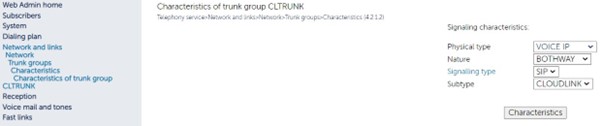
-
Provide port other than 5070 and select Proxy checking as IP Address.
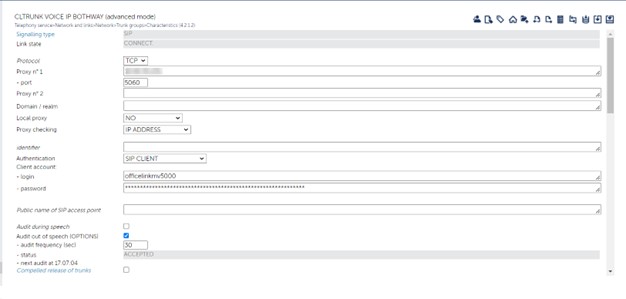
After successfully creating Trunk and setting the characteristics, navigate to Dialing plan > User dialing plan > Access to directions > Access to CLINK and add the Access code and Length of next number to access the code for CloudLink.
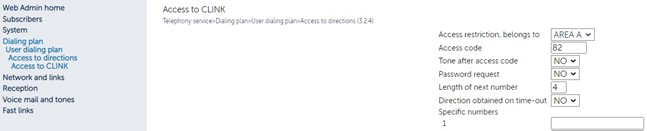
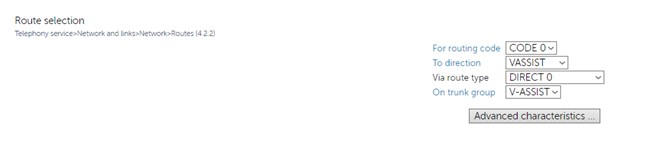
To create routes, navigate to Telephony service > Network and links > Network > Routes (4.2.2).
For more information about how to configure SIP Trunks see, Mitel 5000 Server - Operating Manual and for information about DID Numbers see, Managing DID Numbers.