Platforms
The Platforms component displays inventory across all of the Partner's customers.
When Platforms component is selected, it might take around 10 seconds to load Platforms page.

Platforms Details
Platforms table has the following features:
| Name | Description |
|---|---|
|
ACCOUNT |
Name of the account. |
|
HOST |
Hostname of the platform |
|
PLATFORM TYPE |
The platform type or category (for example, MSL, MiVoice Business). |
|
PLATFORM NAME |
Name of the platform. |
|
APPLICATION TYPES |
Type of application (for example: mivoice-business, cloudlink-daemon, cloudlink gateway, mitel-border-gateway). |
|
SYSTEM FAMILY |
Operating system type (for example: linux and windows). |
|
LICENCE |
License number of the platform. |
VERSION |
Version of the platform. |
|
SWA STATUS |
SWA status of a platform. |
|
PLATFORM ID |
ID of a platform. |
|
PORTAL |
The Launch |
 button is displayed to connect to the platform.
 -
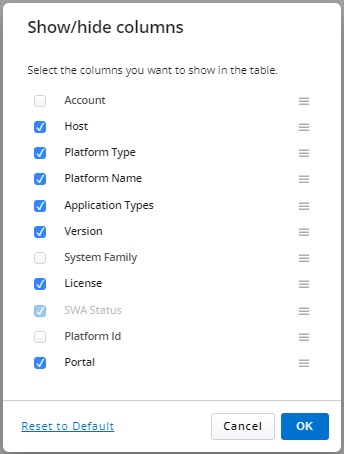
The columns displayed can be customized:
-
Click the
 icon, select Show/hide columns.
 -
In the pop-up, select the checkbox(es) of interest. SWA Status is grayed out as it's a fixed column.
-
Rearrange the columns by dragging the
 icon as desired.
-
Filtering Data
To search for particular platform, add filters to the table by using the Add Filter
 button.
Filter name Options Description Platform Type
msl
Mitel Standard Linux platform type
windows
Windows platform type
System Family
Linux
Linux (Operating System)
Windows
Windows (Operating System)
Application Types
mivoice-business
MiVoice Business application
cloudlink-gateway
CloudLink Gateway Portal application
mitel-border-gateway
Mitel Border Gateway application
micollab
MiCollab application
License Type
Unlicensed
If the license ID is not found.
Subscription
Monthly subscription license
Perpetual
CapEx license
SWA Status
Not Indicated
License without expiration date
Active
Active subscription or perpetual license with more than 90 days until expiration
Inactive
Subscription license that has exceeded its expiration date
Expiring soon
Perpetual license with an expiration date within 90 days
Expired
Perpetual license that has expired
SMBC Platform behavior in System Inventory
Each SMBC child platform now appears as an individual entry in the System Inventory. This enhancement improves visibility and enables administrators to review SMBC components independently instead of as a single unified record.
Overview
An SMBC deployment consists of a parent platform and one or more child platforms. In this release, the System Inventory lists each SMBC child platform as a separate entry. In some deployments, only one child platform is available; in those cases, the table displays a single entry.
The parent SMBC platform no longer appears as a distinct row in the Platforms table.
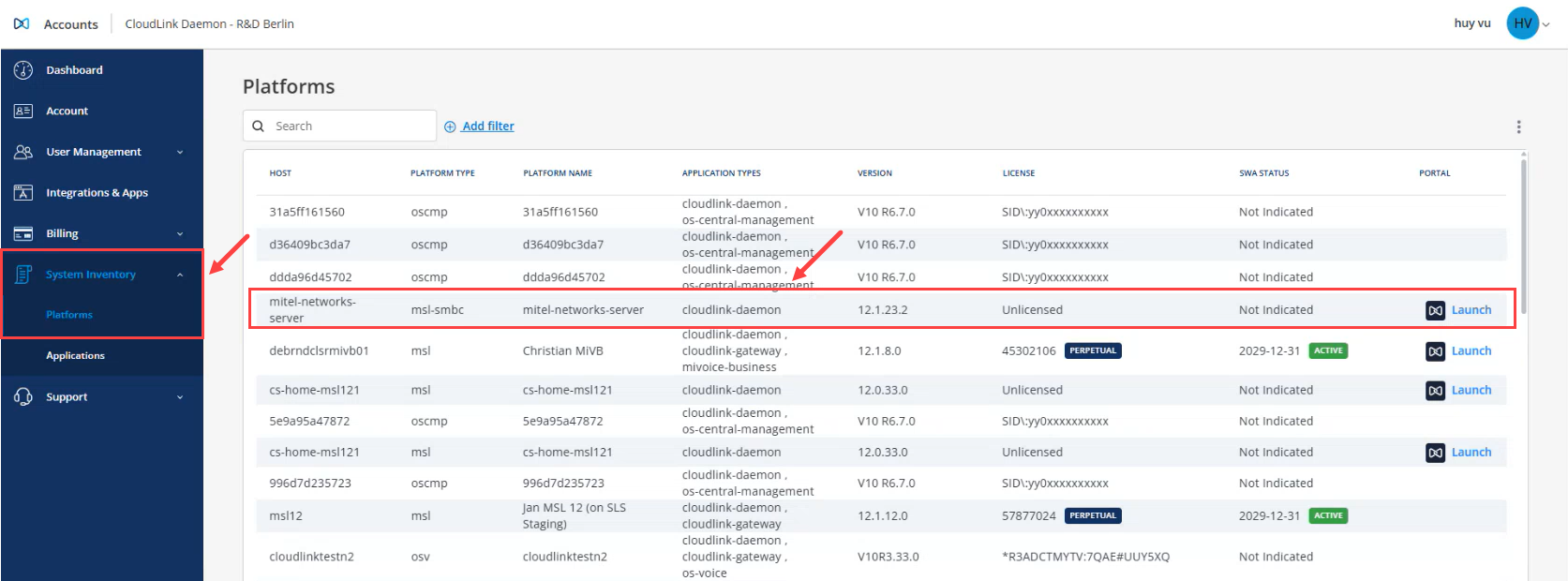
Display in the Platforms Table
Each SMBC child platform entry includes the standard platform information fields, such as host name, platform name, version, and license.
|
Field |
Description |
|---|---|
|
Platform Type |
Displays a combination of the “child”-smbc platform type (for example, msl-smbc). Other variations may appear depending on the deployment configuration. |
|
Host, Platform Name, Version, and License |
Show information for the SMBC child platform. |
|
SWA Status |
Indicates the current Software Assurance status. |
|
Launch |
Opens the corresponding administration console for the child platform (for example, msl). The Launch button does not provide direct access to the SMBC parent platform. |
Filtering
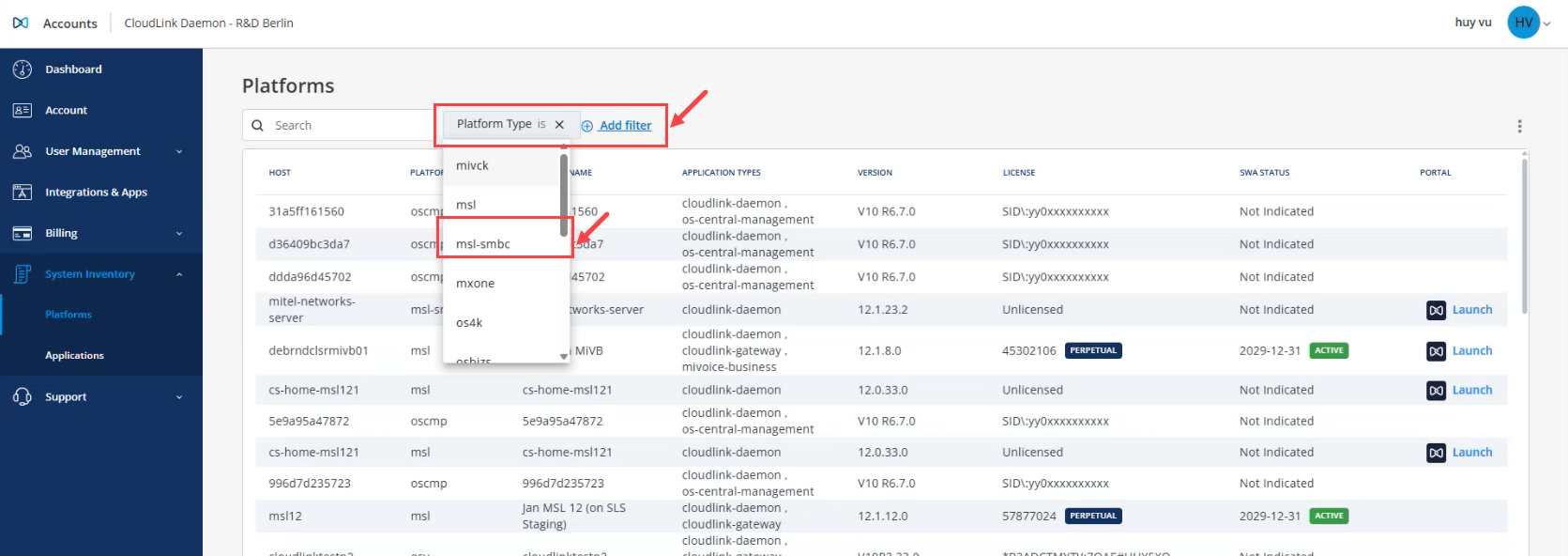
- Go to System Inventory > Platforms.
- From the Platform Type filter list, choose an option following the “child”-smbc format, such as msl-smbc.
- The table updates to show only SMBC child platforms.
Administrator Views:
|
View |
Description |
|---|---|
|
Customer Administrator View |
Displays SMBC child platforms for the selected customer. |
|
Partner Administrator View |
Displays SMBC child platforms across all managed customers. |
Accessing the SMBC Child Platform Edit Page
- Go to System Inventory > Platforms.
- Locate a platform whose Platform Type follows the “child”-smbc format, such as msl-smbc.
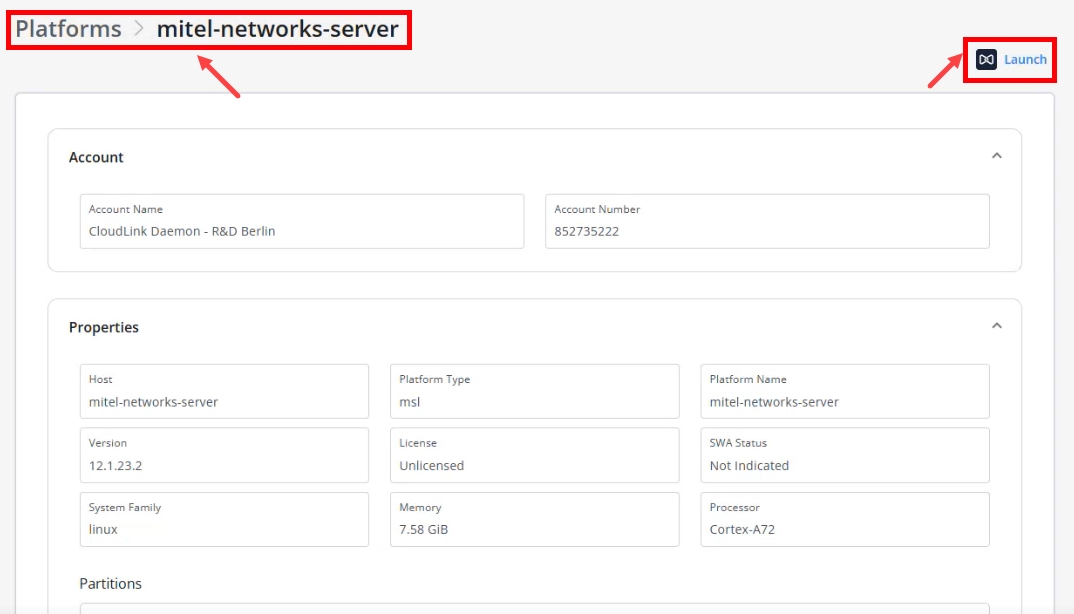
- Click the platform name to open the Child Platform Edit
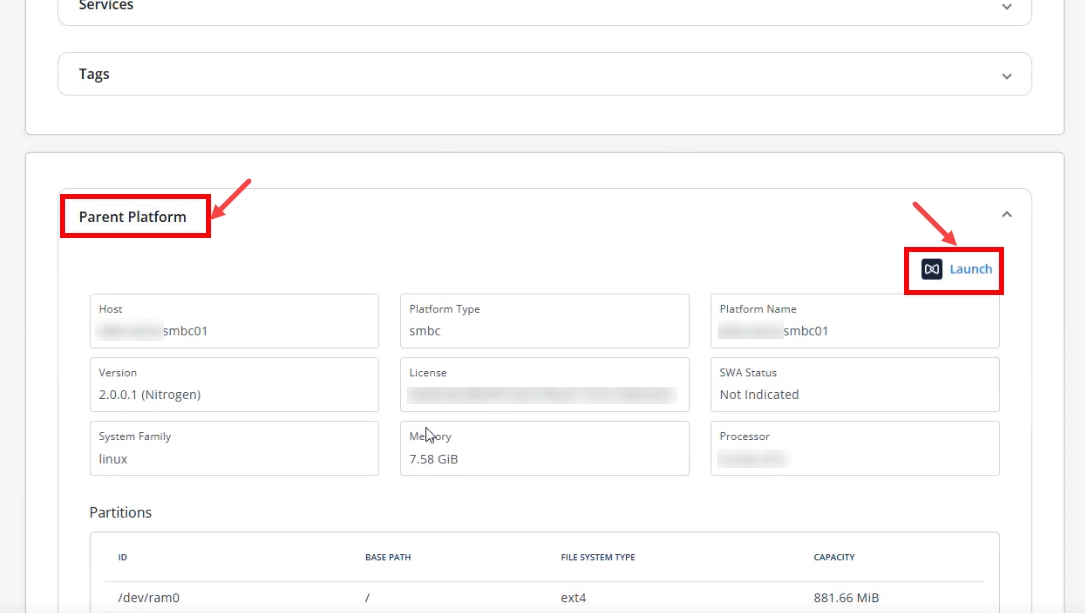
page.The Child Platform Edit page displays information for both the SMBC parent and its child platform.Note: On the Child Platform Edit page, two Launch buttons may appear (if applicable):
- The top Launch button opens the administration console for the child platform.
- The Launch button under the Parent Platform section opens the administration console for the SMBC parent platform.
Child platform:
Parent platform:
Individual platform details
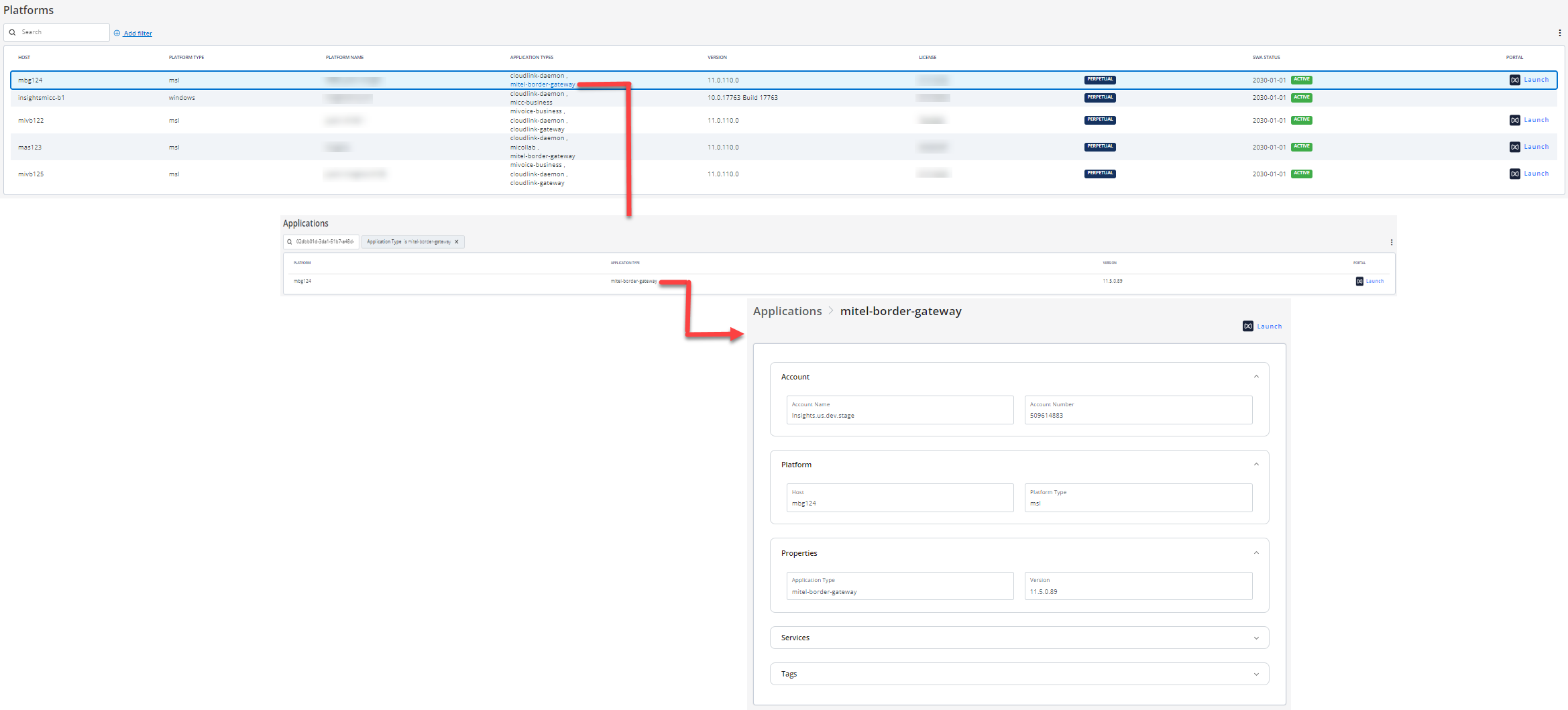
Click a row on the Platforms table, the details of the selected platform is displayed. The Launch button is displayed based on the selected platform.
The Launch button seamlessly presents the administration console of the Platform (example: MSL Server Manager). Clicking the Launch button generates a URL with a unique, secure connection to either platform or application for each use.
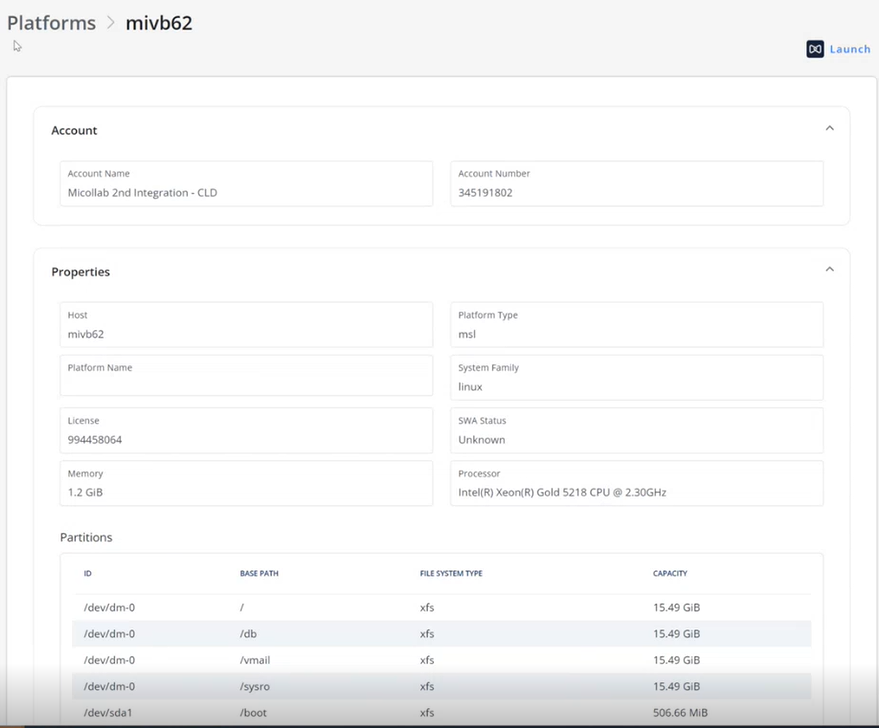
When multiple application types are associated with an account, select one to view its details. The selected application type details are displayed in a table format. To access further information, click on the application type once more, and a detailed view is displayed. An example screenshot is shown below: