OfficeLink is designed to enable easier and more effective communications with coworkers and customers.
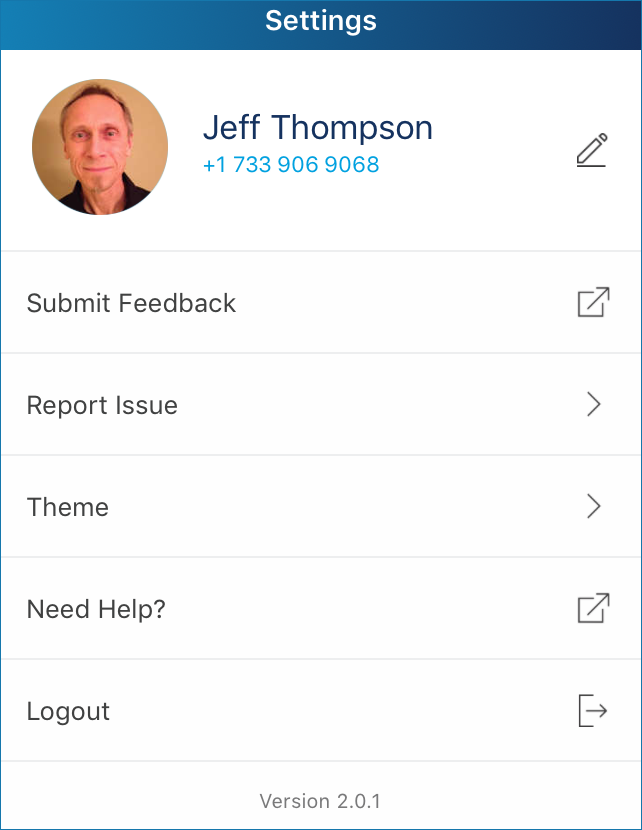
The following explains how to utilize the options available on the Settings screen.
- Profile – You can change your name and avatar at any time. Just tap the area with your name at the top of the screen, tap Edit in the next screen that appears, make the desired changes, and tap save. To learn more, see Set up Your Profile.
- Submit Feedback – Please send your suggestions to help Mitel improve OfficeLink. Tap Submit Feedback, type your idea in the first text box, tap the Post a new idea button (if it appears), select a category from the menu below, enter a description of your idea, enter your email address, tap the “terms of service” check box, and tap the Post idea button.
- Report Issue – We want to know when you experience any issues while using OfficeLink. Tap Report Issue, describe “what went wrong,” enter the steps needed to reproduce the issue, and tap SEND.
- While submitting a problem report, provide as much information as possible. This will help troubleshoot your problem quickly. Specific details are needed to correctly investigate and resolve an issue.
- Date, time, device information, and logs are collected as part of your problem report.
- After you report an issue, the onsite Support Contact for your account will receive an email notifying that you have reported a problem. The onsite Support Contact, while investigating the issue, might reach out to you for additional information.
- If your Support Contact needs assistance to resolve your issue, they will escalate the report through their standard support procedures.
- You can follow up directly with your onsite Support Contact for updates about your report.
- Theme – You can choose the color theme you want displayed on your OfficeLink app. Just tap Theme, tap the desired color (adds a check mark), and tap the back arrow.
- Need Help? – If you want to learn more about using OfficeLink, tap Need Help? to open the OfficeLink help.
- Logout – You should logout only when you do not want to receive any more notifications of calls and chats. When you log back in, all of your calls, chats, and contacts will be there for you to access again.
- Version – The version of the OfficeLink app that is installed on your mobile device is displayed at the bottom of the Settings screen. To see more details about this version, tap the Version number. In the System Profile screen that opens, you can change the Log Level if you are working with Mitel support to troubleshoot an issue.
Note: Mitel is always looking for feedback about OfficeLink. Make sure your voice is heard by using the Submit Feedback feature described above.