When you first log into the OfficeLink app, your profile is already setup with your name, mobile phone number, extension, and business email address.
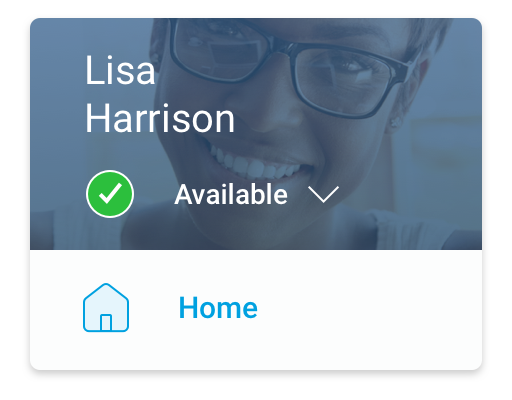
You can edit your profile at any time to change your name, avatar or your mobile number. The avatar, which is the icon or image that displays with your profile, defaults to a randomly assigned colored circle that displays your initials and is visible to all MiVoice Office app users. To learn more, see Upload Your Avatar.
Follow the instructions specific to your type of mobile phone.
- For iPhone
- To access your profile panel, do either of the following:
- From the header bar in the Home screen, tap your avatar.
- Tap the
 icon at the bottom-right of the navigation bar and then tap on your name or avatar at the top of the Settings screen.
- To change your name or avatar:
- Click the
 icon at the top-right of the profile panel.
 - Edit your name in the Name field.
- Tap your profile avatar and follow the prompts. For help, see Upload Your Avatar.
- Click save at the top-right of the profile panel to save the changes, or click the
 icon at the top-left of the profile panel to discard the changes and to navigate away from the profile panel.
- Click the
- To change your mobile number:
- Click the
 icon displayed beside the mobile number. A panel opens.
 - In the Change Mobile number field, select your resident country by using the drop-down arrow and enter your new mobile number. Tap save. You will be logged out of the MiVoice Office application and the Login screen appears.
- Tap Login. The Mitel user login page is displayed.
- Enter your name and account number (if prompted). Click Next.
- Enter your password and click Next.
- Verify your new mobile number and click Submit. A text message containing a 6-digit code number is sent to the mobile number.
- Enter this code number and click Confirm to update your mobile number. If you do not receive a text message containing the code number, click Resend. If you have entered an incorrect number, click Edit to edit the mobile number.
- Click the
- To access your profile panel, do either of the following:
- For Android
- To access your profile panel, from the header bar at the top of the app, tap the navigation menu
 and tap your name or tap Settings.
 - To change your name or avatar:
- Click the icon at the top-right of the profile panel.
- Edit your name in the Name field.
- Tap your profile avatar and follow the prompts. For help, see Upload Your Avatar.
- Click save at the top-right of the profile panel to save the changes, or click the icon at the top-left of the profile panel to discard the changes and to navigate away from the profile panel.
- Click the
- To change your mobile number:
- Click the icon displayed beside the mobile number. A panel opens.
- In the Change Mobile number field, select your resident country by using the drop-down arrow and enter your new mobile number. Tap save. You will be logged out of the MiVoice Office application and the Login screen appears.
- Tap Login. The Mitel user login page is displayed.
- Enter your name and account number (if prompted). Click Next.
- Verify your new mobile number and click Submit. A text message containing a 6-digit code number is sent to the mobile number.
- Enter this code number and click Confirm to update your mobile number. If you do not receive a text message containing the code number, click Resend. Click Edit to edit the mobile number you entered.
- Click the
- To access your profile panel, from the header bar at the top of the app, tap the navigation menu
Note: You cannot change the mobile phone number or email address entered when you registered your OfficeLink app.