Resetting MiCollab Client password
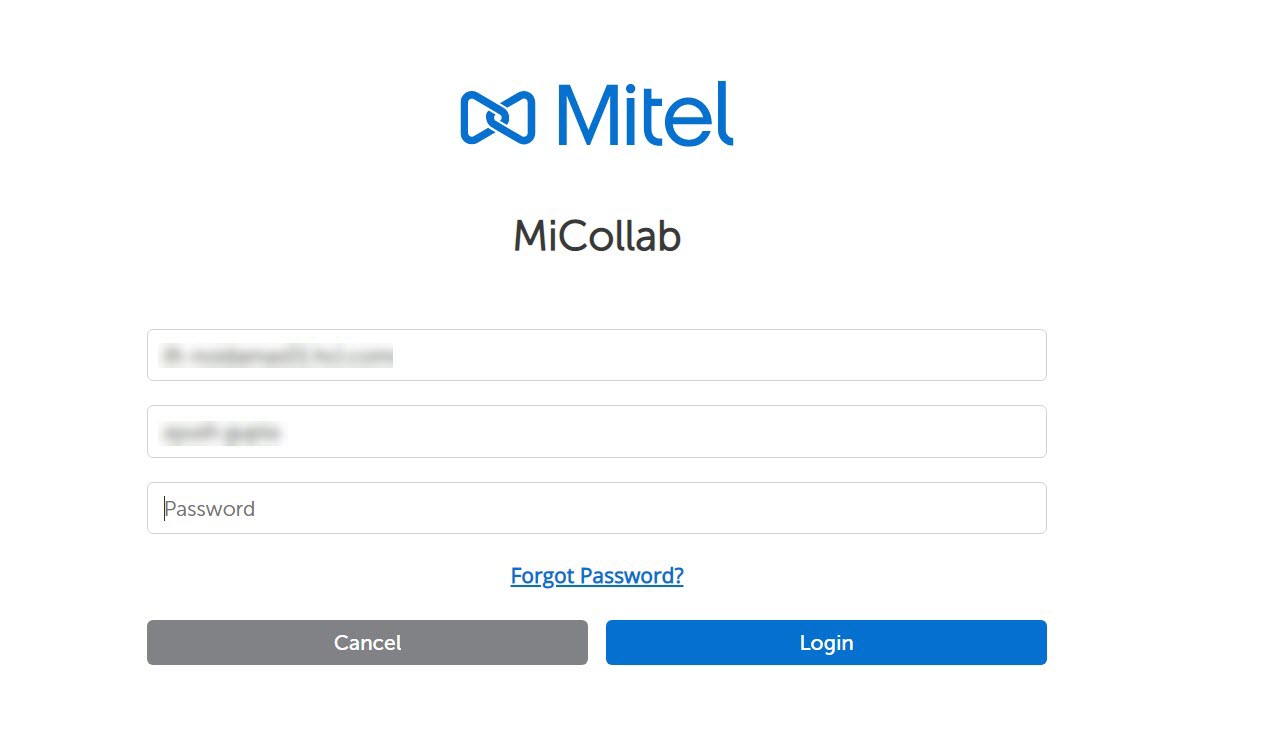
- log out of MiCollab Client and reset the password on the Login screen using Forgot Password? option.
- reset the password on the Change Password prompt using Forgot Current Password option.
- Click the Forgot Password? option on the Login Screen.
A pop-up screen notification appears for you to confirm resetting your password.
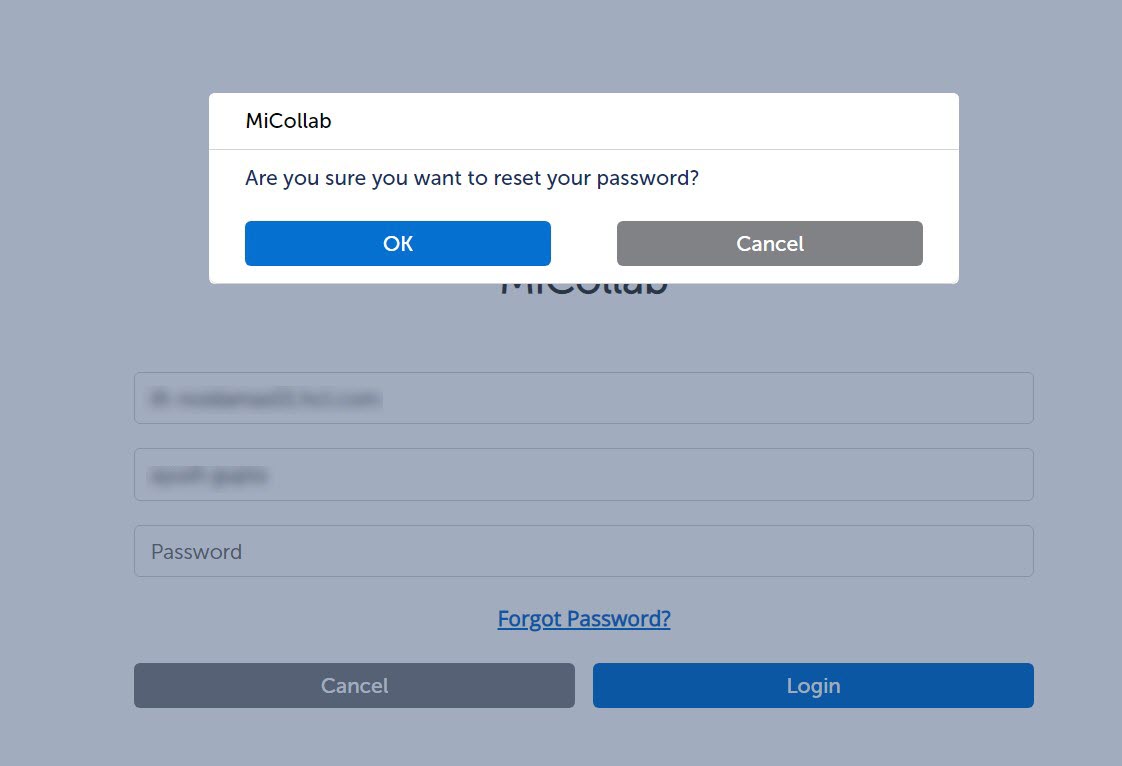
- Click OK to proceed. A temporary password will be sent to your e-mail address and MiCollab Client will be logged off.
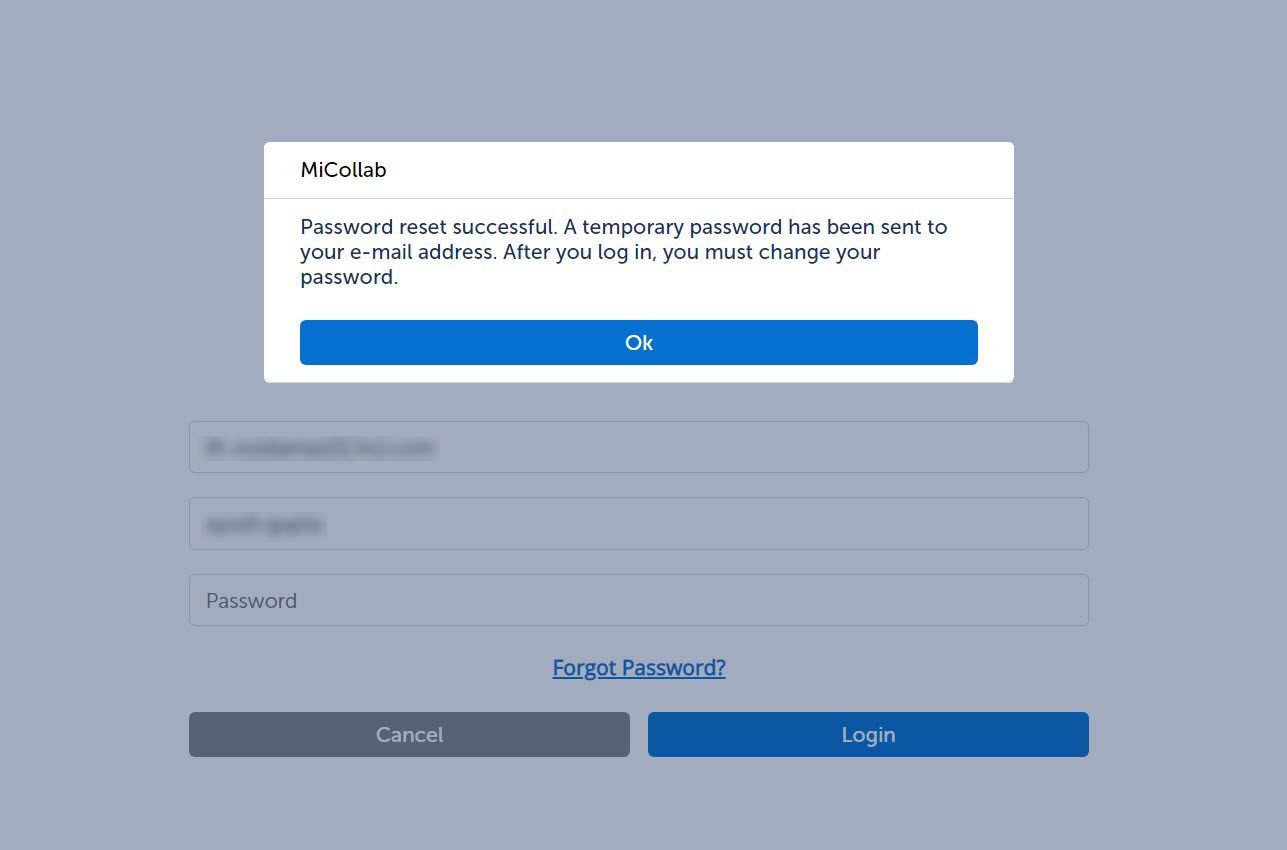
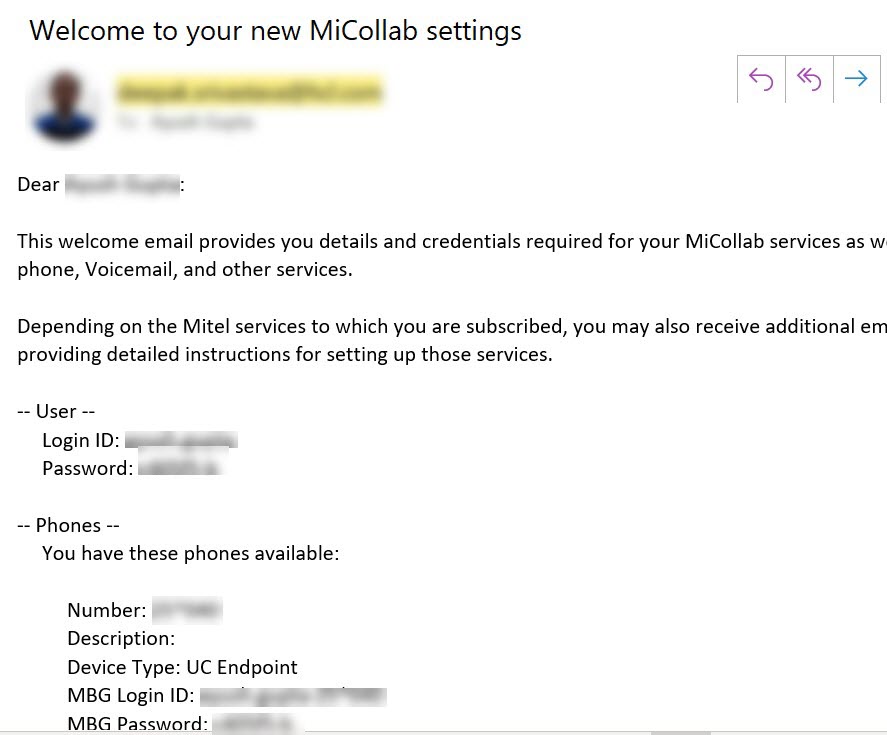
- Use the temporary password to log in to MiCollab Client. After you log in, you must change your password.
Refer to the Changing MiCollab Client password section.
- Enter the temporary password and the new password in the Change Password screen. Ensure that the new password is compatible with the Password Requirements mentioned in the same screen.
- Click Save.Note:
When you click Forgot Password? option for the first time, a pop-up notification displays prompting you to change your password. Subsequent forgot password requests will not force you to change your password after you have logged into the Client.
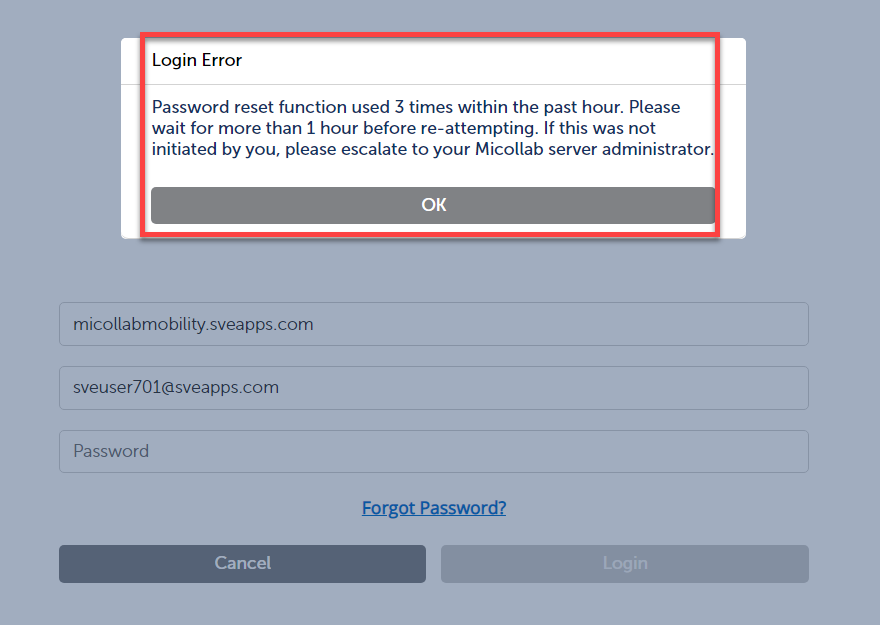
Note:If you attempt to click the Forgot Password? option more than three times within an hour, the option to reset your password will be locked for a duration of one hour. After three attempts, clicking the Forgot Password? option will display the following message:
- When the user logs in to MiCollab Client, the Change Password prompt appears.

- From the Change Password prompt, click on Forgot Current Password.
A pop-up screen notification appears for you to confirm resetting your password.
- Click OK to proceed.
A temporary password will be sent to your e-mail address and MiCollab Client will be logged off.
Note: If the Reset Password on Login option is enabled from MiCollab server, then upon the Client restart, the MiCollab Client users will see the Change Password prompt when they start MiCollab Client again. - Use the temporary password to log in to MiCollab Client. After you log in, the Change Password prompt will be displayed.
- Enter the temporary password and the new password in the Change Password prompt. Ensure that the new password is compatible with the Password Requirements mentioned in the same prompt.
- Click Save.