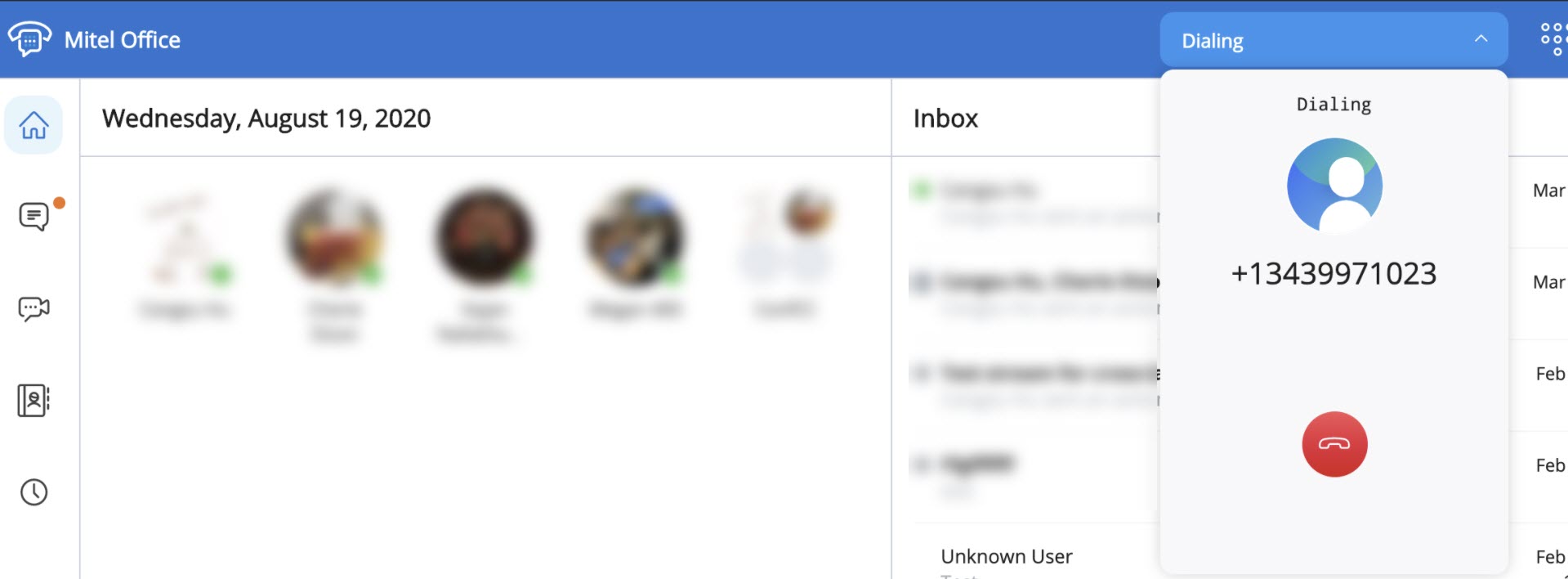
The Click to Dial feature of the MiVoice Office Web Application allows you to dial numbers available in your browser. You can call the phone number of your contacts or any other phone number available in websites, documents, and calendar invitations.
Pre-requisites
You must set the following prerequisites before you can use this feature:
- Set your preferred browser as the default calling app (TEL URL) in your device.
Note: If you want the MiVoice Office Web Application Progressive Web Application (the MiVoice Office Web Application PWA) to be used to place a call when you use the Click to Dial feature, you must set Google Chrome or Microsoft Edge as the default calling app. This is because MiVoice Office Web Application PWA is supported only on these browsers.
The option to change the default app for calling is specific to the operating system in which you have deployed the extension. Click the following links for instructions on changing the default calling app specific to your operating system.
Restart your browser for the new configuration to become active.
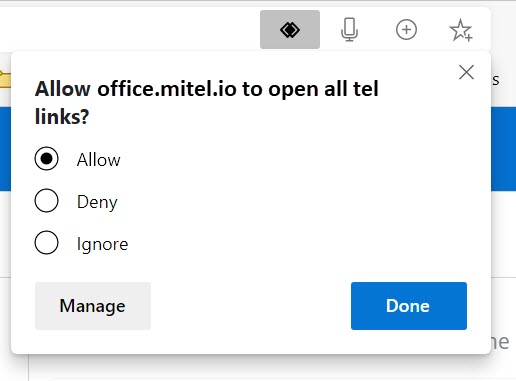
- You must grant permission for the MiVoice Office Web Application to be the default handler to place calls to all the telephonic links in your browser. To do this, perform the following steps:
- In the address bar of your browser, click the
 icon. In the Allow office.mitel.io to open all tel links? prompt dialog box that opens, select the Allow option and click Done. If you choose to Deny or Ignore this prompt, you will not be able to use the Click to Dial feature.
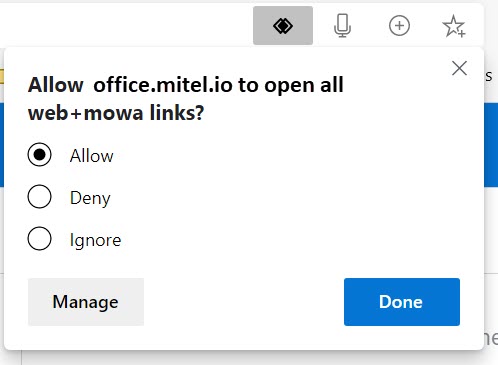
- In the Allow office.mitel.io to open all web+mowa links? prompt dialog box that opens, select the Allow option and click Done. If you choose to Deny or Ignore this prompt, you will not be able to use the Click to Dial feature.
Note: Refresh your browser if the browser does not present this prompt message.
You can now use the Click to Dial feature to call the phone numbers in your browser.
To change the handler permission settings, follow instructions specific to your browser.
- Google Chrome: Menu > Settings > Privacy and security > Site settings > Additional permissions > Handlers
- Microsoft Edge: Menu > Settings > Site permissions > Handlers
- Mozilla Firefox: Menu > Options > General > Applications
- In the address bar of your browser, click the
Supported Phone Number Formats
The following table lists the phone number formats supported with the Click to Dial feature in MiVoice Office Web Application.
| Format | Examples |
|---|---|
|
Phone number in INTERNATIONAL format |
+1 213 373 4253 |
|
Phone number in E.164 format |
+12133734253 |
|
Phone number in RFC3966 format |
tel:+12133734253;ext=123 |
|
US Phone number in NATIONAL format |
(213) 373-4253 |
|
Note: Phone numbers in NATIONAL format is not supported for countries other than the US.
|
|
Using the Click to Dial feature
This section describes how to use the Click to Dial feature on the MiVoice Office Web Application.
- From the phone numbers available in websites, documents, or calendar invitations click the phone number to which you want to place a call.
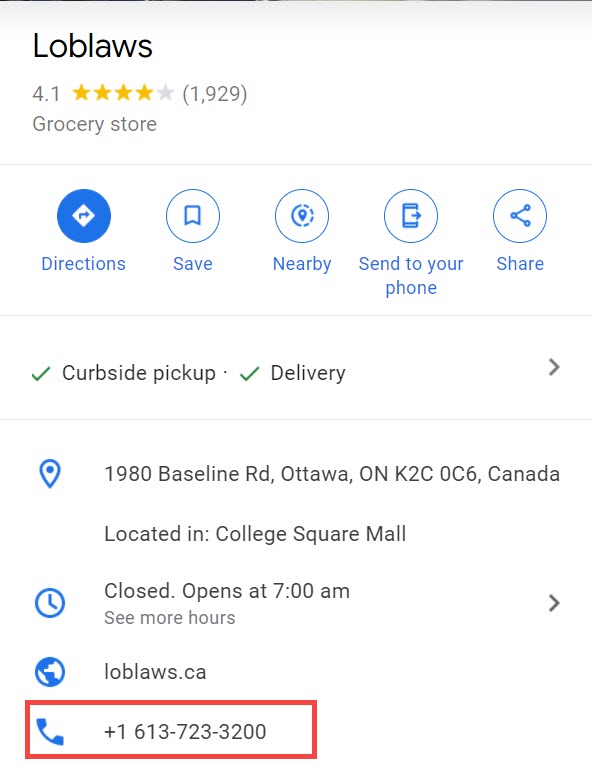
Alternately, type tel:xxxxxxxx (phone number) in the address bar of your browser and press ENTER to dial the telephone number.
 Note:
Note:- When you dial a number, a country code is added to it as a prefix by default. The country code depends on the default language set in your browser. For example: If the default language of your browser is set to English (United States), when you dial 345xxxxxxx, the country code of UK (+1) will automatically be added to the number and the application will dial +1345xxxxxxx.
- Google Chrome users in Belgium do not get the correct country code prefix (+32) when they use the Click to Dial feature. Click HERE for more information.
- A confirmatory prompt Make call to xxxxx (phone number) is displayed. Click the prompt to launch the call.
For Mac

For Windows

- The call is placed to the phone number using one of the following options depending upon the Call using settings enabled in your MiVoice Office Web Application.
- If Call using is set to Computer audio, the MiVoice Office PWA, if installed opens, and if MiVoice Office PWA is not installed, the MiVoice Office Web Application opens in a new tab in your browser and places the call.
- If the Call using is set to Deskphone, the call will be placed using your deskphone.
An in-call window is displayed with the caller's name, telephone number, and picture (if available).