Before you can log in to the Mitel MiVoice Office application, you must register your information with Mitel and build an account. Perform the following steps to register your account.
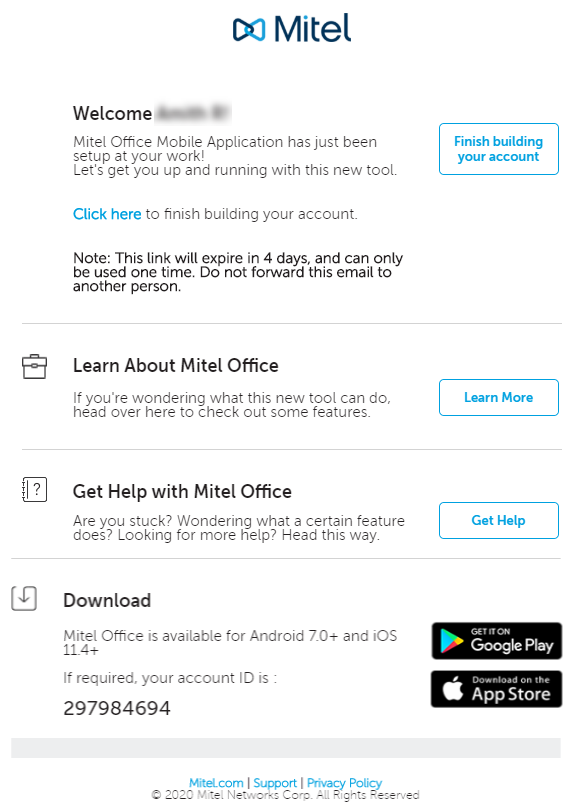
- Ensure that you have received an e-mail bearing the subject line ‘Welcome to Mitel Office Mobile Application’ from no-reply@mitel.io. This is a verification e-mail sent to you when the Mitel Partner selects you as a user while deploying the Mitel MiVoice app. If you do not find this e-mail in your mailbox, check your Junk or Spam folders for recent e-mails sent to you from no-reply@mitel.io
Note: The link provided in the welcome email will expire after 4 days and can be used only once..
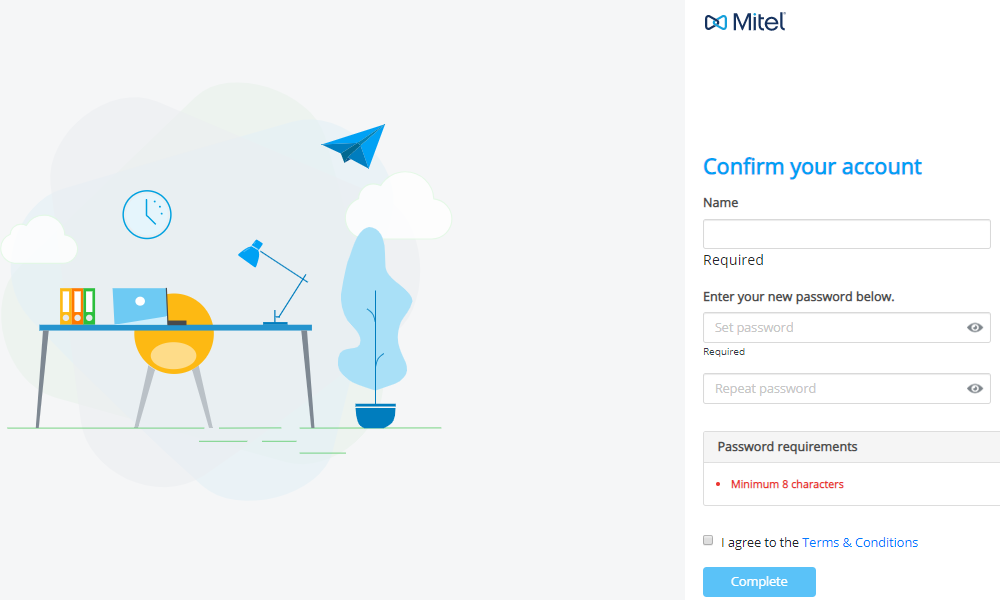
- The verification e-mail includes a Finish building your account button. Pressing this button takes you to the Mitel user confirmation page, where you must provide some details to complete the account registration process.
- In the Name field, enter your display name for MiVoice Office application. Create a new password for the MiVoice Office application and click Complete after accepting the terms and conditions to complete the account registration process..
The following screen displays on successful registration of your account.
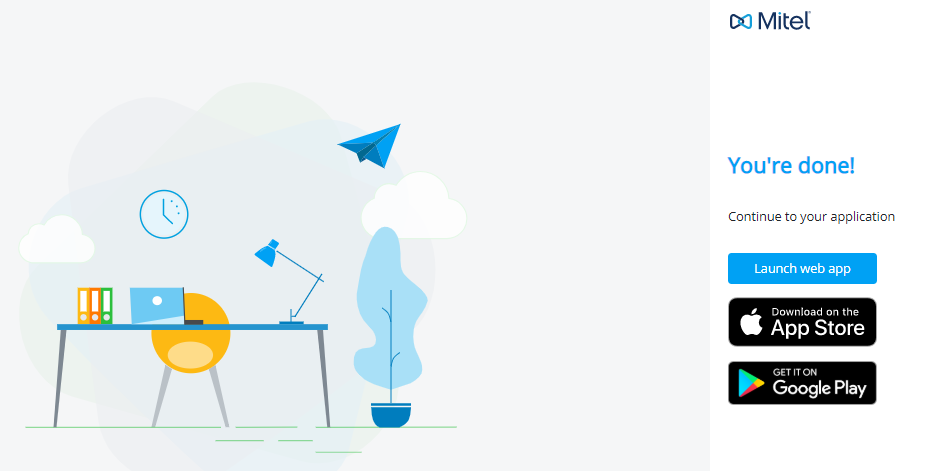
Click Launch web app to access the MiVoice Office Web Application. To download and install the MiVoice Office app, iPhone users can click here for the App Store and Android phone users can click here for the Google Play Store. You can also open the App Store or Play Store app on your phone and search for "Mitel MiVoice Office."
Note: When you are ready to start using your app, see Tour of the Home Screen to learn how to best utilize the available features.