Create a flow
This topic provides step-by-step instructions for creating a new workflow. Follow the training videos in the Dashboard section to create a new workflow.
- On the Workflow Studio home page, click Flows.
The Flows page is displayed.
- On the Flows page, click Create flow.The Create flow page is displayed.Figure 1. Create flow
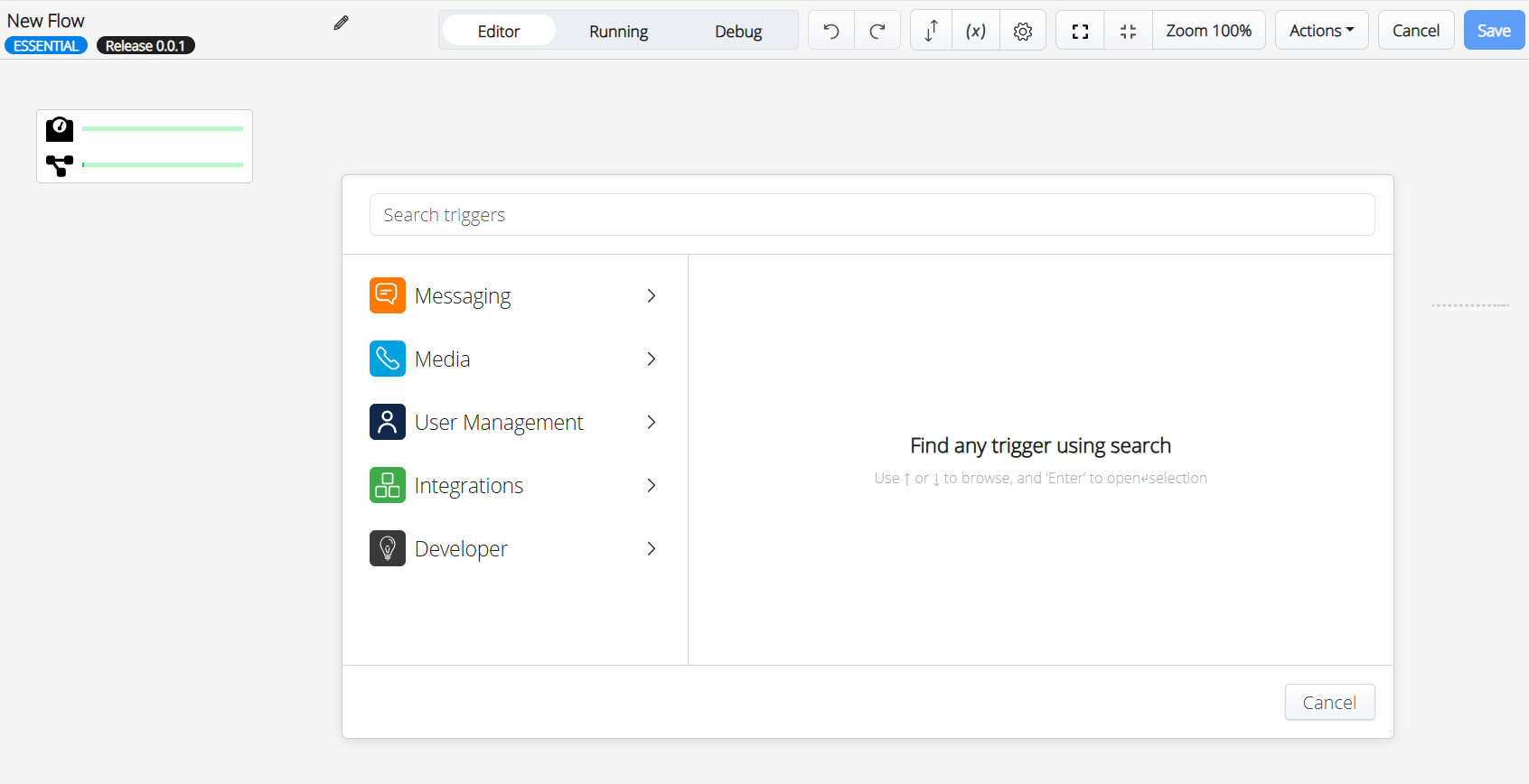
- Enter the trigger name in Search activities or select the trigger under the trigger types.Figure 2. Add Trigger
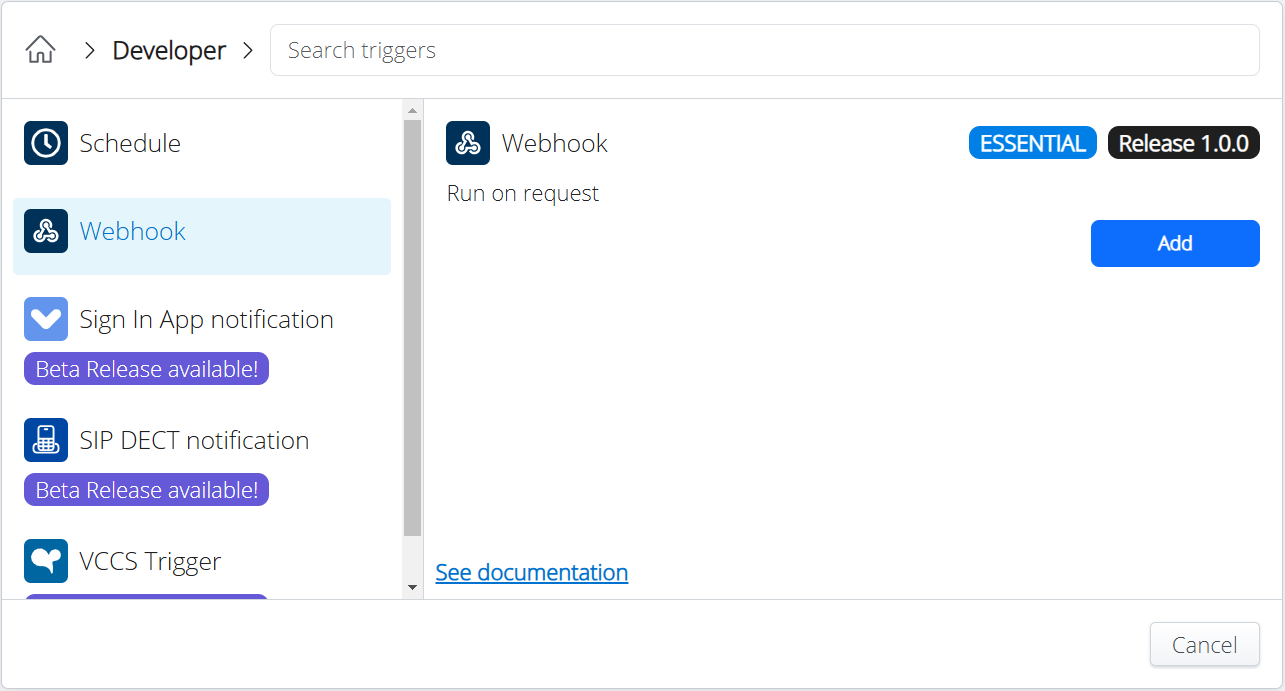
- Click Add.The Trigger Parameters – Advanced screen is displayed.Figure 3. Trigger Parameters - Advanced
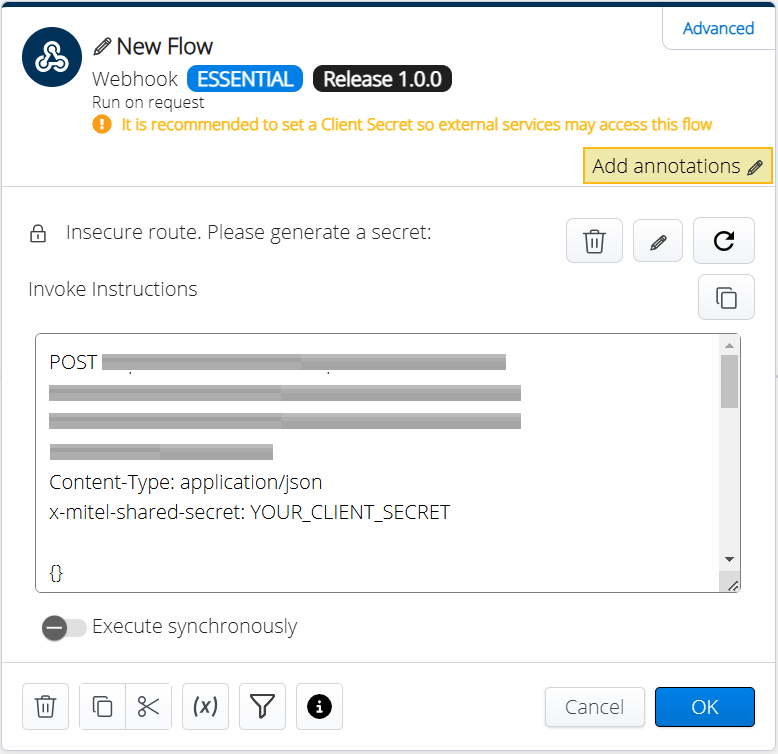
- Enter the required parameters in the Trigger Parameters – Advanced.
- Click Advanced.The Trigger Parameters – Classic screen is displayed.Figure 4. Trigger Parameters – Classic
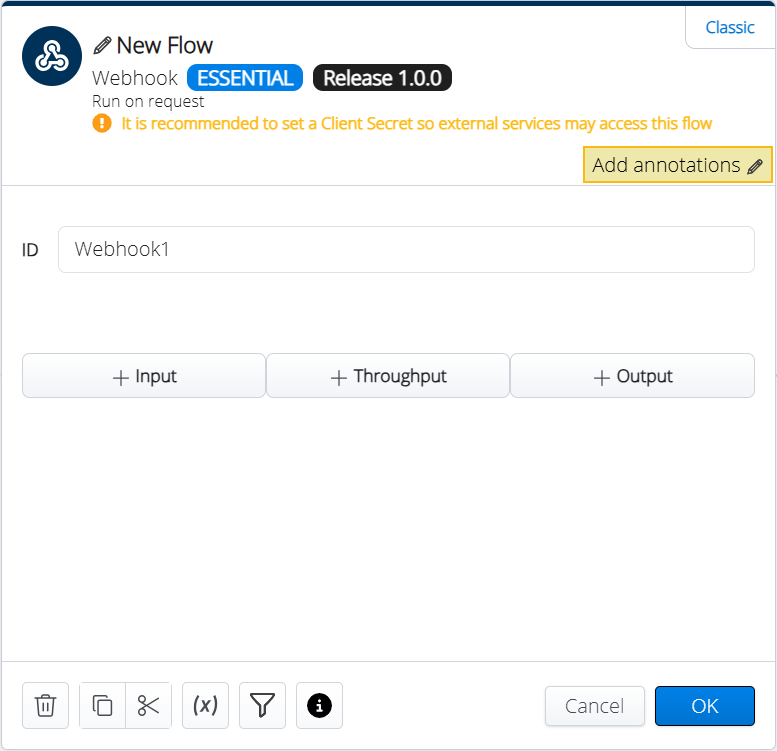
- Provide the following details in the Trigger Parameters – Classic screen.
- ID
- Input
- Throughput
- Output
- Click OK.
The Trigger is added to the flow.
- Click
 icon to add the next activity to the flow.The Search Activities wheel is displayed.Figure 5. Search Activities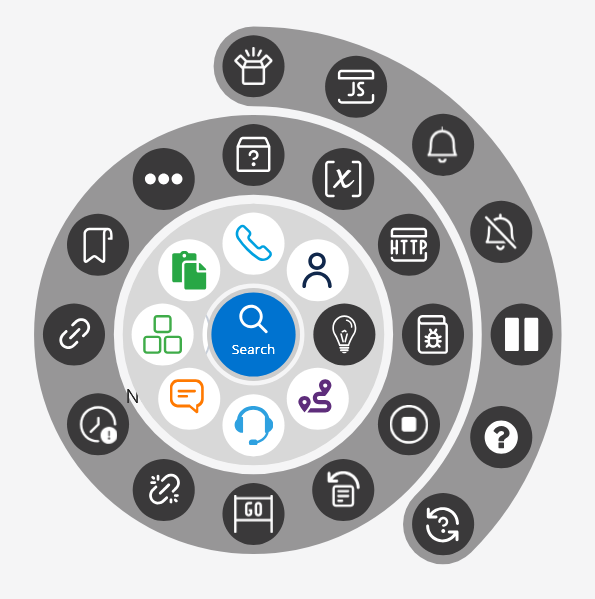
- Search and select the required activity from the wheel.
The Activity Parameters screen is displayed.
Figure 6. Activity Parameters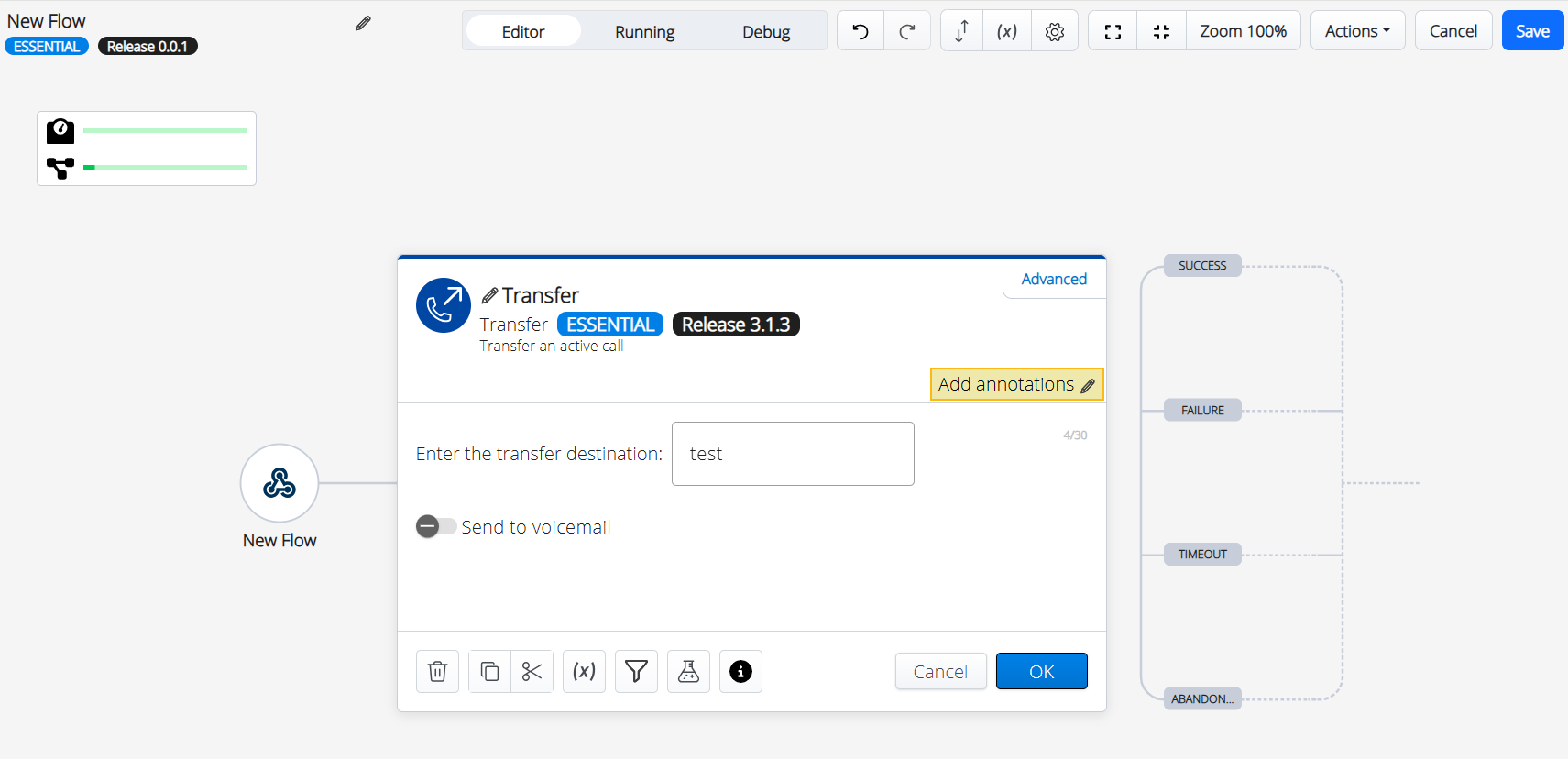
- Provide the required details in the Activity Parameters screen.
- Click OK.
- Follow the above steps to add all the required activities for the flow.The Completed flow screen is displayed with the trigger and all the required actions.Figure 7. Completed flow
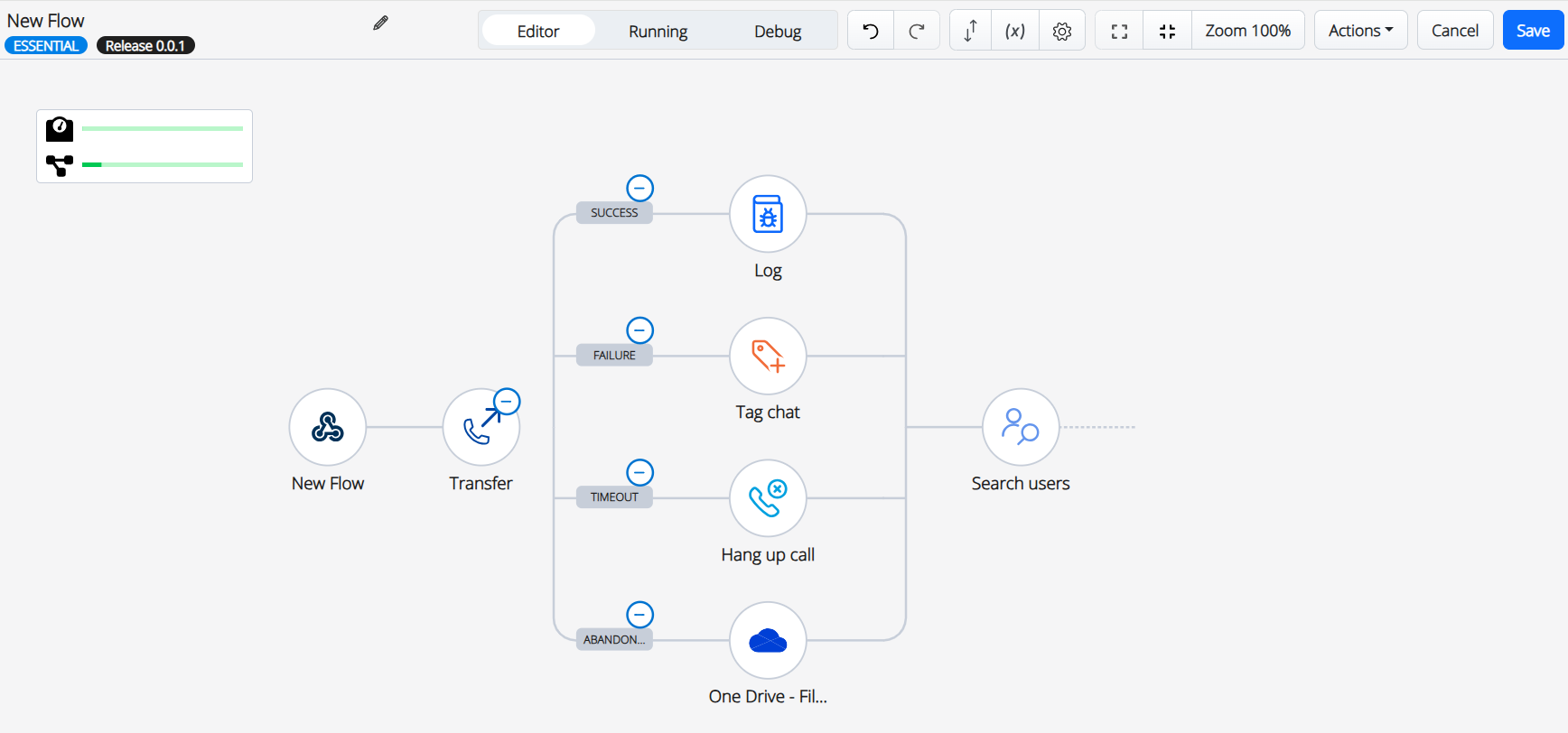
- Click Save.
The new flow is created with the provided details.
↑