Create a trigger
This topic provides step-by-step instructions for creating a new trigger.
- On the Workflow Studio home page, under Library, click Triggers.
The Triggers page is displayed.
On the Triggers page, click Create trigger.
The Create trigger page is displayed.
Figure 1. Create trigger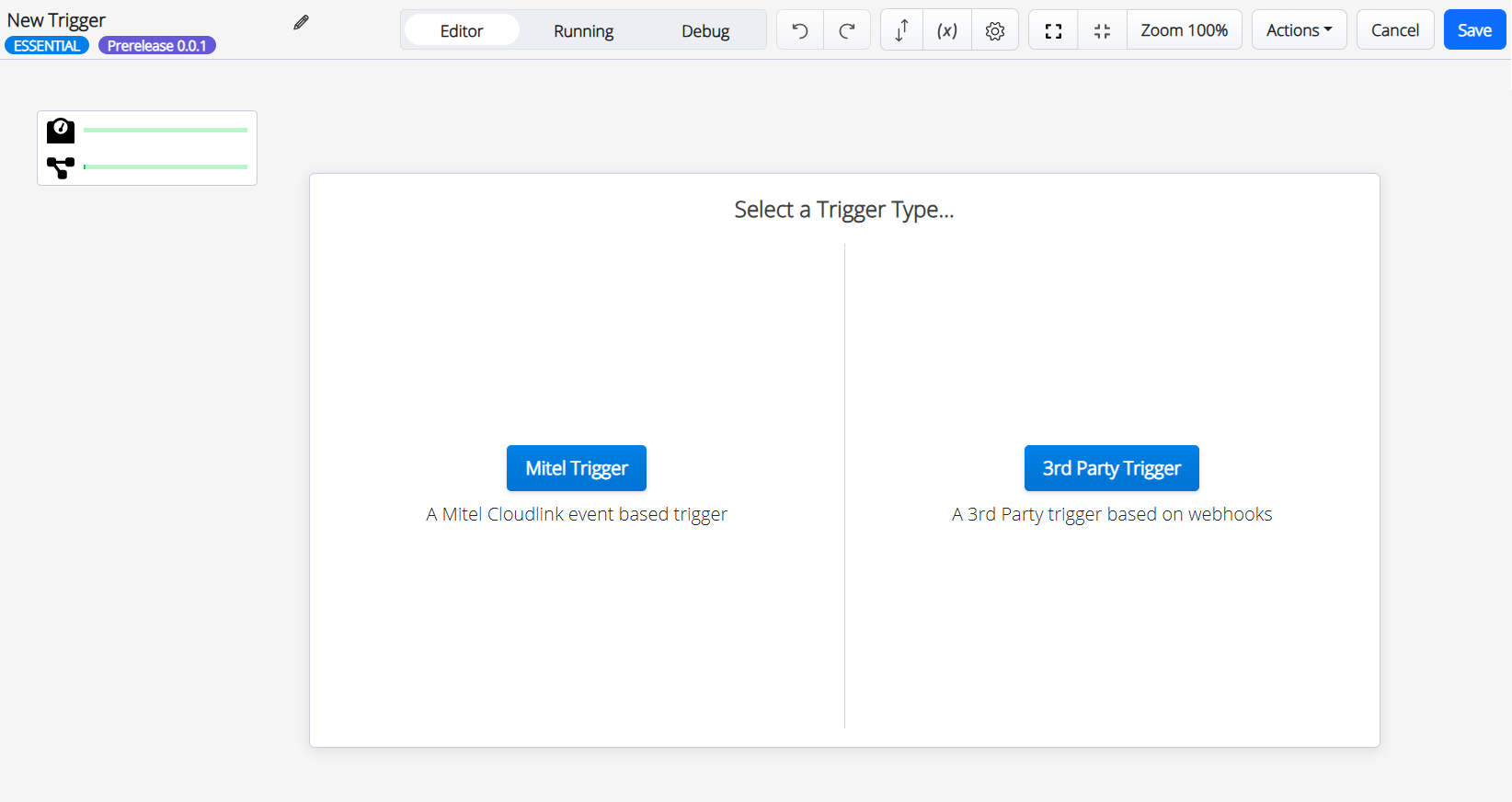
- Select the type of trigger from the following options:
- Mitel Trigger – will trigger based on a Mitel CloudLink event.
- 3rd Party Trigger – will trigger based on an event from a third-party application.
The Trigger Parameters screen is displayed based on the selected trigger type.
Figure 2. Trigger Parameters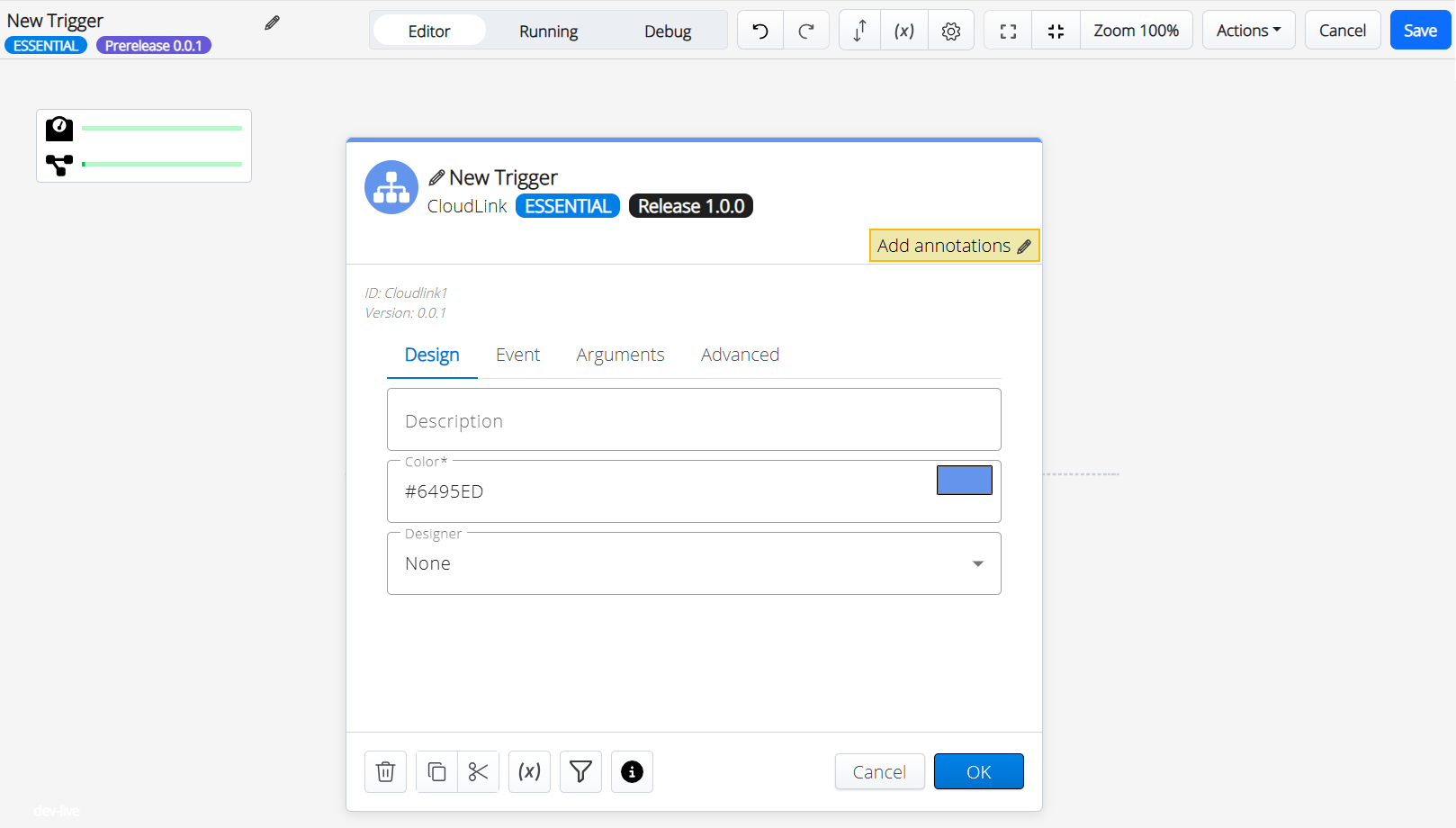
- Enter the required parameters in the Trigger Parameters screen.
- Click OK.
The Trigger is added to the Workflow Canvas.
- Click
 icon to add the next activity to the trigger.
The Search Activities wheel is displayed.
Figure 3. Search Activities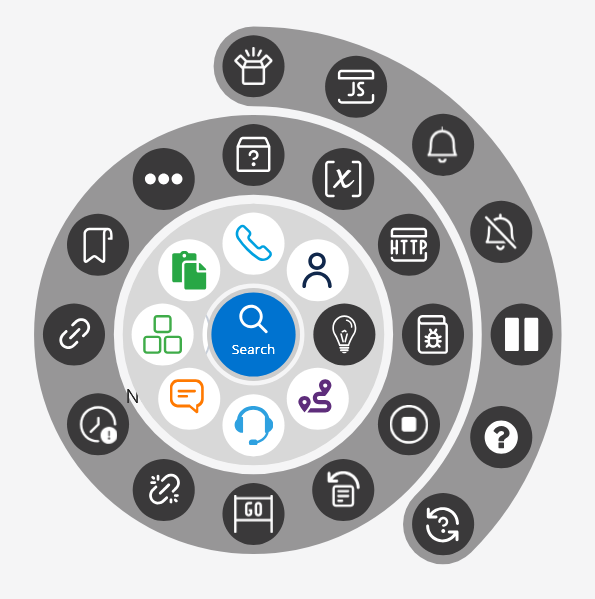
- Search and select the required activity from the wheel.
The Activity Parameters screen is displayed.
Figure 4. Add Activity Parameters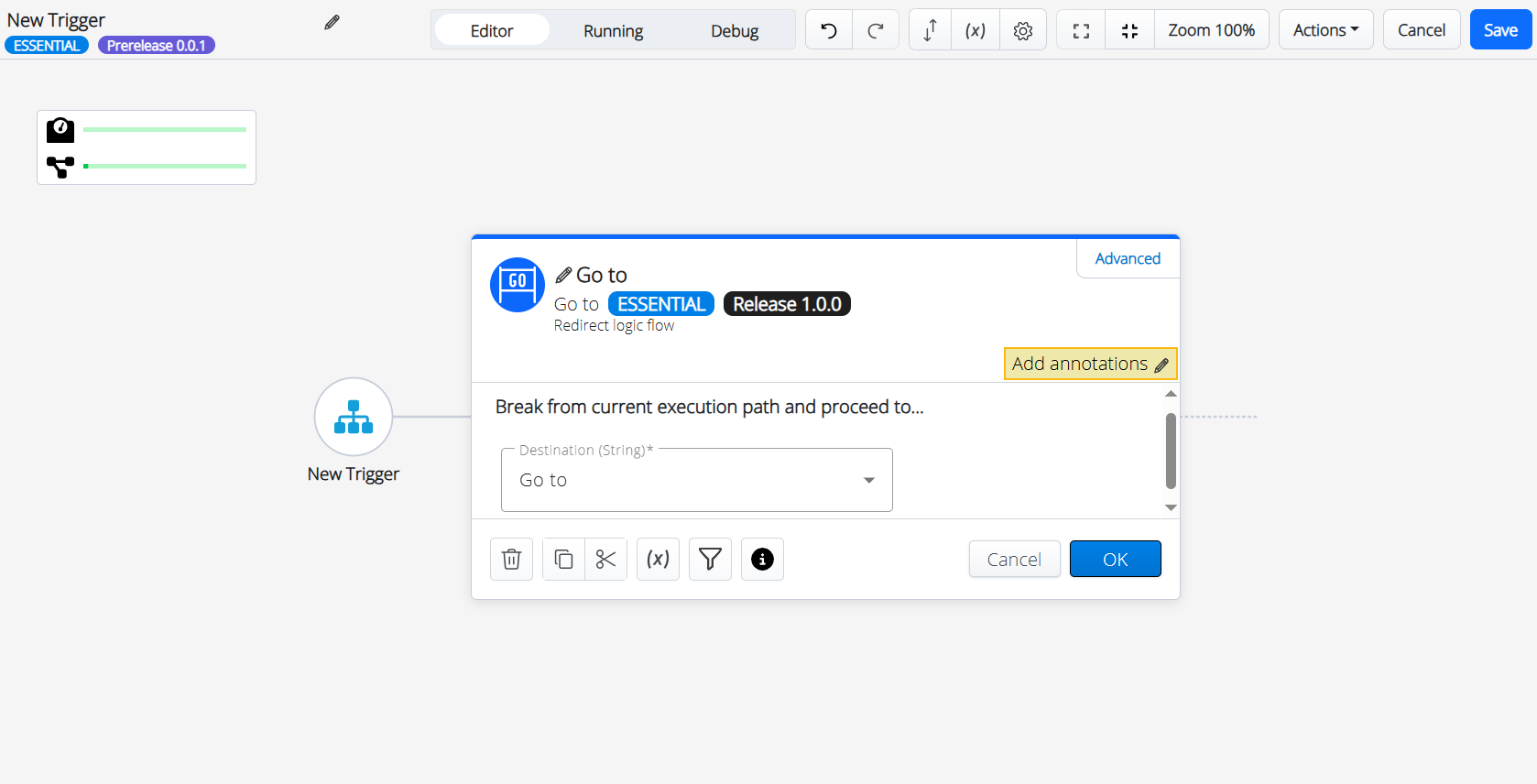
- Provide the required details in the Activity Parameters screen.
- Click OK.
- Follow the above steps to add all the required activities for the trigger.
The Completed Trigger screen is displayed with all the required activities.
- Click Save.
The new trigger is created with the provided details.
↑