Edit a flow
This topic provides step-by-step instructions for editing an existing workflow.
- On the Workflow Studio home page, click Flows.
The Flows page is displayed.
- On the Flows page, click the Edit (
 ) icon next to the existing workflow you want to modify.The Edit Flow page is displayed with the existing flow.Figure 1. Edit Flow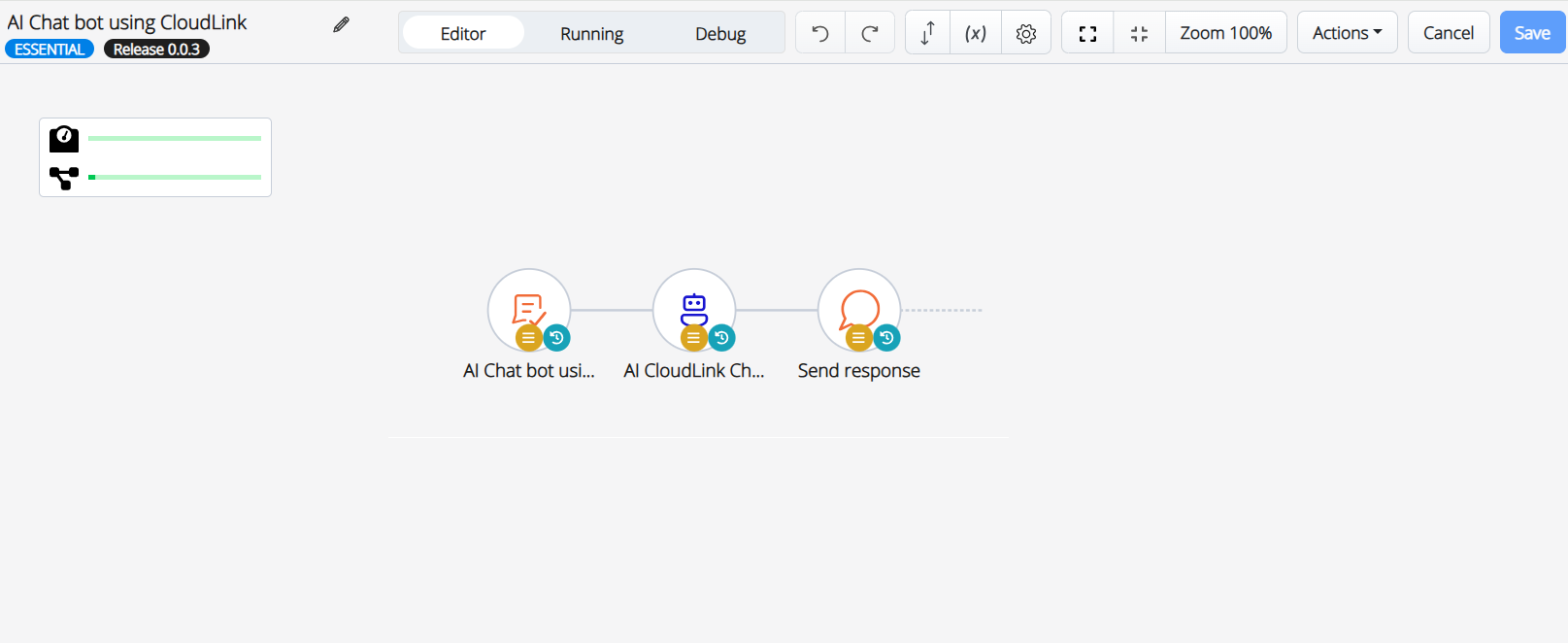
- Modify the workflow as required. Refer to the Create a Flow section for detailed instructions.
- Click Save.
The flow is modified.
↑