User Templates for MiVB
User Templates enable administrators to quickly create users using predefined configurations, helping to standardize user setup, reduce manual effort, and ensure consistency across the system.
Creating User Templates
To create a user template, follow these steps:
- Go to User Management > User Templates. The User Templates page
is displayed.
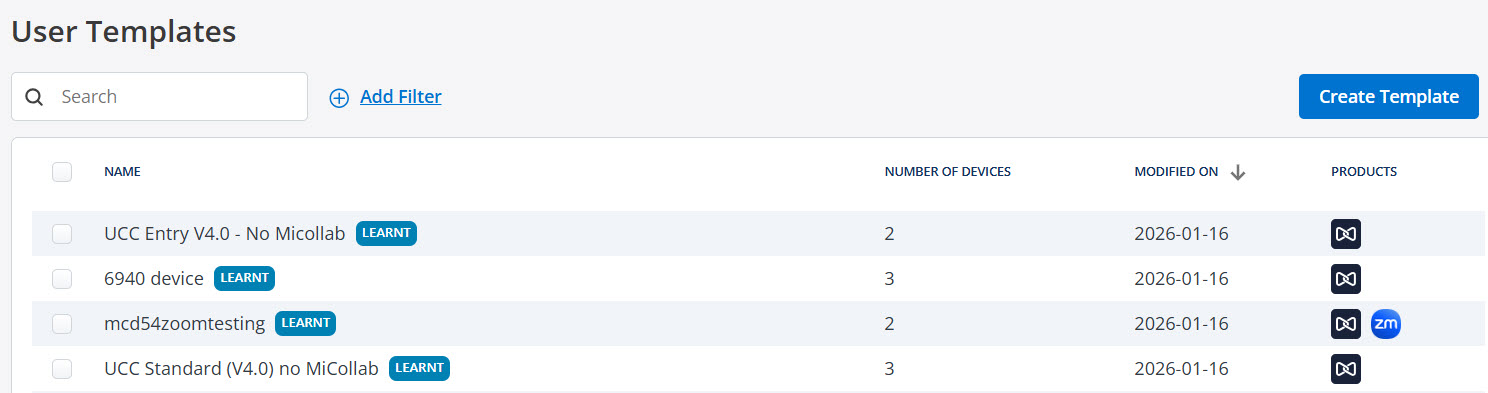
- Click Create Template. The Create User Template page is
displayed.
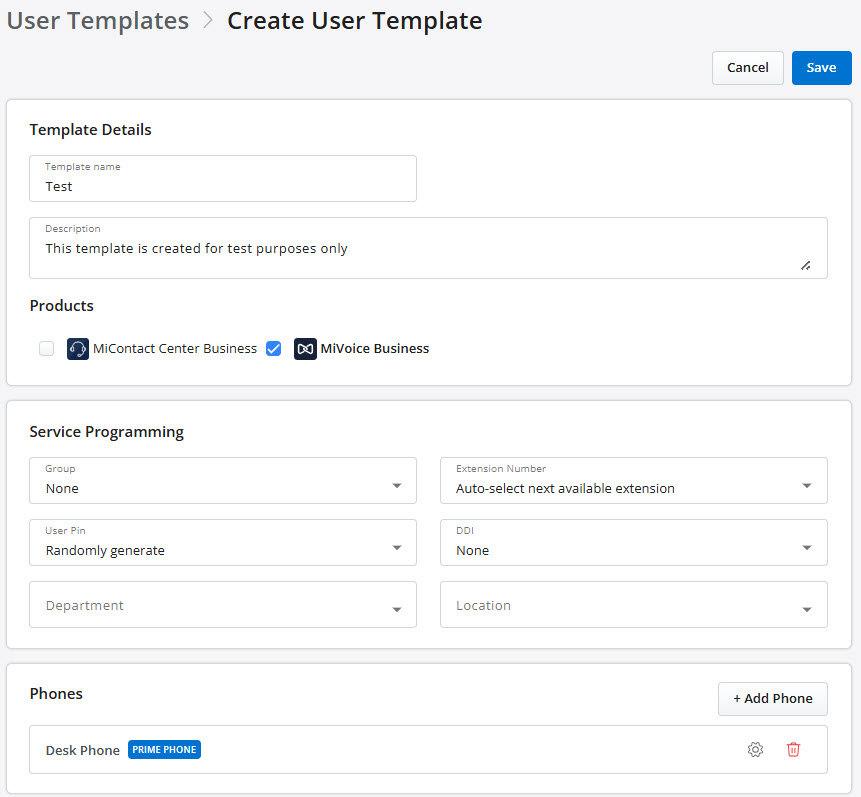
- Enter the Template name.
- Enter a Description for the template.
- In the Products section, enable MiVoice Business.
- In the Service Programming section, configure the required fields. For more information about service programming, see the Service Programming.
- In the Phones section, click Add Phone. The Select a phone window
is displayed.
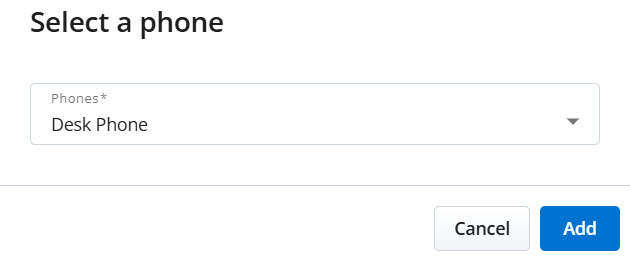
- From the Phones drop-down list, select the available phones.
- Click Add. The selected phone is added to the user template.Note: Call forwarding rules can be configured under the Phones section during user template creation. For more information, see the Call Forwarding Management.
- Click Save. The new user template is created for MiVoice Business
service.Note: To create a new template from an existing template, select the template you want to duplicate, make the required changes, enter a new template name, and then click Save as New.
Editing User Templates
To edit a user template, follow these steps:
- Go to User Management > User Templates. The User Templates page is displayed.
- Click the desired user template that you want to edit. The Specific User
Templates page is displayed.
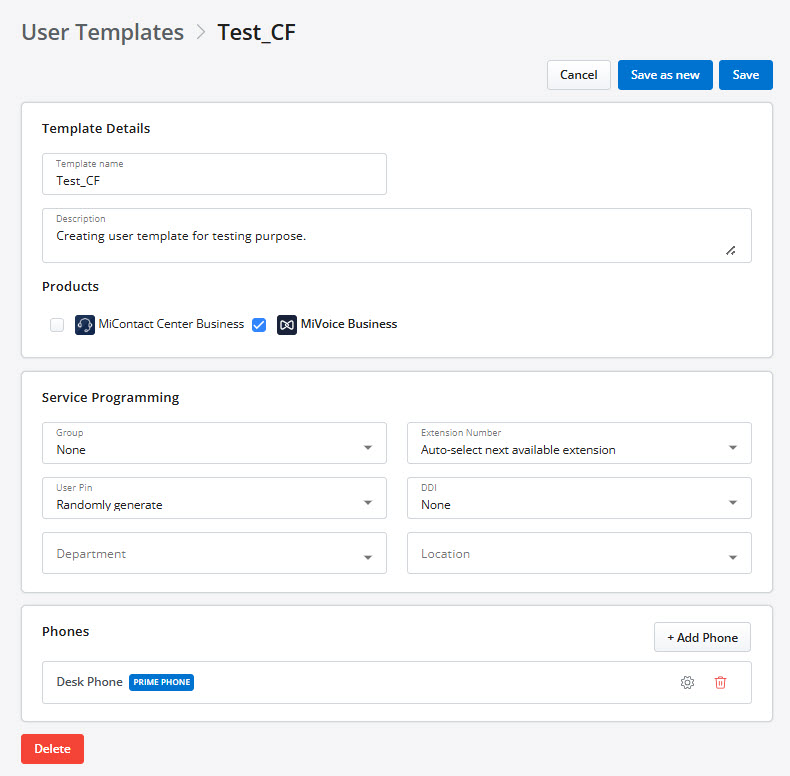
- Edit the required fields.
- Click Save to save the changes.Note: To edit or remove call forwarding on phones associated with the template, see the Edit Call Forwarding or Remove Call Forwarding.
Deleting User Templates
To delete a user template, follow these steps:
- Go to User Management > User Templates. The User Templates page is displayed.
- Click the desired user template that you want to delete. Th Specific User
Templates page is displayed.
- Click Delete. The Delete Template? dialog box is displayed.
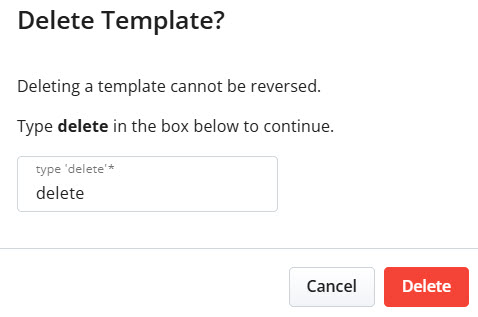
- Enter delete in the Type delete text box, and then click Delete.
The selected user template is deleted.Note: To delete multiple user templates, select the required templates, click the More options
 icon, and then click
Delete. When the Delete Templates? dialog box appears, type
delete and click Delete to confirm.
icon, and then click
Delete. When the Delete Templates? dialog box appears, type
delete and click Delete to confirm.
↑